1. How BluePrint auto-detects your Exhibit Index
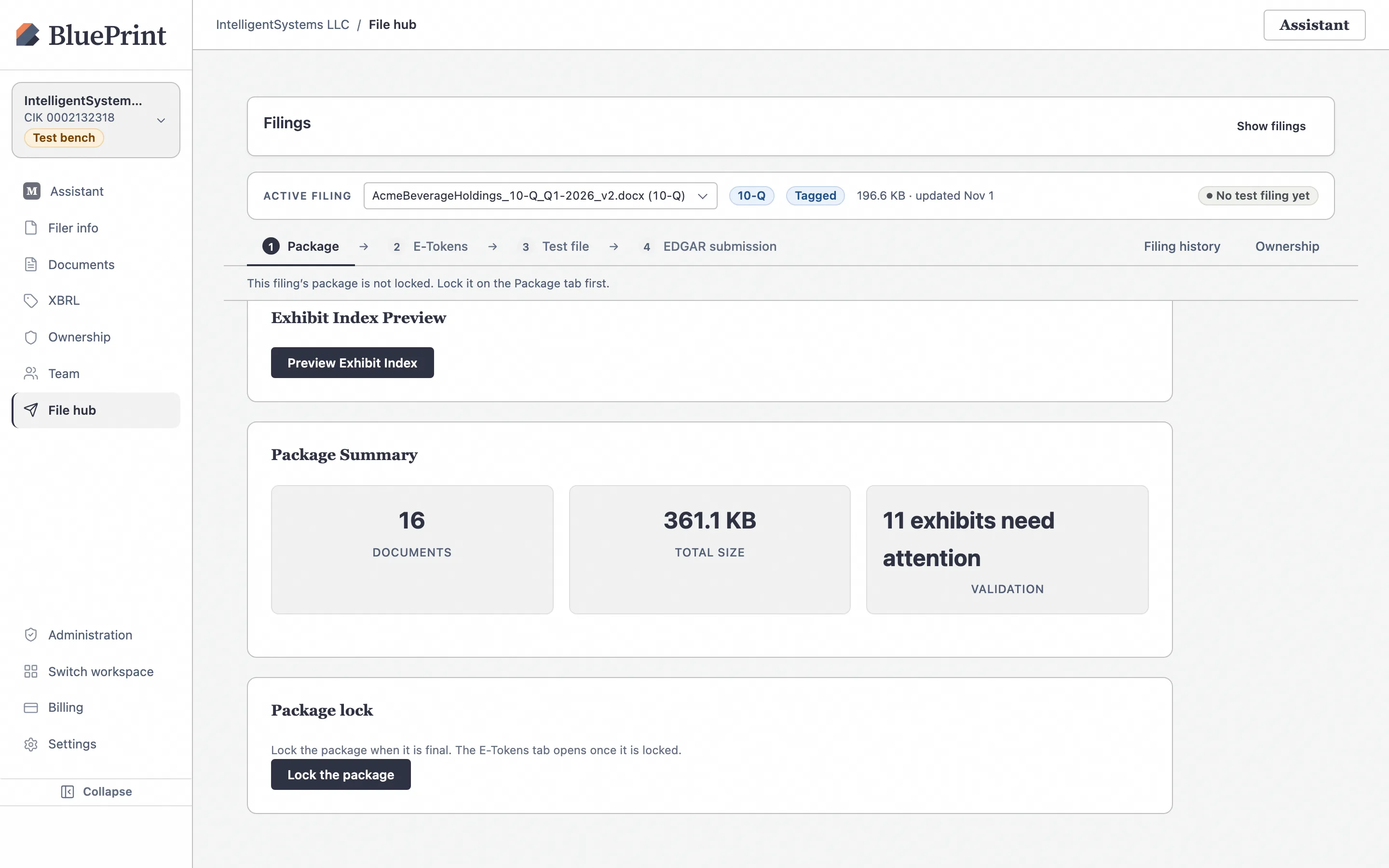
During Word-to-EDGAR conversion, BluePrint scans the Exhibit Index (Item 6 of Form 10-Q, Item 15 of Form 10-K, Item 9.01 of Form 8-K, or Part II of a registration statement) and creates a structured exhibit roster attached to the filing. You can manage this roster in two places that stay synchronized in real time:
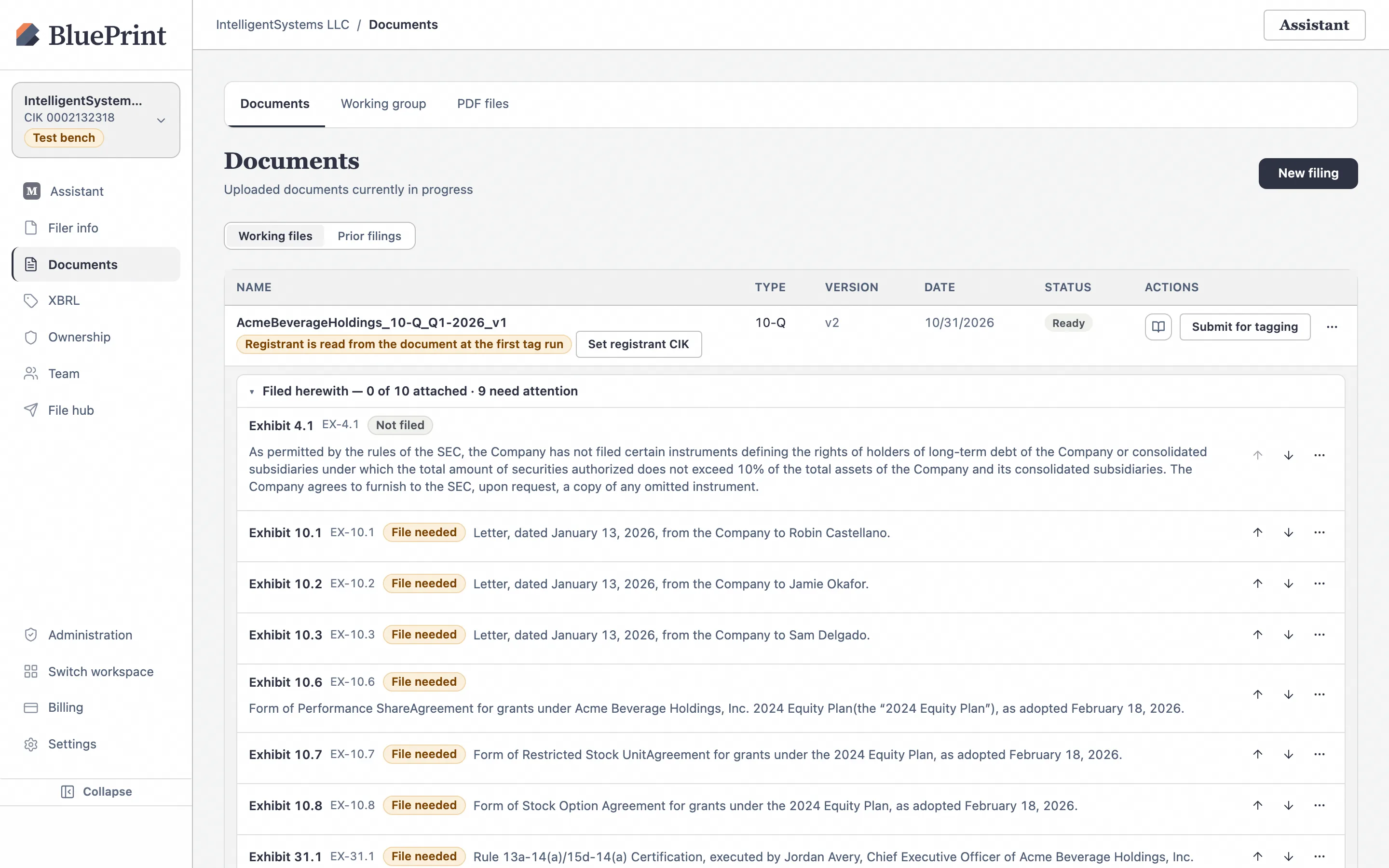
- On the Documents page: Directly underneath the primary filing row in your Working files table.
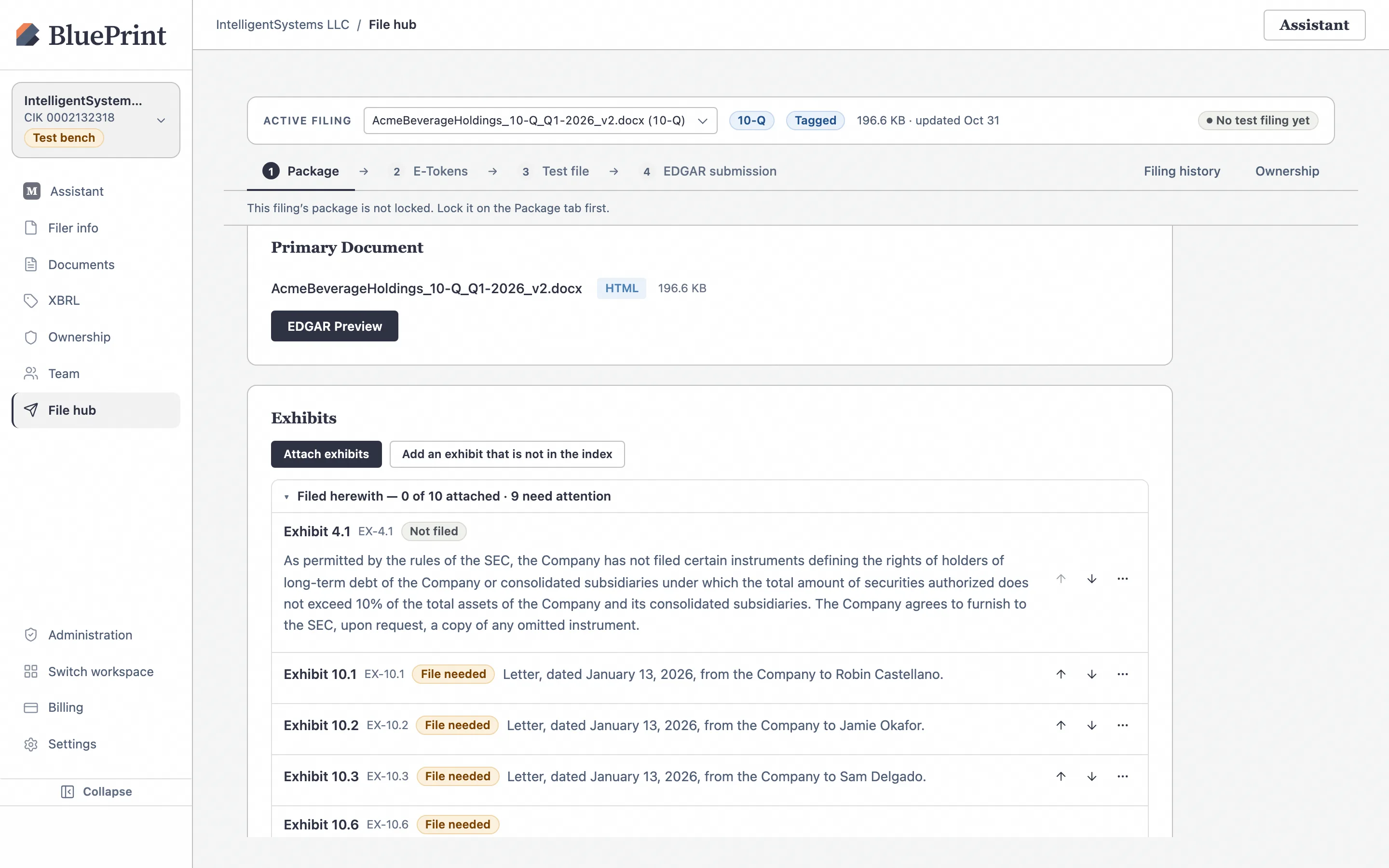
- In the File hub (1 Package tab): Inside the Exhibits card when preparing the submission package.
Inspect the parsed Exhibit Index rows
As soon as your filing converts, look beneath the filing row on Documents. The header summarizes how many Filed herewith exhibits are attached and how many still need attention (for example, Filed herewith — 0 of 10 attached · 9 need attention).
2. Understanding exhibit statuses: Filed herewith, Incorporated by reference & Not filed
BluePrint classifies every row in your Exhibit Index into one of three regulatory categories so that only exhibits requiring a physical payload block package lock:
| Badge / Group | What it means in BluePrint | Requires attached file? |
|---|---|---|
| Filed herewith File needed → Attached |
Exhibits marked “Filed herewith” (such as Rule 13a-14(a) / 15d-14(a) certifications EX-31.1, EX-31.2, Section 1350 certifications EX-32.1, new material contracts EX-10.*, or earnings releases EX-99.1). Shows File needed until you attach a file, then changes to Attached. | Yes. Every Filed herewith row must have an attached file before the File Hub allows you to lock the package. |
| Not filed (Omitted under SEC rules) Not filed |
Undertakings or omitted instruments permitted by SEC rules—for example, long-term debt instruments under Item 601(b)(4)(iii)(A) of Regulation S-K (Exhibit 4.1 EX-4.1) where total debt does not exceed 10% of total assets and the registrant agrees to furnish a copy to the SEC upon request. | No. BluePrint recognizes the undertaking text, badges the row Not filed, and excludes it from the “need attention” count. |
| Incorporated by reference Incorporated by reference |
Exhibits previously filed with the SEC (for example, Articles of Incorporation or prior equity plans) that cite a prior form, exhibit number, filing date, or file number. | No. Listed in the collapsible Incorporated by reference (N) group for verification; no file payload is transmitted. |
Verify Not filed and File needed badges
In the screenshot below from File hub › 1 Package, notice how Exhibit 4.1 EX-4.1 is automatically badged Not filed because its description states that the Company agrees to furnish the omitted long-term debt instrument to the SEC upon request, while Exhibit 10.1, Exhibit 10.2, and Exhibit 10.3 show File needed.
3. Attach files or link workspace documents (Attach exhibits)
You can attach all of your Filed herewith exhibits in a single batch using the Attach exhibits dialog.
Click Attach exhibits to stage files or workspace documents
Click Attach exhibits at the top of the Exhibits card (or click ⋯ › Attach file… on a single exhibit row). In the Attach exhibits dialog, you have two ways to add files:
- Drop or browse files from your computer: Drag and drop one or more files (
.htm,.html,.pdf,.txt,.xml,.jpg,.gif, or.docx). If you drop a.docxfile, BluePrint automatically EDGARizes it into clean EDGAR HTML before attaching it to the exhibit slot. - Click Pick from Documents: Select a document you have already uploaded and converted in your workspace (for example, an EDGARized press release for EX-99.1 or a subsidiary list for EX-21.1).
Confirm the exhibit assignment and click Attach
When you stage files, BluePrint automatically matches each filename (such as ex31-1.htm or ex10-1-castellano.htm) to its corresponding Exhibit 31.1 or Exhibit 10.1 slot. You can adjust any row’s dropdown assignment, see if a file will replace an existing attachment (Will replace current file), and click Attach N exhibits.
4. Add an exhibit that is not in the index
If your filing requires an exhibit that is not listed as a separate row in the document’s printed Exhibit Index (or if you are building an 8-K or 6-K package where an exhibit was added late), use the unlisted exhibit flow:
Click Add an exhibit that is not in the index
Click Add an exhibit that is not in the index next to the Attach exhibits button. In the dialog:
- Enter the Exhibit number (for example,
99.1,23.1, or107). BluePrint automatically formats the EDGAR document type (such asEX-99.1orEX-23.1). - Enter a short Description for the submission header.
- Choose the source file (From computer or From workspace) and click Attach exhibit.
The new exhibit appears in the Filed herewith list with an Added (not in index) badge and an Attached status pill.
5. Reorder, replace, or withdraw an exhibit
Every exhibit row in the Filed herewith list includes inline controls on the right side of the row:
- Reorder (↑ / ↓): Click the up or down arrow buttons to change the sequence in which exhibits appear in the EDGAR submission package.
- Preview (⋯ › View): Open the attached exhibit in a preview modal to verify its converted HTML or PDF rendering before locking the package.
- Replace file (⋯ › Replace file…): Swap in an updated version of an exhibit (for example, a re-signed CEO/CFO certification) without deleting the exhibit row.
- Withdraw attached file (⋯ › Remove file): Detaches the file and returns an index-detected exhibit row to File needed, or removes an unlisted exhibit row completely.
- Change filing status (⋯ › Mark as incorporated by reference / Mark as not filed / Mark as filed herewith): Reclassify an exhibit row if the parser’s initial classification needs adjustment.
6. Verify exhibits in the File Hub before locking
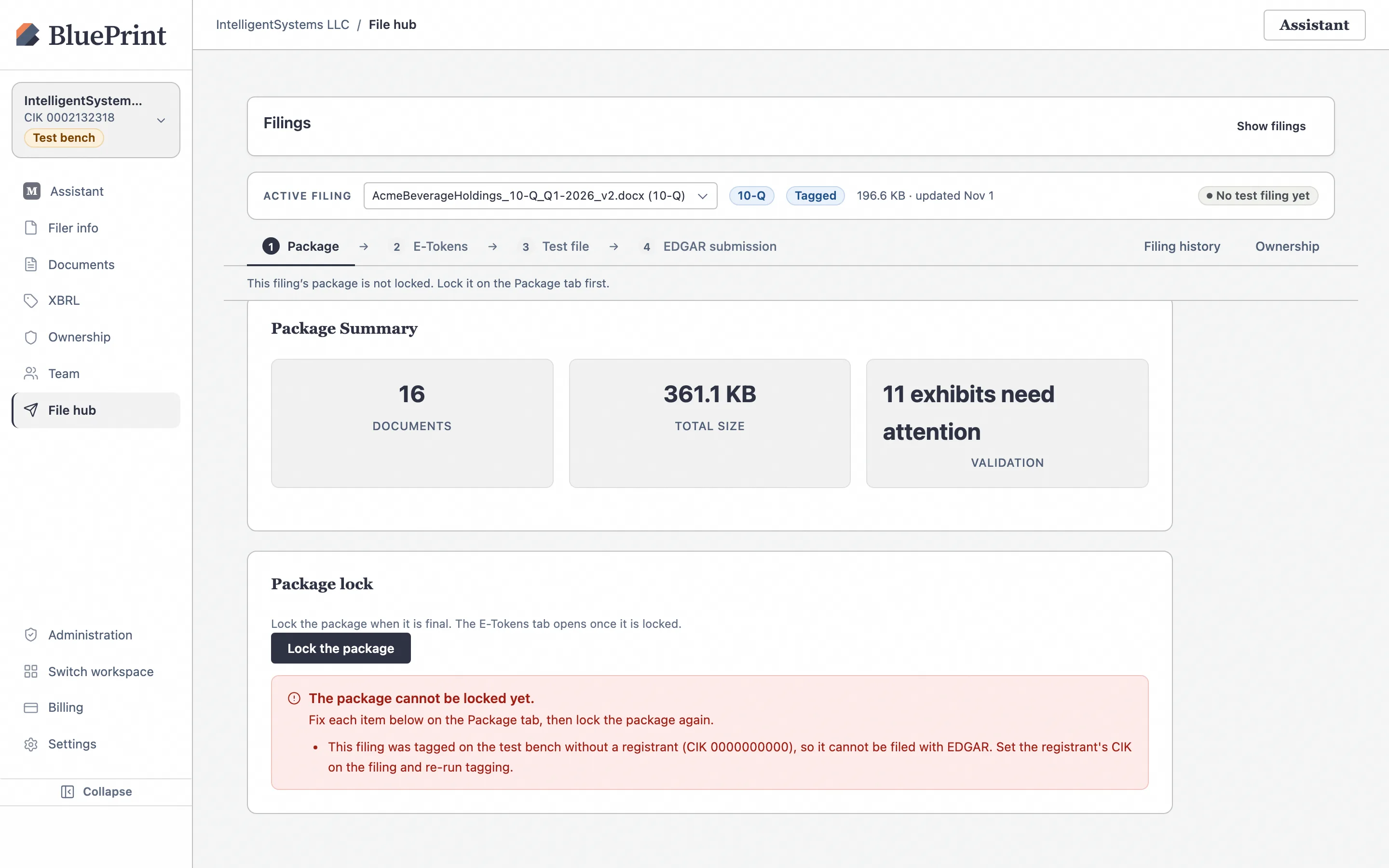
When you move to File hub › 1 Package, BluePrint checks that every Filed herewith exhibit has an attached file before allowing the package to be locked for test or live filing.
Check the Package Summary & Lock card
Scroll to the Package Summary & Lock card at the bottom of the 1 Package tab. If any Filed herewith exhibit is still missing its file, the Exhibits readiness line shows how many exhibits still need files (for example, 9 exhibits still need files) and prevents accidental submission of an incomplete package.