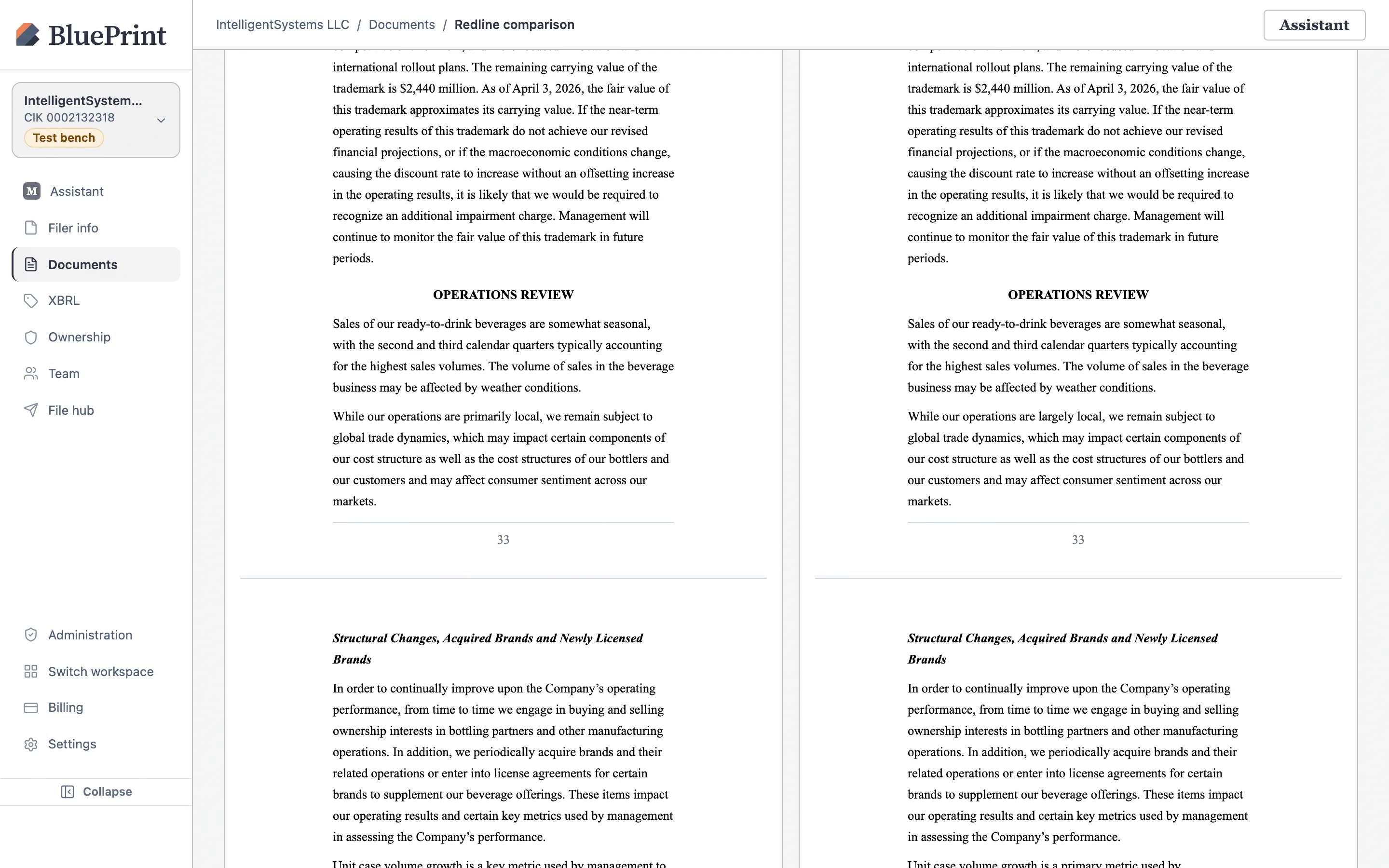
1. Upload a revised Word (.docx) version
Instead of creating a separate filing when a revised Word draft arrives, attach the new draft as the next version of your existing filing row. This keeps your exhibit roster, iXBRL tags, and version history connected on a single record.
Choose Upload New Version from the row menu (⋯)
On the Documents page, open the ⋯ menu on your filing row and click Upload New Version.
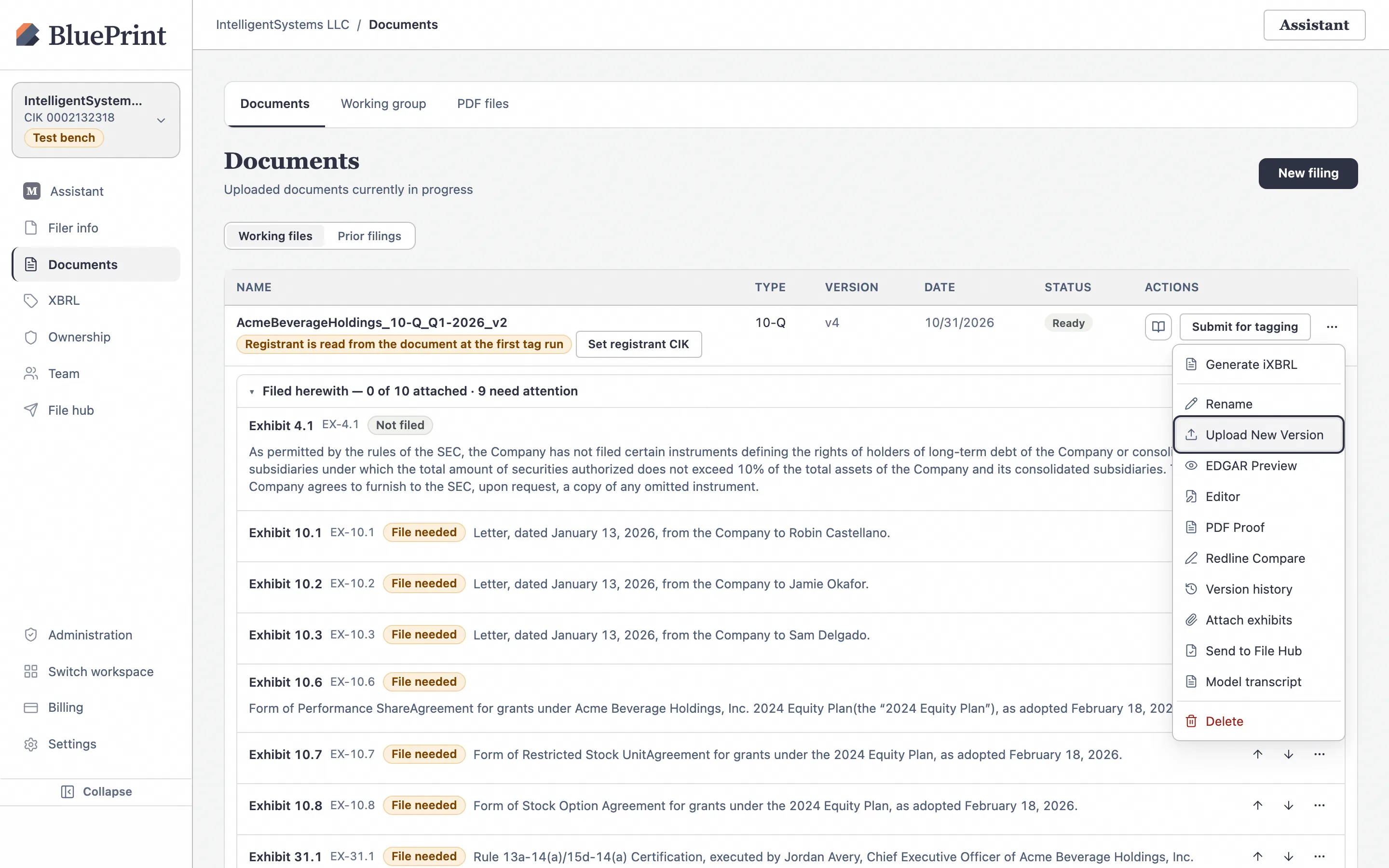
Select the revised .docx file and click Upload Version
In the Upload New Version dialog, pick your updated .docx file, optionally add a short note describing the revision (for example, “Audit committee comments + Q1 tax footnote update”), and click Upload Version.
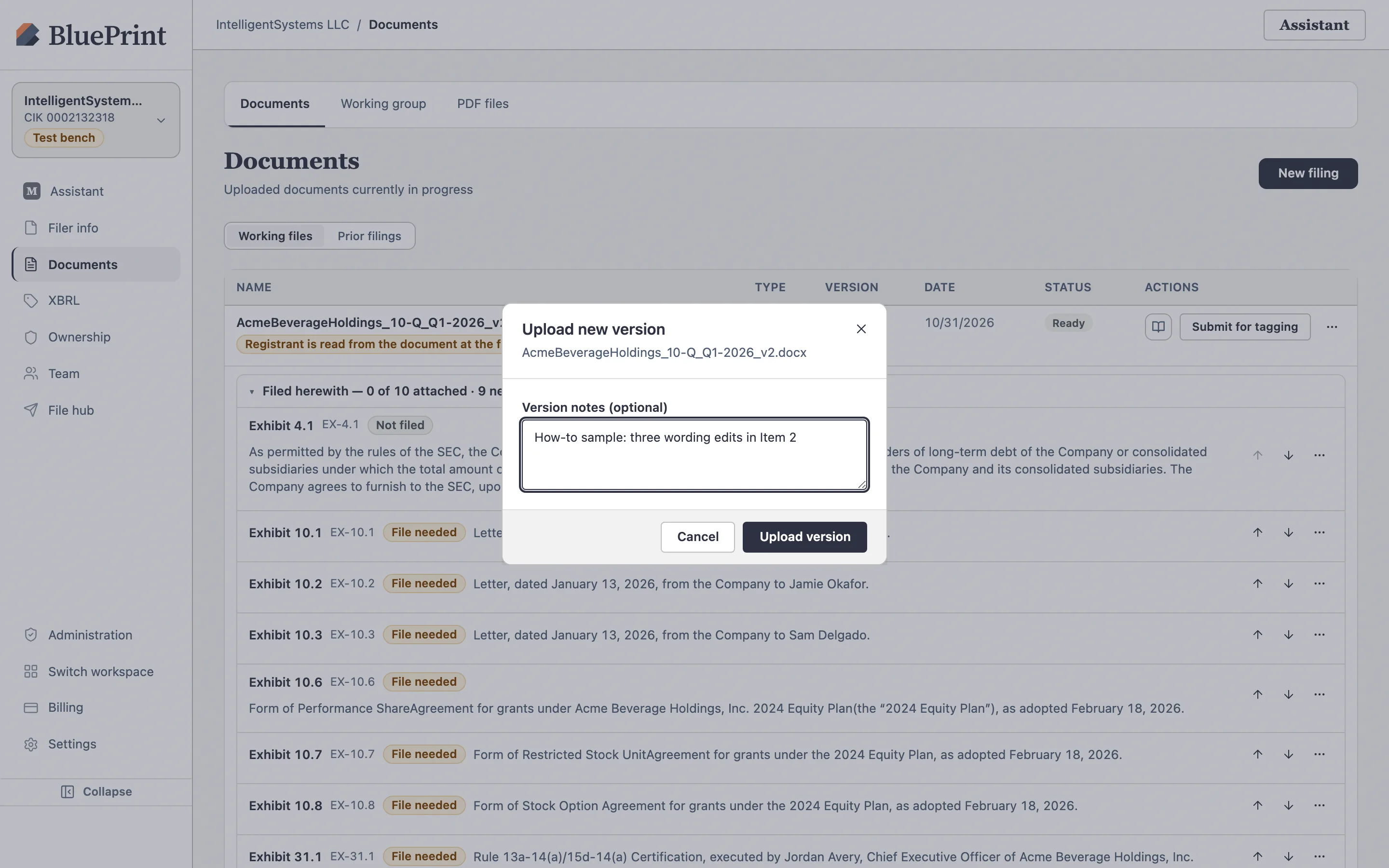
Confirm the filing row advances to v2
Once conversion finishes, the row’s VERSION column updates from v1 to v2 and its status returns to Ready.
2. Launch Redline Compare between any two versions
As soon as a filing has at least two versions (whether created via Upload New Version or by saving in the Document Editor), you can run an instant blackline comparison.
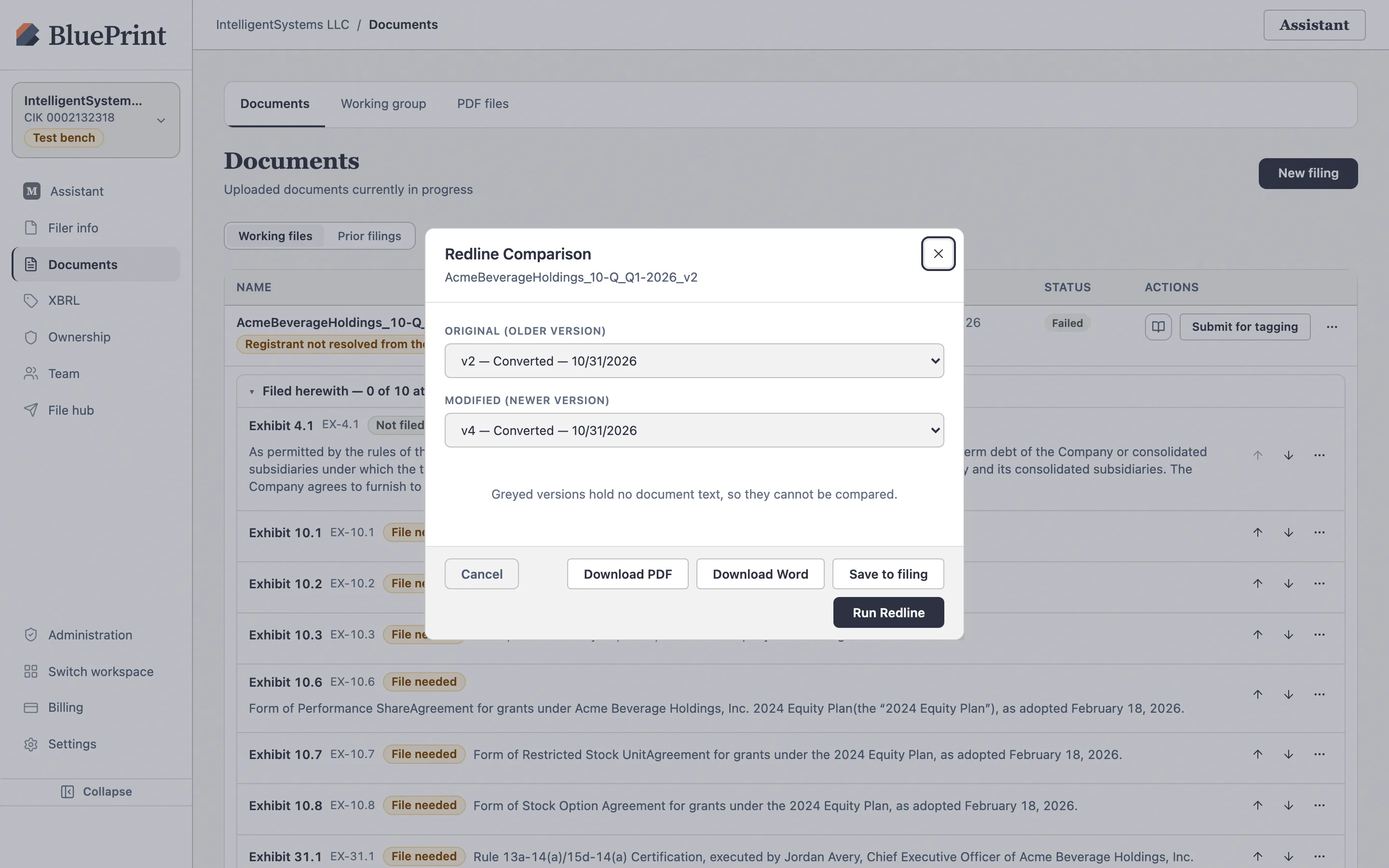
Open Redline Compare and select Original vs. Modified versions
Click ⋯ › Redline Compare on the filing row. In the Compare Document Versions dialog, select the baseline version under Original (older) version (such as v1) and the target version under Modified (newer) version (such as v2), then click Compare.
3. Inspect Structural, Redline, Facts & Side-by-Side views
The Blackline viewer (/documents/blackline) provides four specialized comparison modes in the top toolbar so both legal counsel and accounting teams can audit every change:
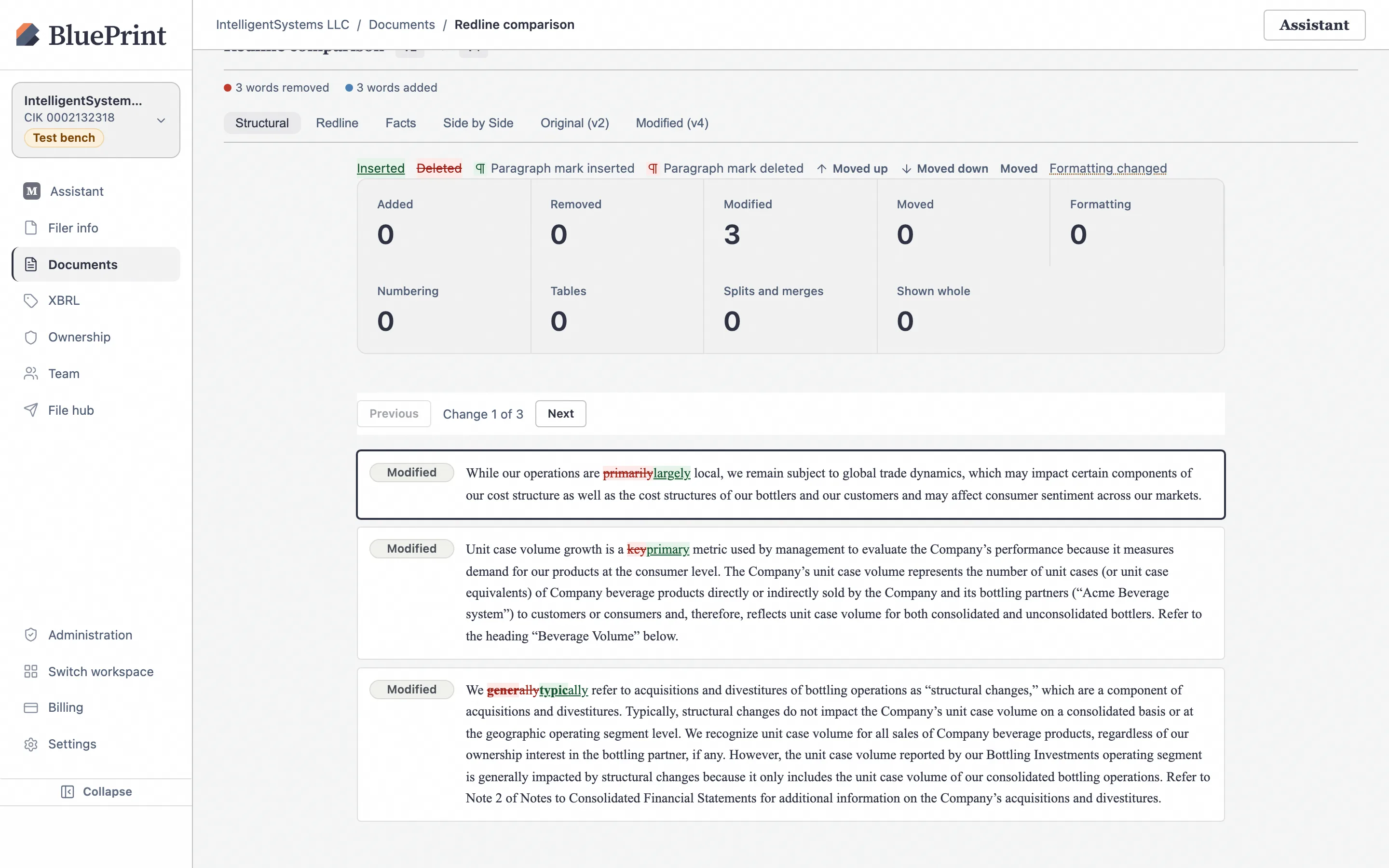
Structural view: Audit the Change List by section
The default Structural tab summarizes the total number of blocks compared, blocks changed, words added, and words removed, and lists every modified paragraph or table row in the Change List with before-and-after diffs.
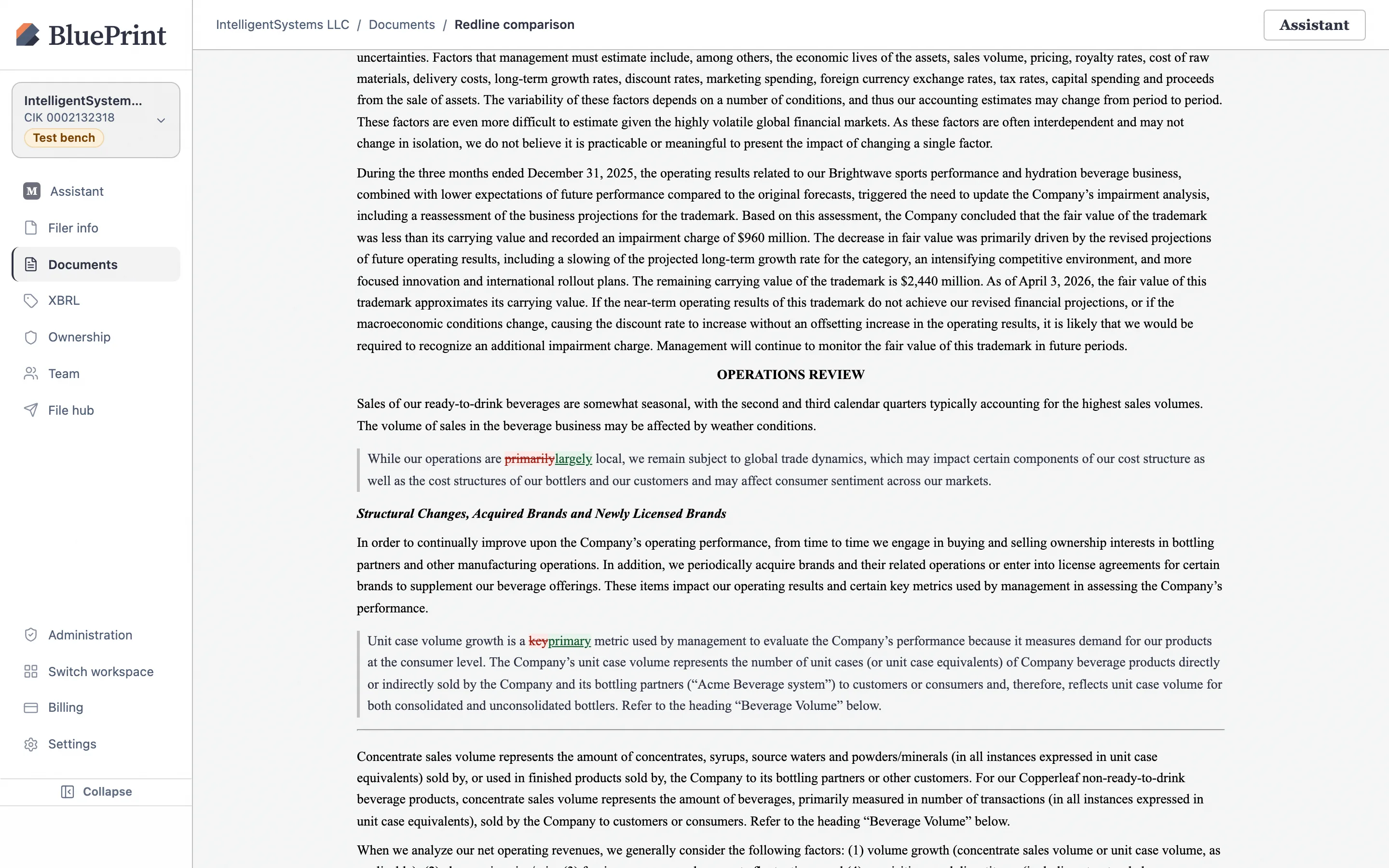
Redline view: Inspect inline word-by-word blacklines in context
Click the Redline tab to read the full paginated filing with removed words struck through in red and added words underlined in blue—including changed numbers inside financial tables and MD&A narrative.
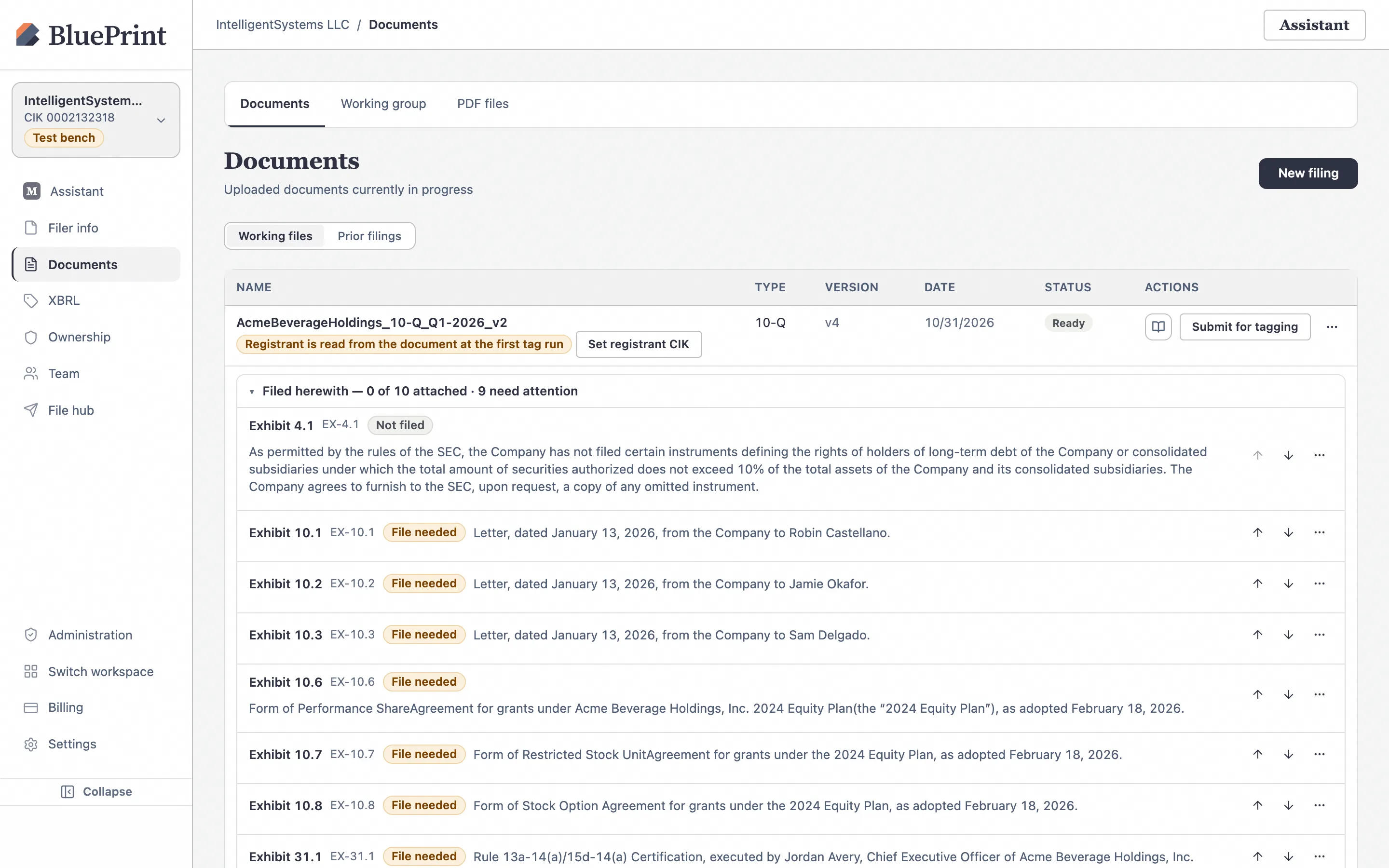
Side-by-Side & Facts views: Compare synchronized versions and tagged numbers
Click Side-by-Side to place the Original version on the left and the Modified version on the right with synchronized scrolling, or click Facts to filter specifically for numeric and iXBRL fact changes between the two versions.