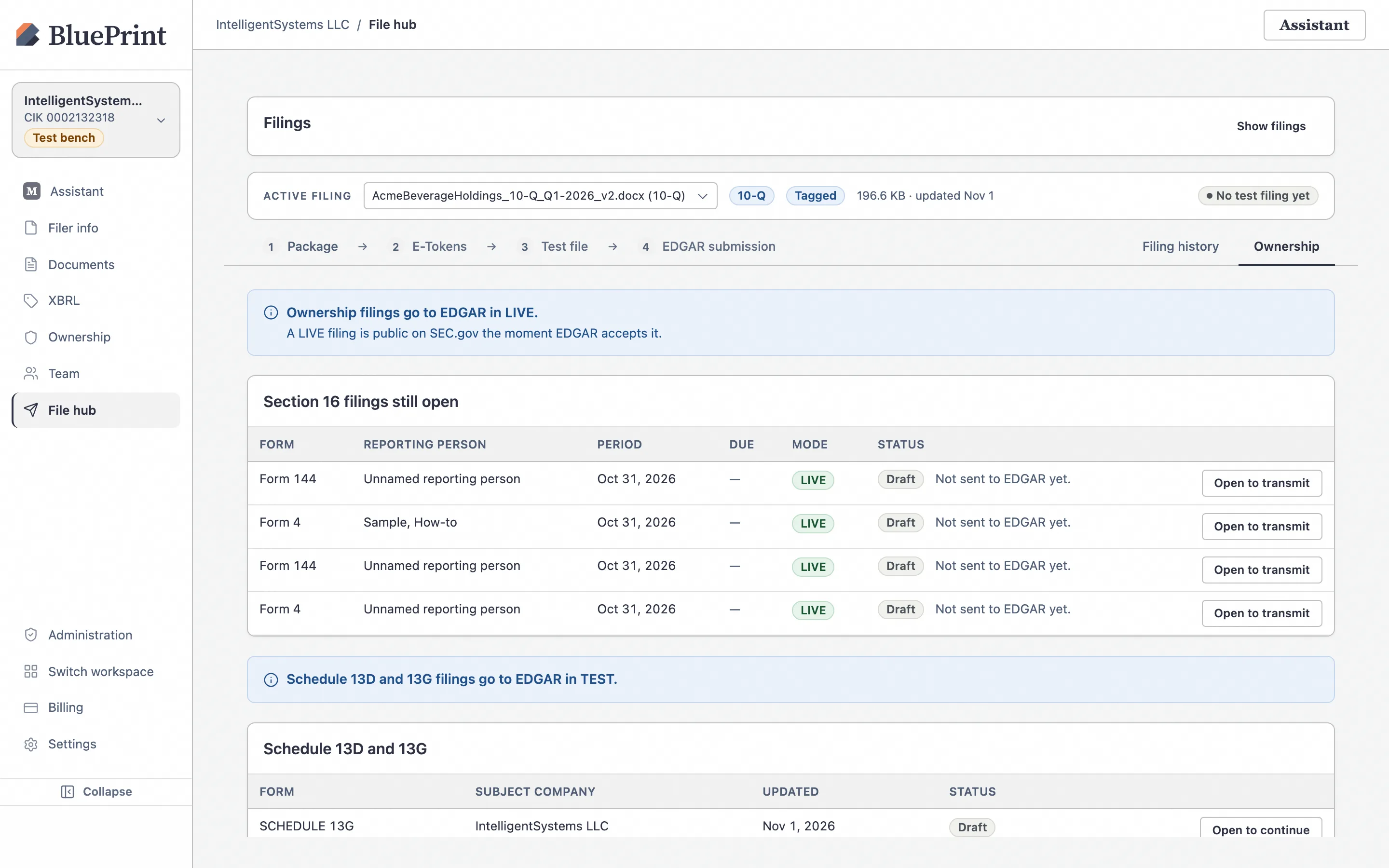
1. Select your Active Filing in the File Hub
When you click File hub (/filings) in the left sidebar, the ACTIVE FILING bar at the top of the workspace displays the filing currently loaded into the four-step submission pipeline (1 Package → 2 E-Tokens → 3 Test file → 4 EDGAR submission).
Choose or switch the Active Filing
Use the ACTIVE FILING dropdown at the top of the File Hub to switch between any of your workspace’s in-progress filings, or view the workspace’s Filings overview table when no specific filing is expanded.
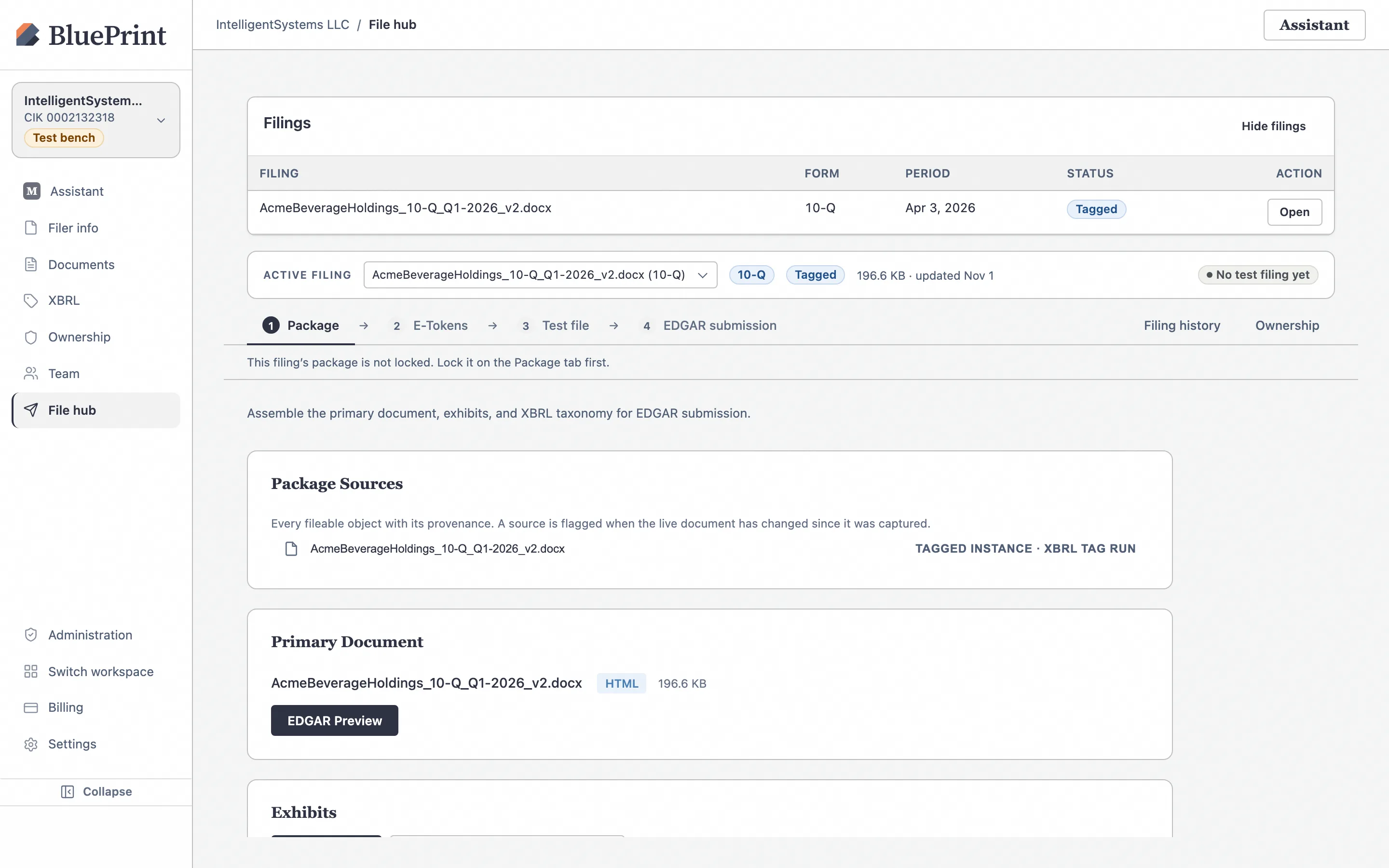
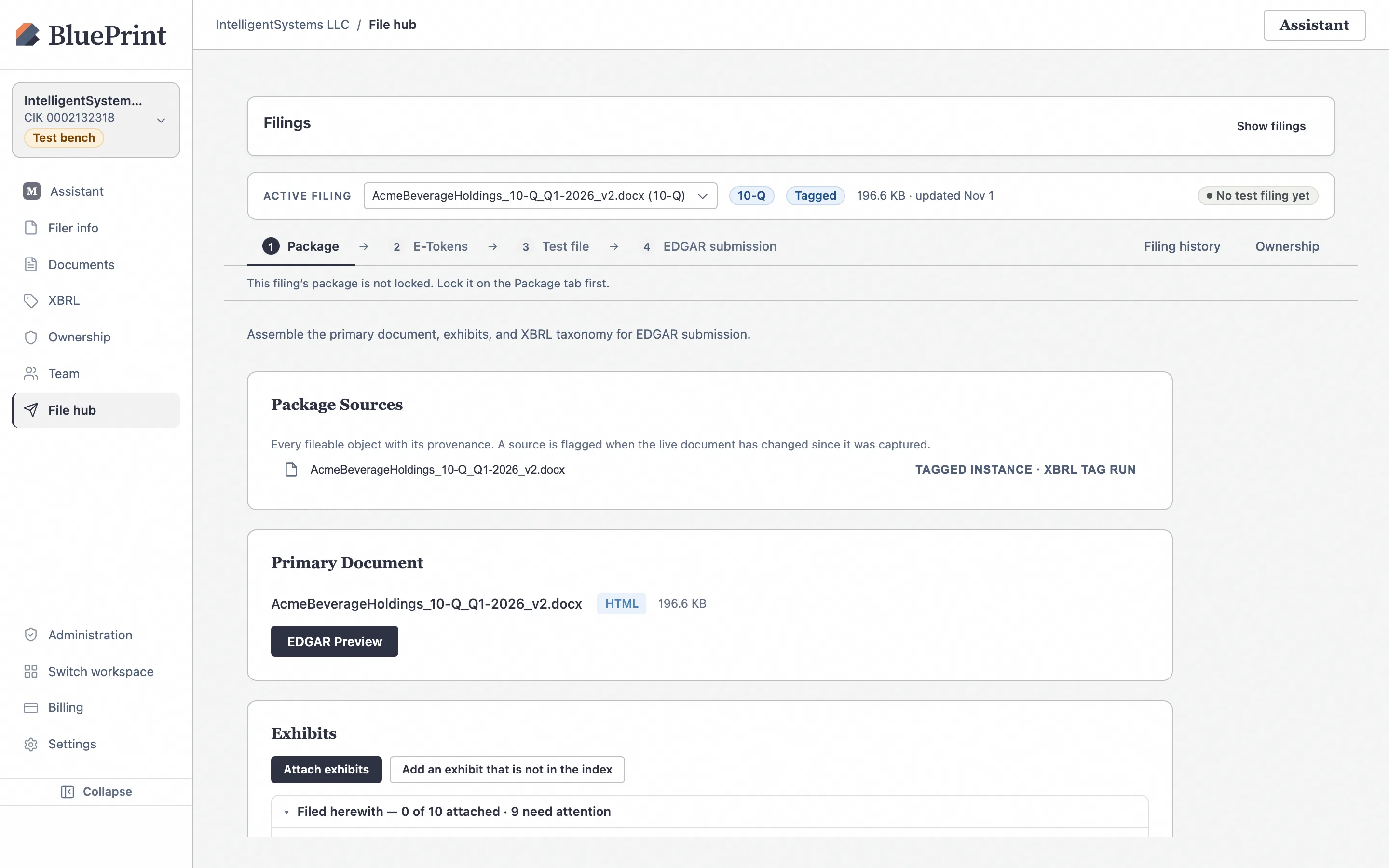
2. Step 1 (1 Package): Verify primary doc, exhibits, & lock gates
Step 1 Package assembles your primary document, Inline XBRL linkbases (if applicable), and all Filed herewith exhibits into a single EFM-compliant submission package.
Inspect the Primary Document and Exhibits cards
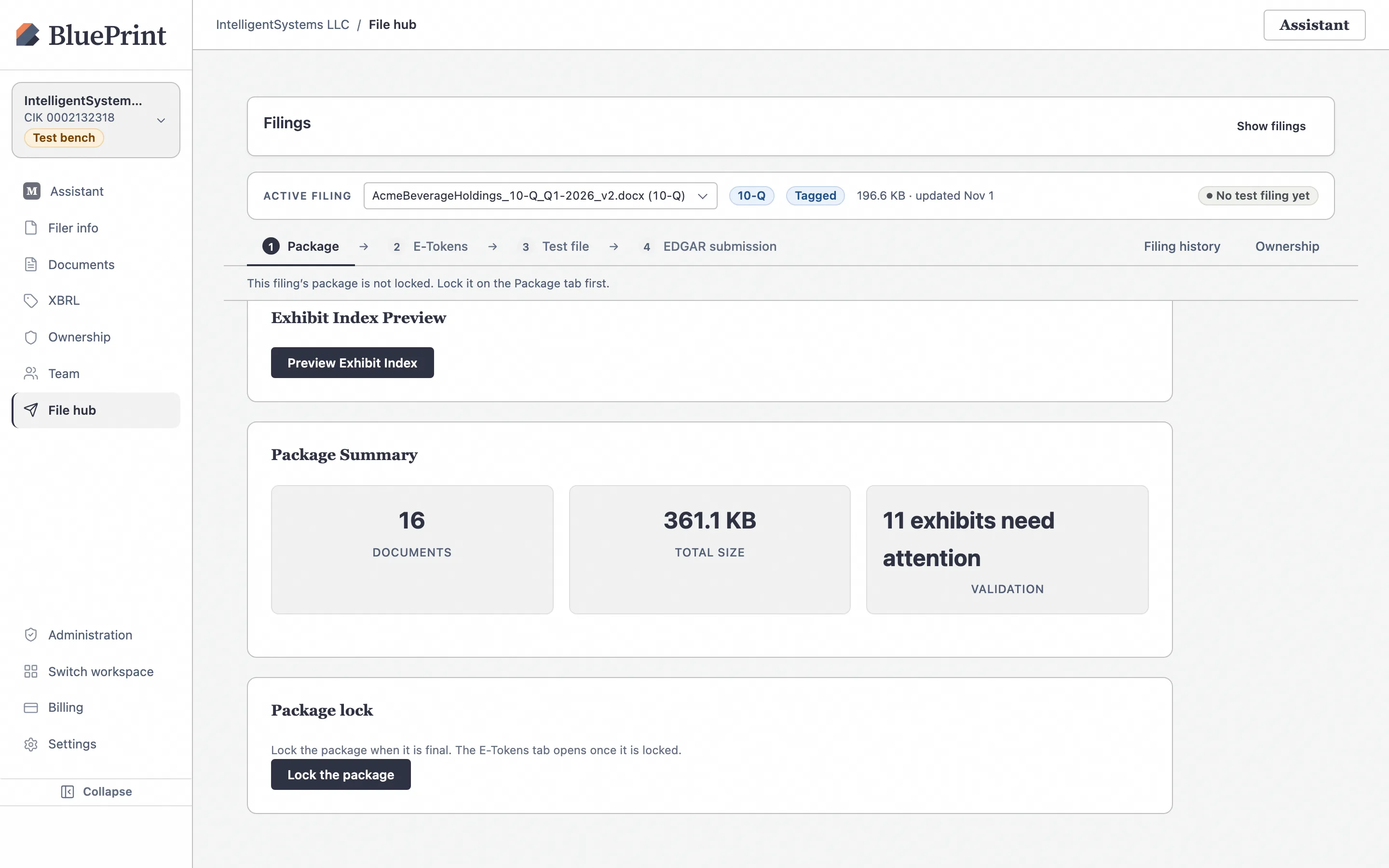
On 1 Package, verify the Primary Document card (you can click EDGAR Preview for a final check) and confirm that every Filed herewith exhibit in the Exhibits card has an Attached file.
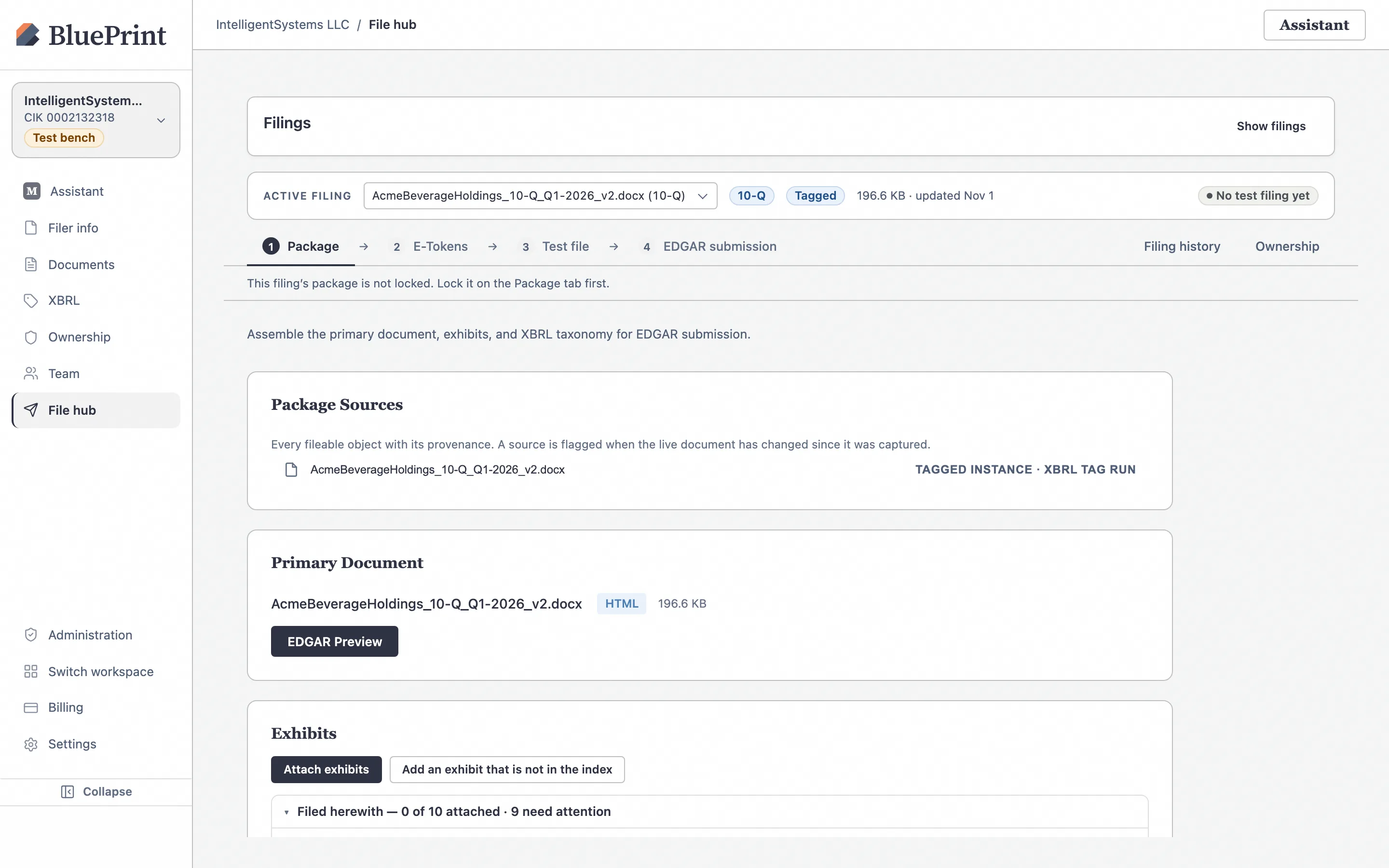
Review Package Summary & Lock (and understand refusal gates)
Scroll down to the Package Summary & Lock card. Before BluePrint allows you to lock the package, it checks that:
- Every Filed herewith exhibit has an attached file.
- For iXBRL-required forms (such as 10-K, 10-Q, 20-F, 40-F, S-1, S-3, 424B, DEF 14A), a signed-off iXBRL tag snapshot and passing EFM validation run are present.
If you click Lock package while exhibit files are still missing, BluePrint refuses the lock and displays a banner naming the exact number of exhibits that still need files.
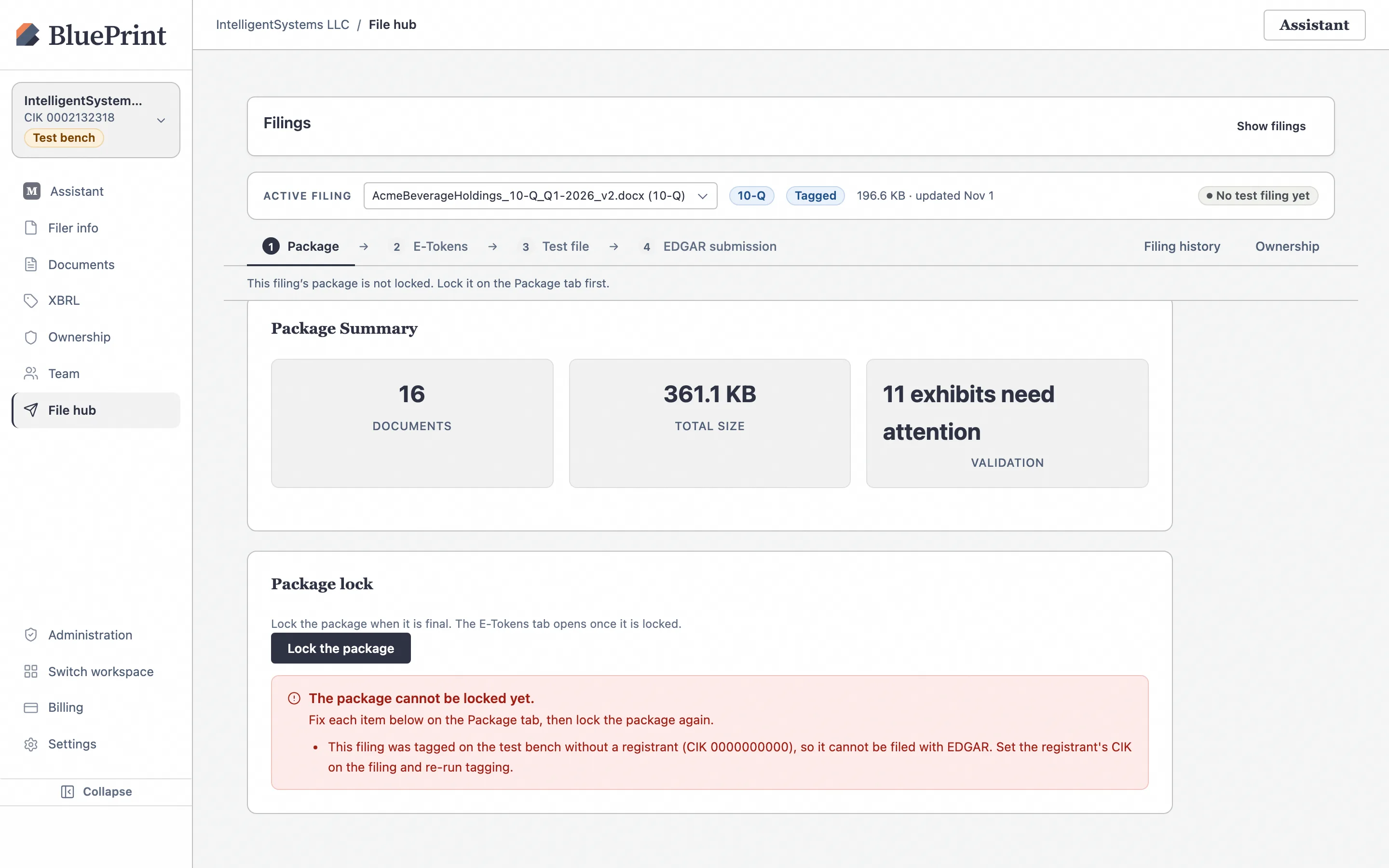
Why steps 2, 3, and 4 remain closed until the package is locked
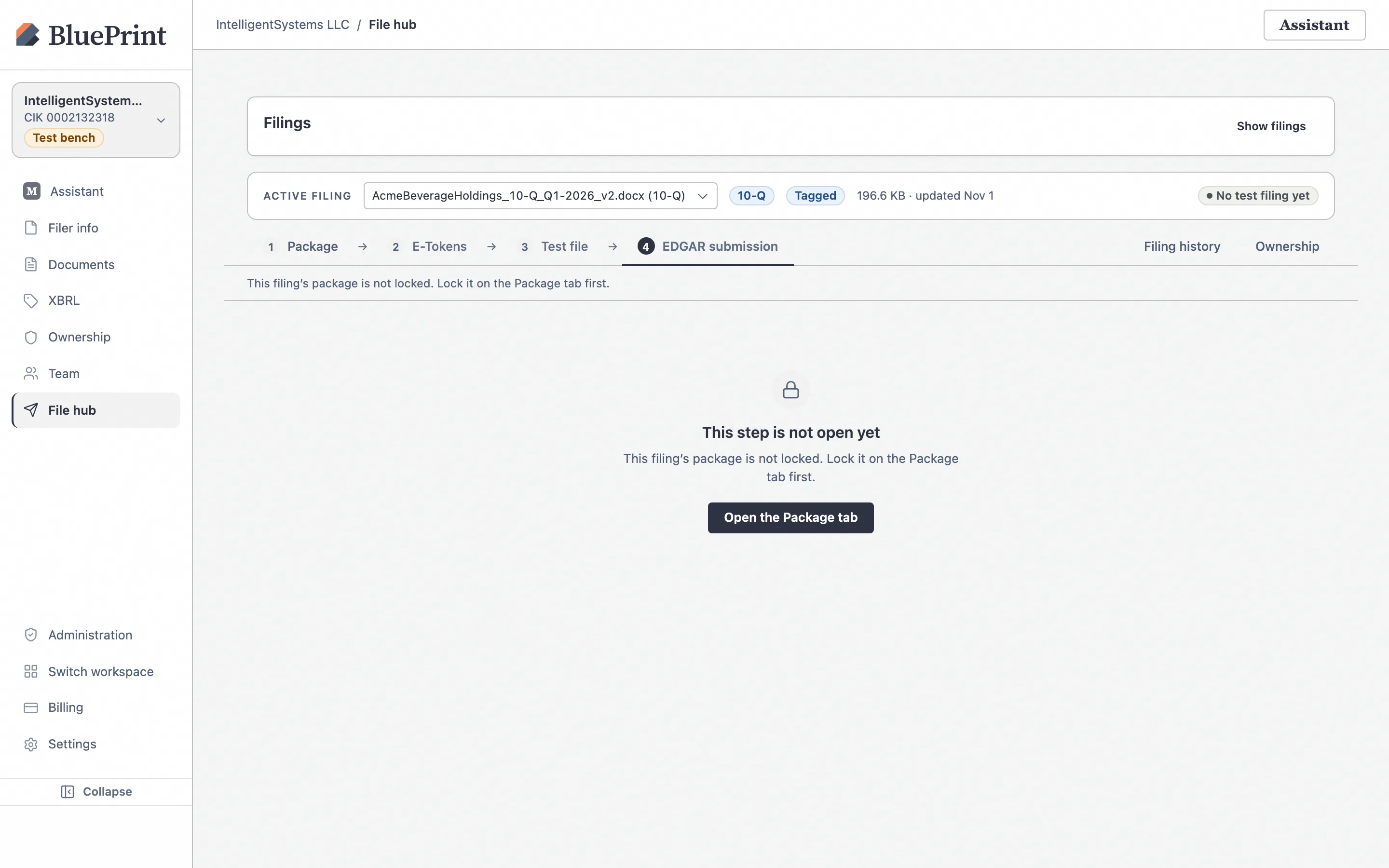
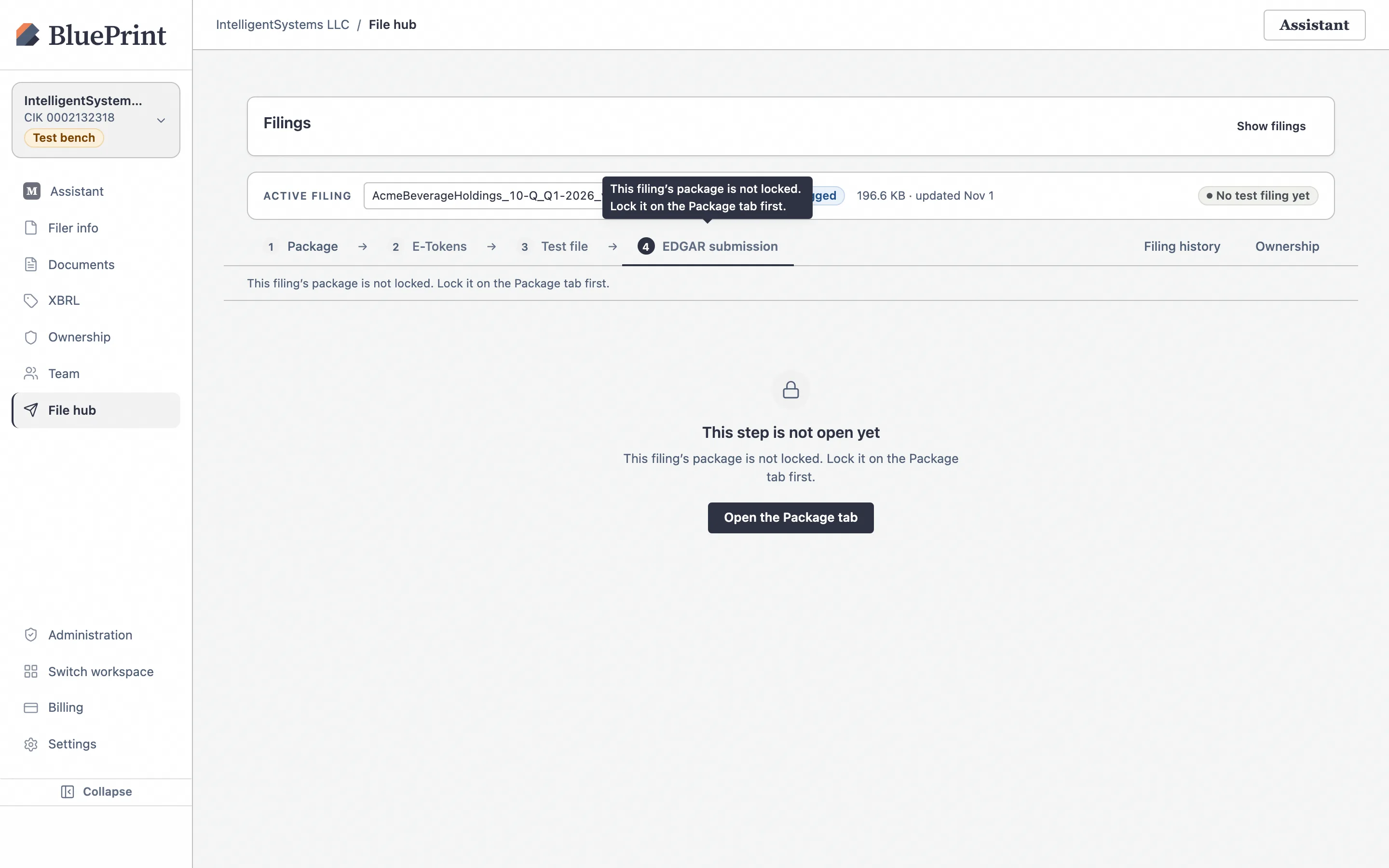
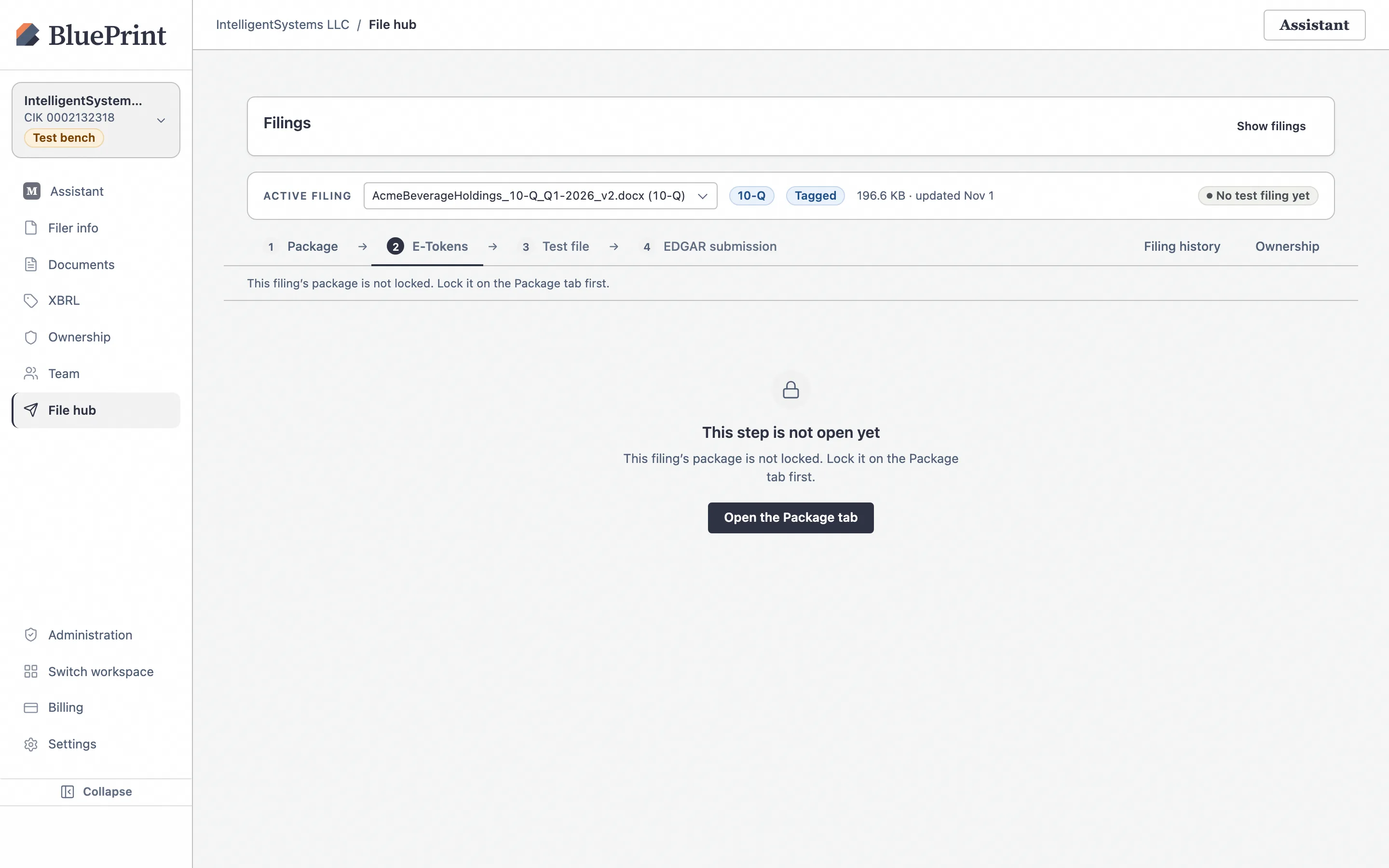
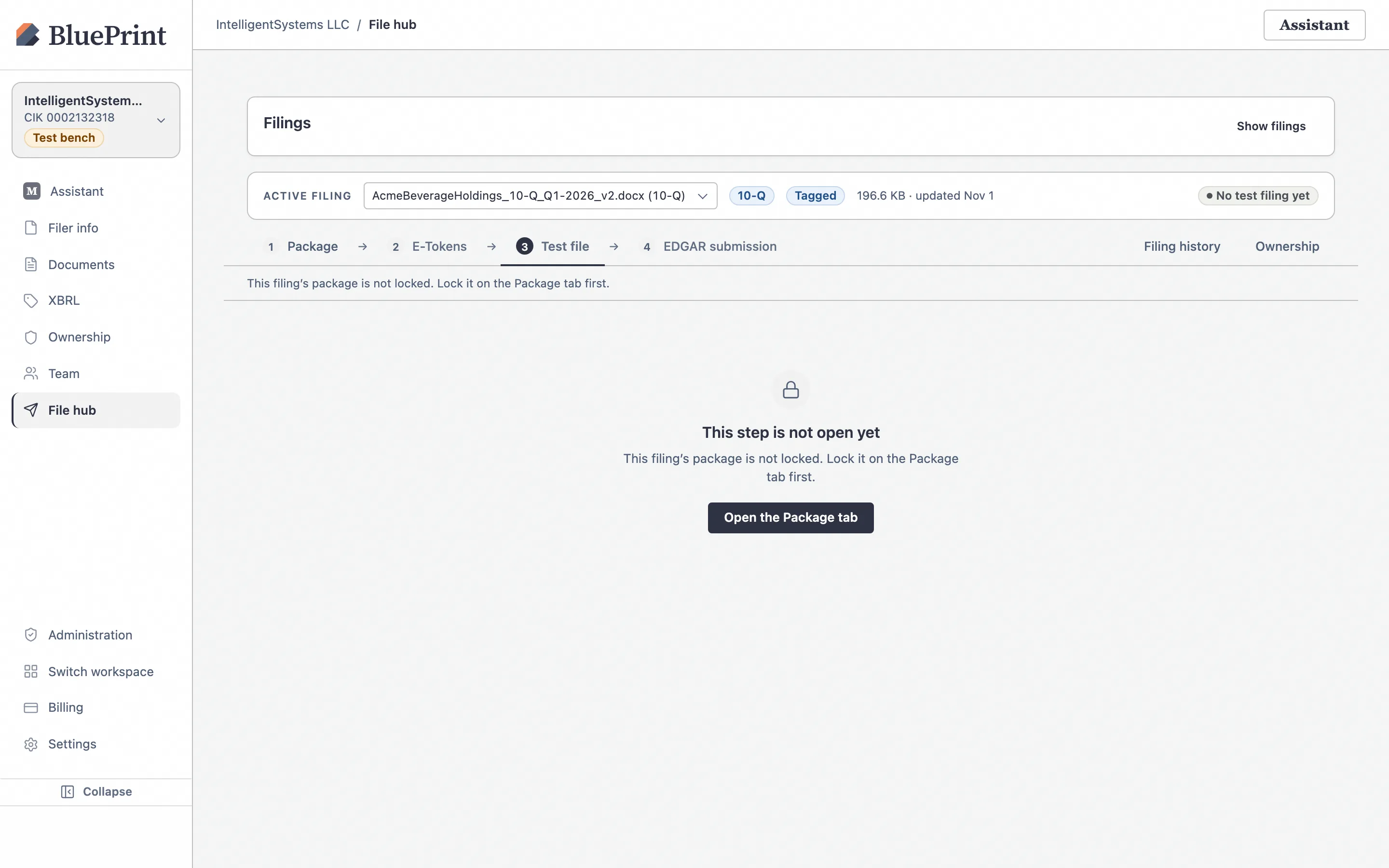
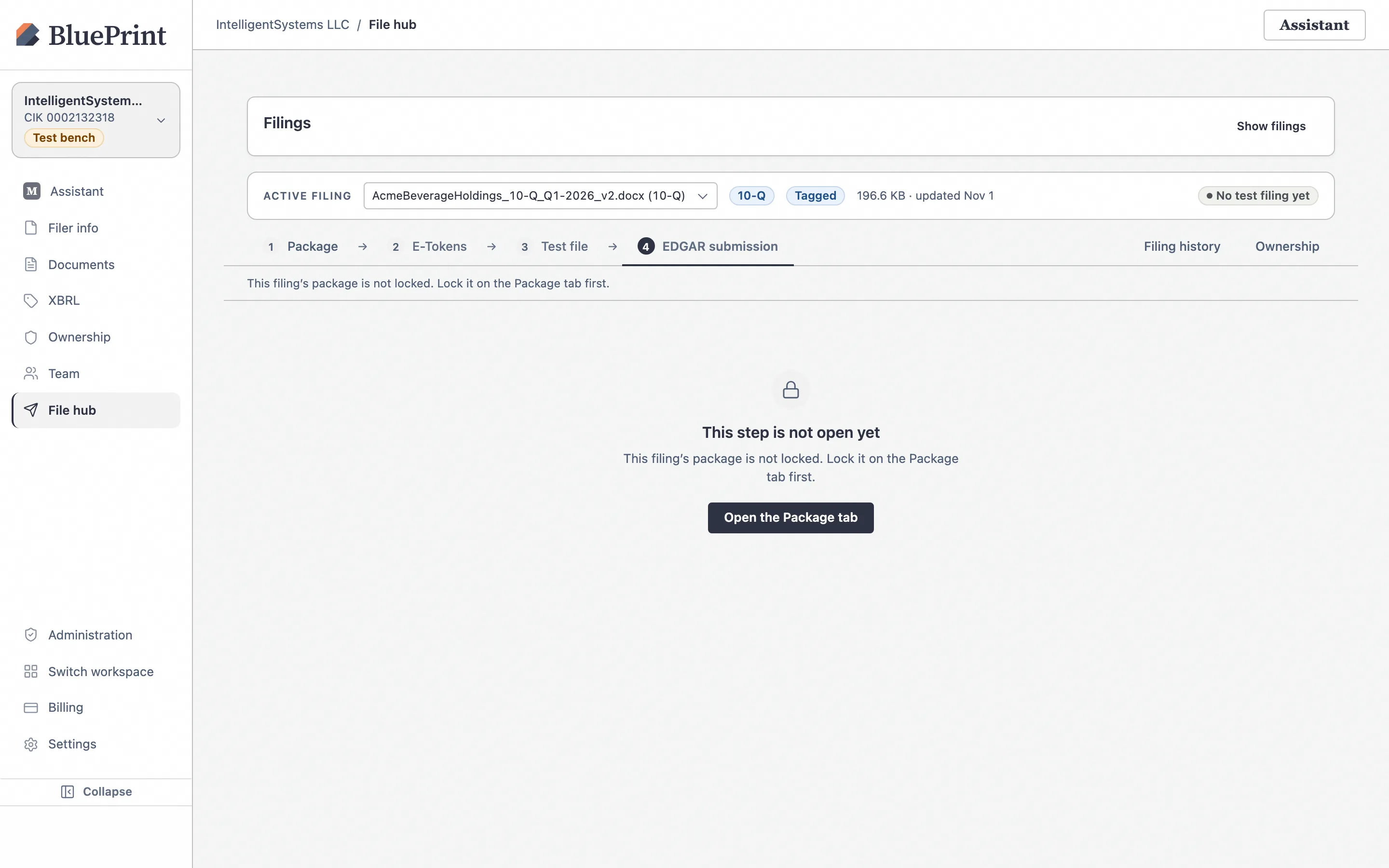
Until 1 Package is locked, steps 2 E-Tokens, 3 Test file, and 4 EDGAR submission display the notice: “This filing’s package is not locked. Lock it on the Package tab first.” Hovering a closed step button also explains the exact prerequisite in a tooltip (`Complete the earlier steps first`).
3. Steps 2 & 3: Verify 2 E-Tokens & run 3 Test file
Once your package is locked, advance through 2 E-Tokens and 3 Test file.
Step 2 (E-Tokens): Confirm Filer API Token, CCC, and Personal User Token
On 2 E-Tokens, verify that the workspace’s 1-year Filer API Token, 8-character CCC, and your personal 30-day User API Token are all green. If any token needs to be added or rotated, click the link to Filer info › EDGAR account (see Guide 10).
Step 3 (Test file): Run a live dry run against EDGAR’s test facility
On 3 Test file, click Run test filing. BluePrint transmits your locked package to the SEC’s EDGAR test submission endpoint (`TEST` mode). Test submissions are never disseminated to the public, and EDGAR returns an authoritative acceptance or suspension verdict within seconds.
4. Step 4 (4 EDGAR submission): Immediate vs. Scheduled release
After your test filing passes, open 4 EDGAR submission. BluePrint supports both immediate transmission and scheduled transmission (timed to go out after market close or at 6:00 a.m. ET the next SEC business morning).
| Transmission Option | How It Works in 4 EDGAR submission |
|---|---|
| Option A: Immediate LIVE or TEST submission Prepare for LIVE / Prepare for TEST |
1. Click Prepare for LIVE (or Prepare for TEST). 2. A two-step confirmation banner appears warning that a LIVE submission is immediately public on sec.gov and becomes an official SEC filing. 3. Click Confirm LIVE Submission to transmit immediately and poll EDGAR for your 18-digit accession number. |
| Option B: Scheduled LIVE or TEST submission Schedule LIVE / Schedule TEST |
1. Pick your target Date and Time (Eastern Time) within SEC EDGAR operating hours (6:00 a.m. – 10:00 p.m. ET on SEC business days). 2. Click Schedule LIVE (or Schedule TEST). 3. BluePrint arms the schedule and displays the live Scheduled Submission status card with your target timestamp, countdown, rehearsal table, Reschedule button, and Cancel schedule button. |
5. How automated T−24h, T−60m, and T−10m rehearsals work
When you schedule a filing for a future window (for example, 4:05 p.m. ET after market close or 6:05 a.m. ET before market open), BluePrint does not wait until the final minute to check whether your tokens or package are still valid. Instead, the scheduler runs up to three automated rehearsals shown in the Scheduled Submission card:
- 24h before (T−24h): Verifies package integrity, EFM validation, and EDGAR Next token validity 24 hours ahead of the target window.
- 60m before (T−60m): Runs a full pre-flight check and EDGAR test rehearsal 60 minutes before release.
- 10m before (T−10m): Final readiness lock 10 minutes before the scheduled transmission timestamp.
Each rehearsal row shows its scheduled time (in ET) and status (Pending, Passed, Failed, or Skipped if the filing was scheduled closer than that rehearsal window). You can click Reschedule to pick a new time or Cancel schedule at any point before the transmission fires.
6. Inspect Filing history & Ownership lane shortcuts
To the right of the four-step pipeline bar, the File Hub provides two additional tabs:
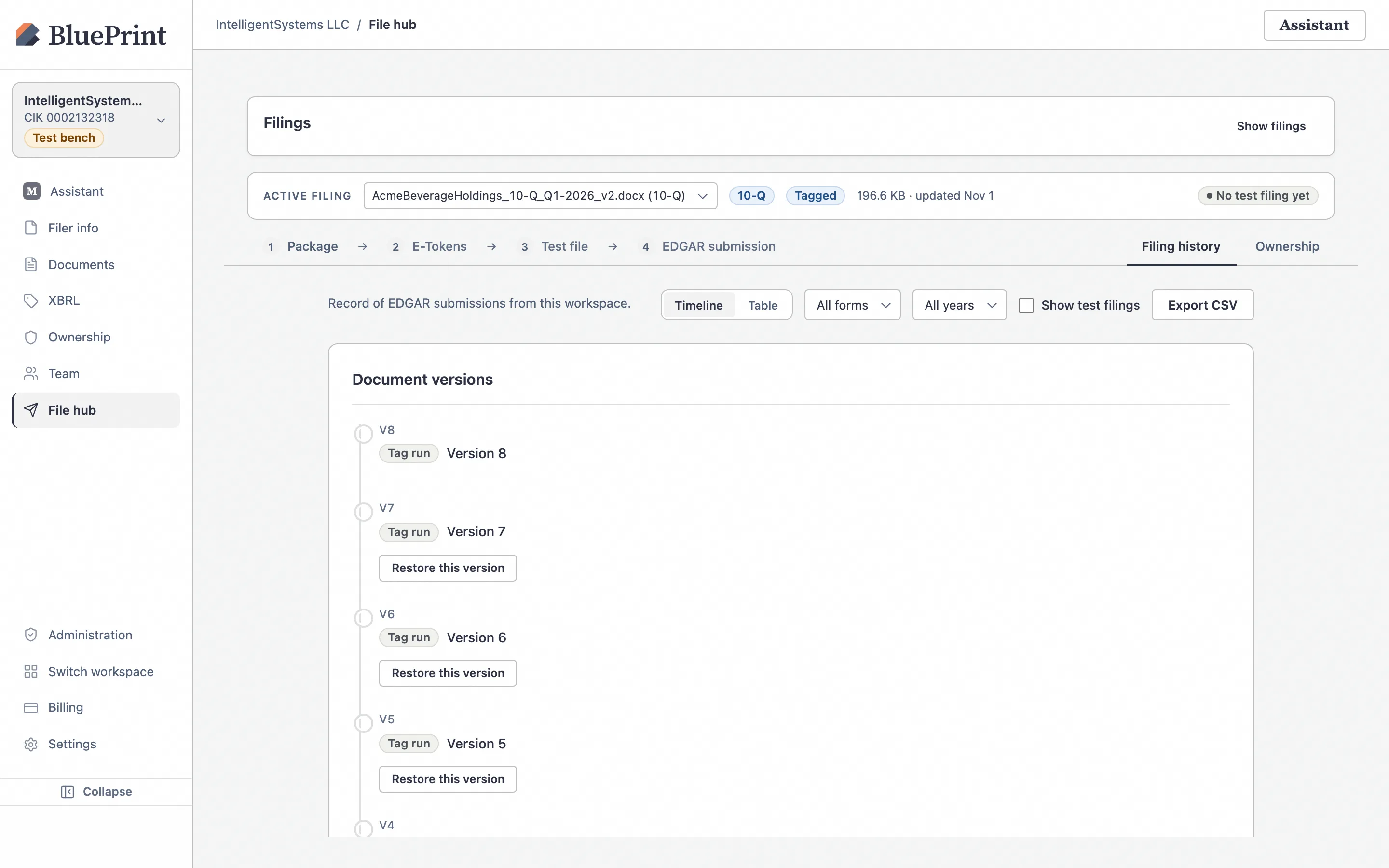
View Filing history & Document versions
Click Filing history to view every test and live submission run for the workspace (including accession numbers, timestamps, and EDGAR messages) alongside the complete version history of your documents.
Access the Ownership lane shortcut
Click Ownership on the right side of the File Hub bar whenever you need to jump directly to the Section 16 (Forms 3, 4, 5, and Form 144) or Section 13 (Schedules 13D and 13G) submission desks.