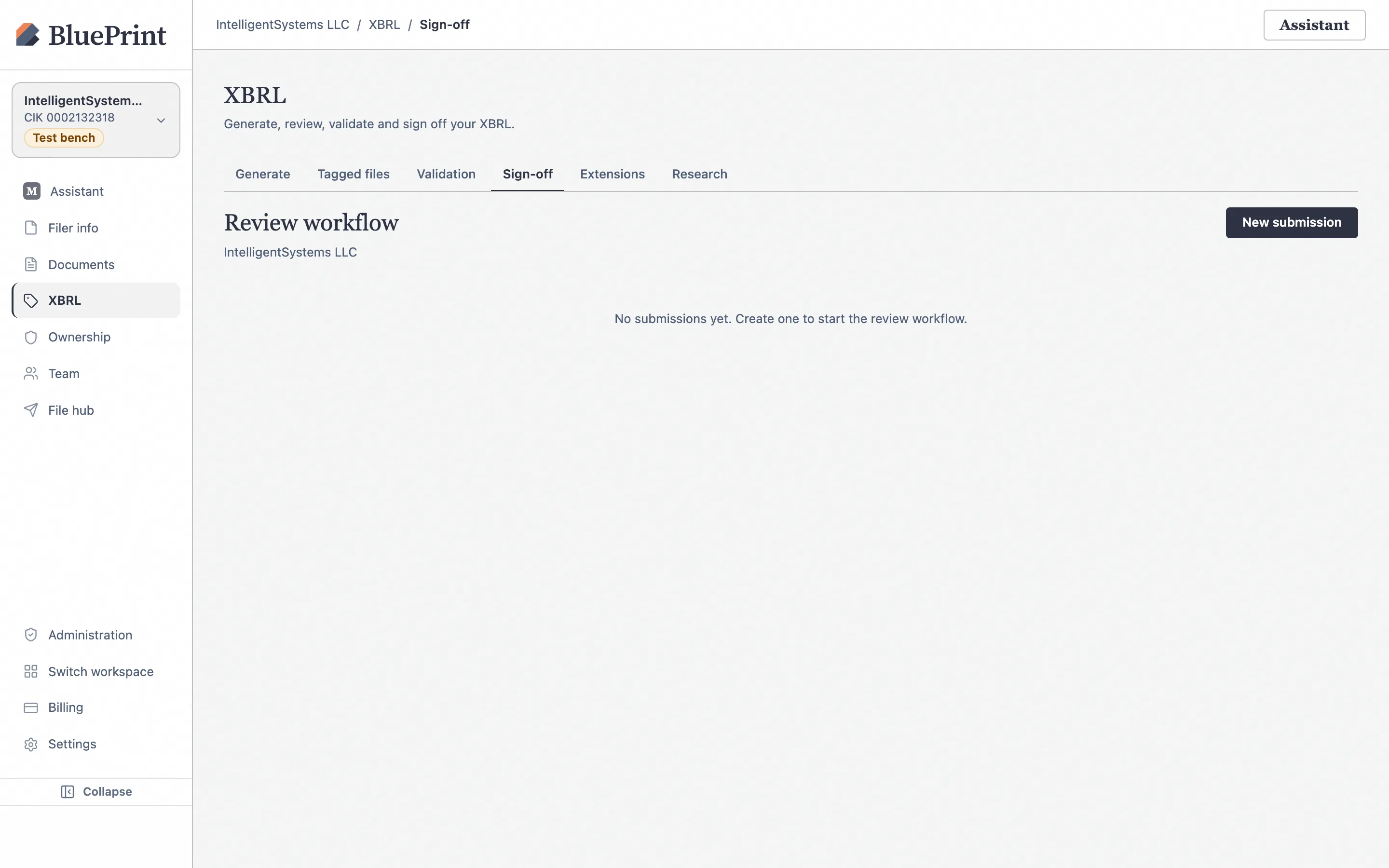
1. Start an iXBRL tagging run (Full vs. Cover-page)
Once your Word filing has been converted on the Documents page and shows Ready status, you can launch an AI-assisted Inline XBRL tagging run either by clicking Submit for tagging on the document row or by opening XBRL › Generate iXBRL.
Open XBRL › Generate iXBRL and select your filing
Click XBRL in the left sidebar. On the Generate iXBRL tab (/xbrl/generate), pick your converted filing from the selector.
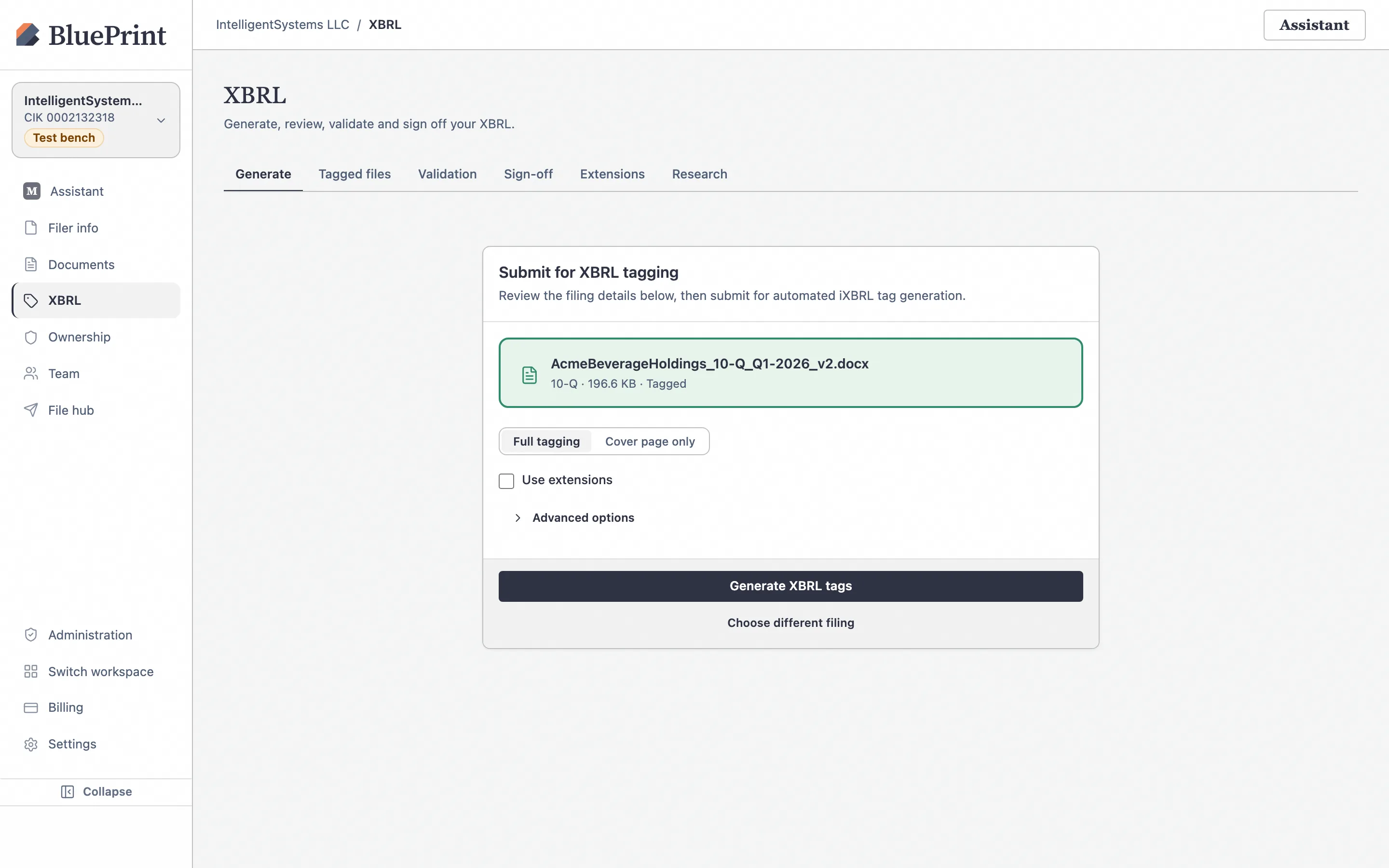
Inspect Advanced options: Full tagging vs. Cover-page only
Expand Advanced options if you need to adjust the tagging depth or taxonomy year:
- Full tagging (10-K, 10-Q, S-1…): Tags cover-page DEI facts, face financial statements, parenthetical statement facts, and Levels 1–4 footnote disclosures.
- Cover-page only (8-K, 6-K…): Tags only DEI cover-page concepts for current reports and cover-only submissions.
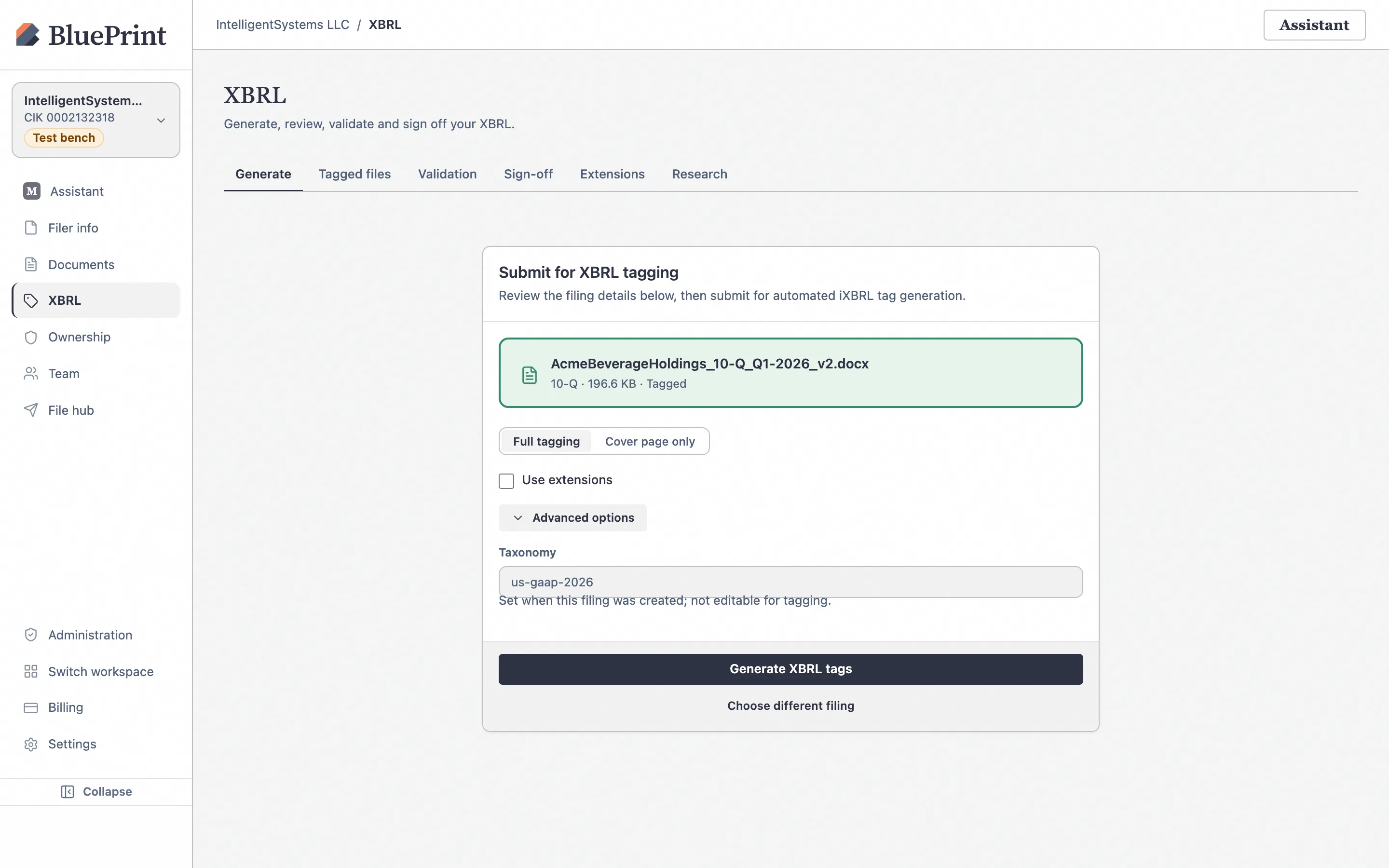
Click Start Tagging and monitor progress
Click Start Tagging. The button is disabled while a run is already active, and the live progress card tracks tagging progress across your statements and footnotes until completion.
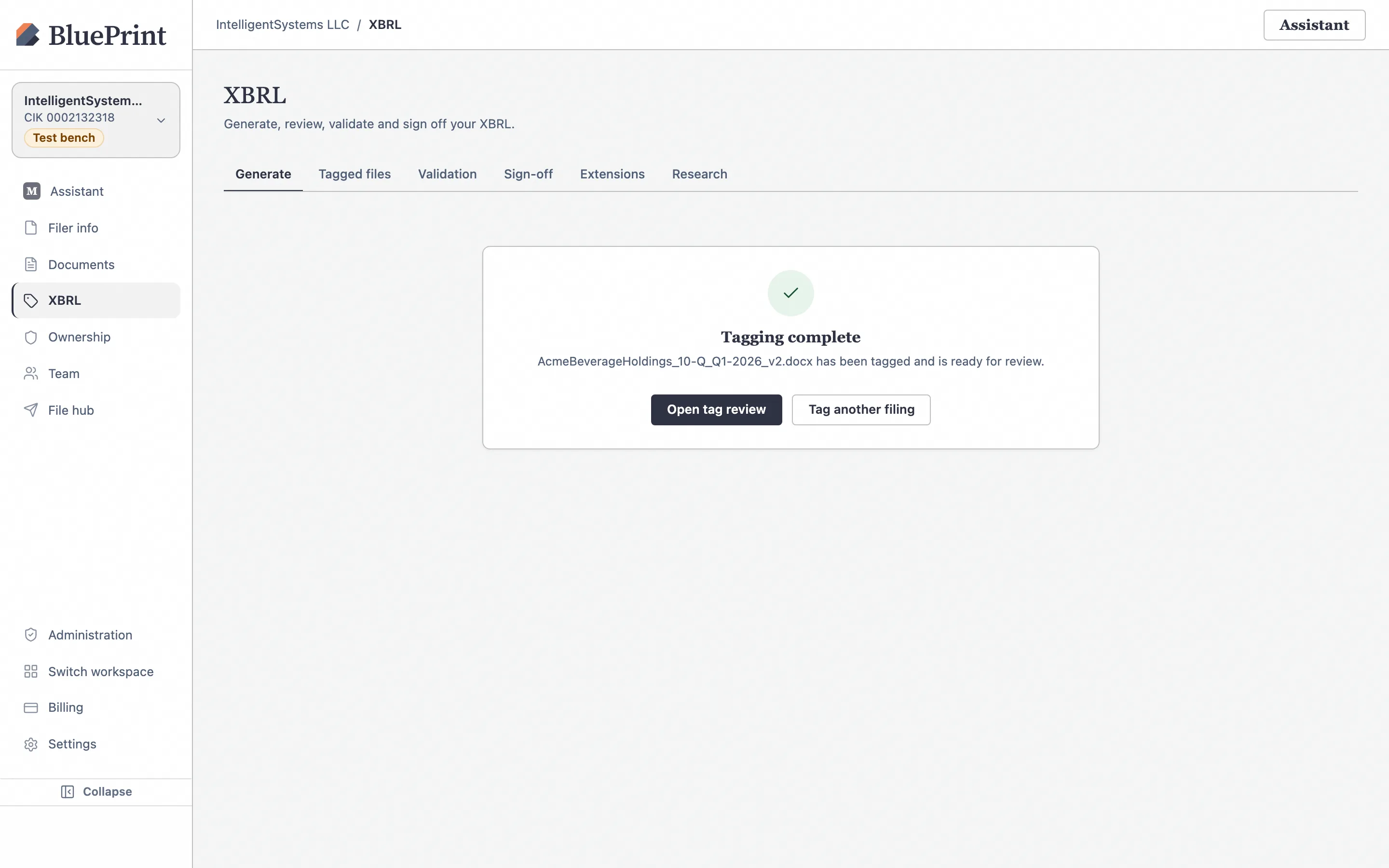
Tagging Complete: Review summary metrics or open Tagged files
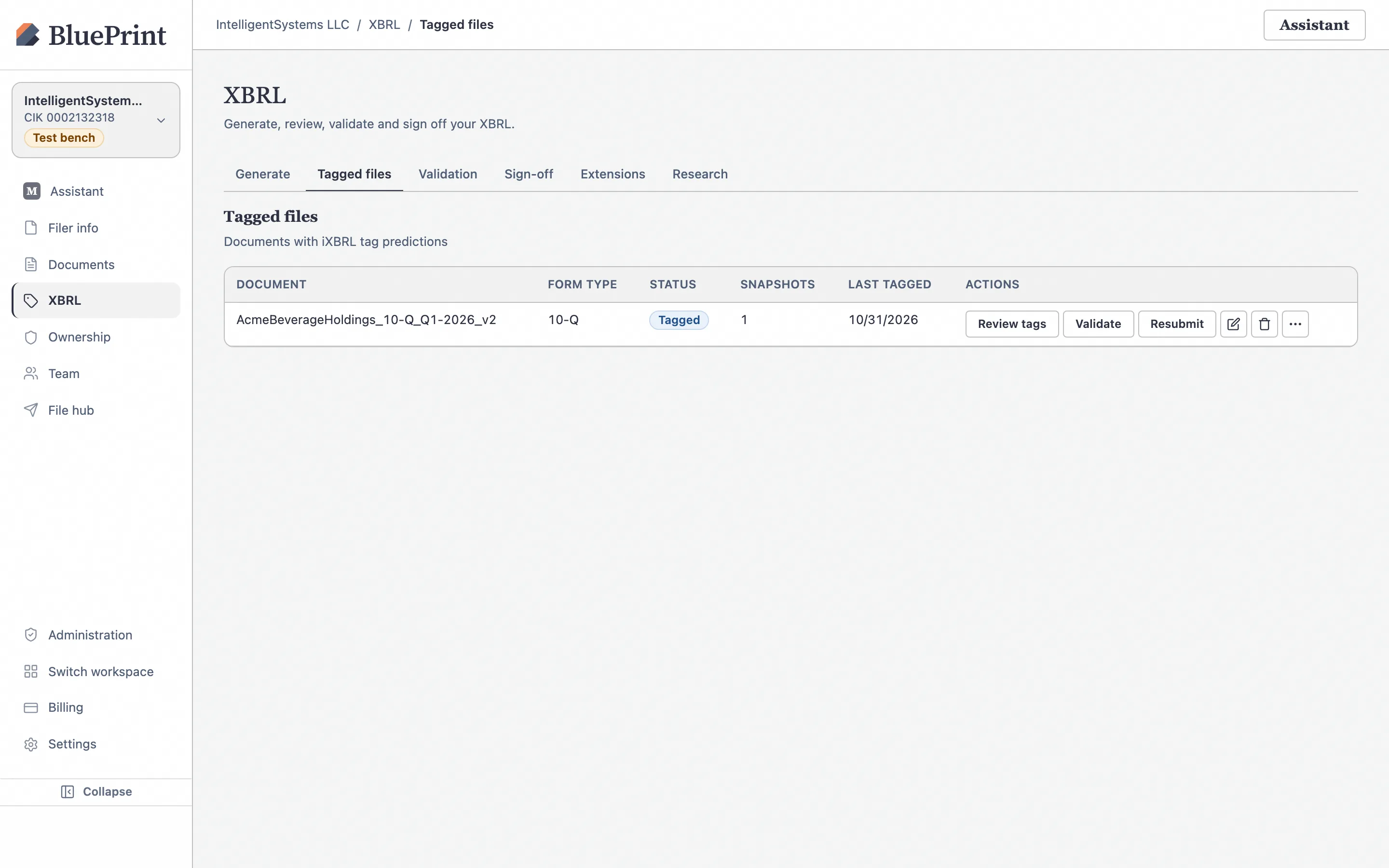
When the run finishes, the Tagging Complete card reports the total facts tagged and provides direct buttons to Review Tags, Download iXBRL, or Tag Another. Every tagged filing also appears in the Tagged files sub-tab (/xbrl/list).
2. Open Tag Review & understand the worklists
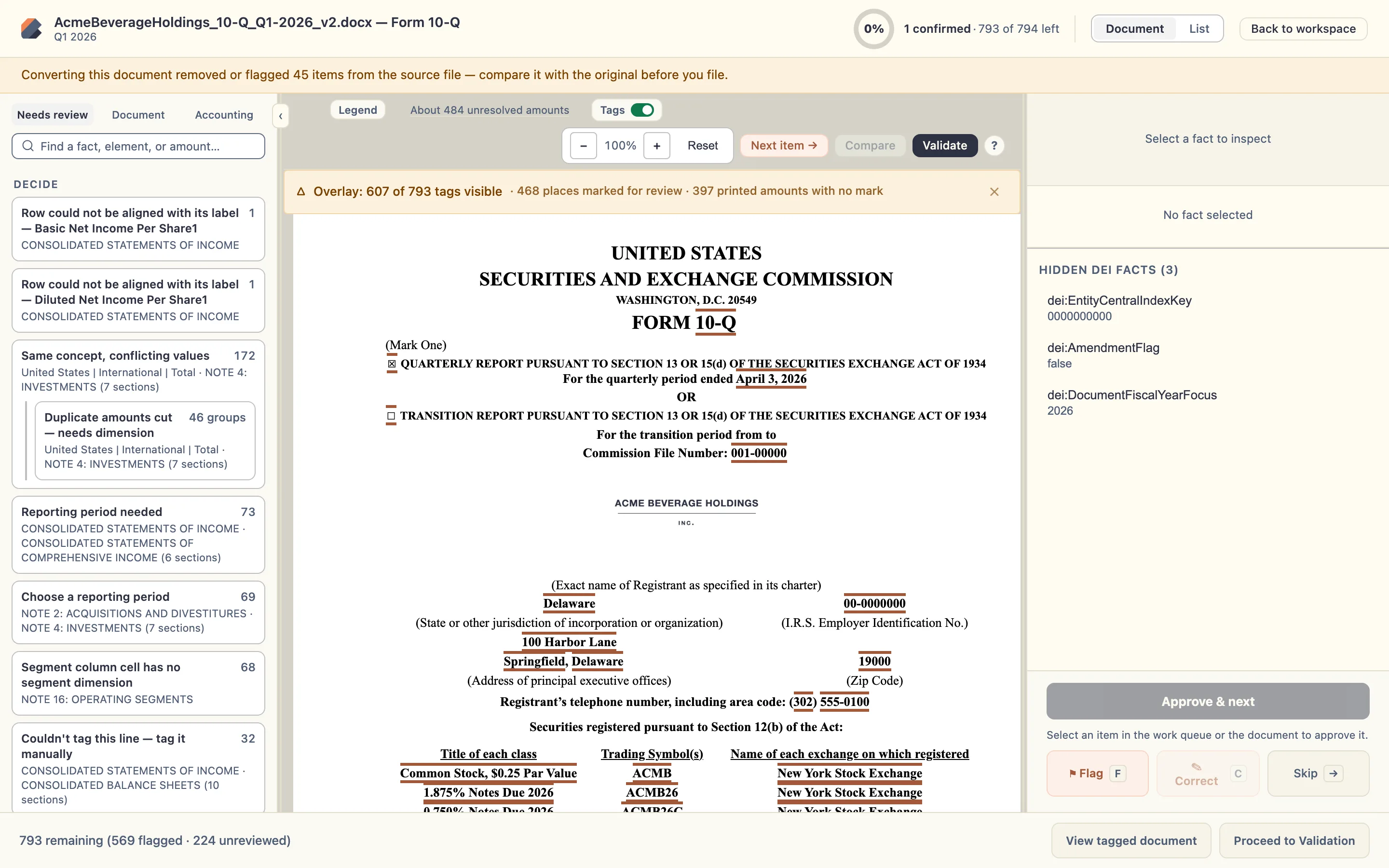
Click Review Tags (or click the review icon on the row in Tagged files) to open the full-screen Tag Review workbench (/review?filing_id=…).
Explore the three-pane Tag Review workbench & highlight legend
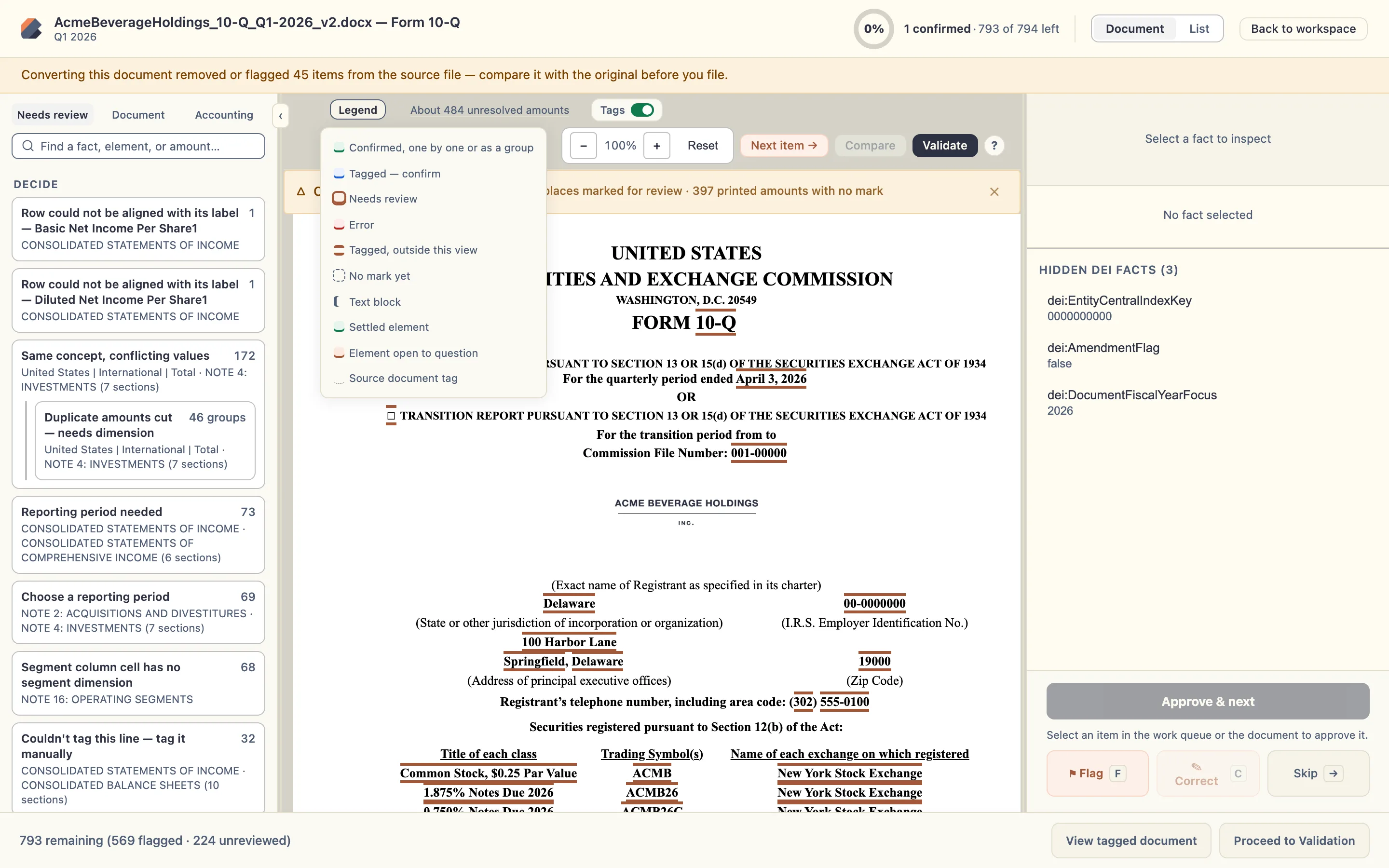
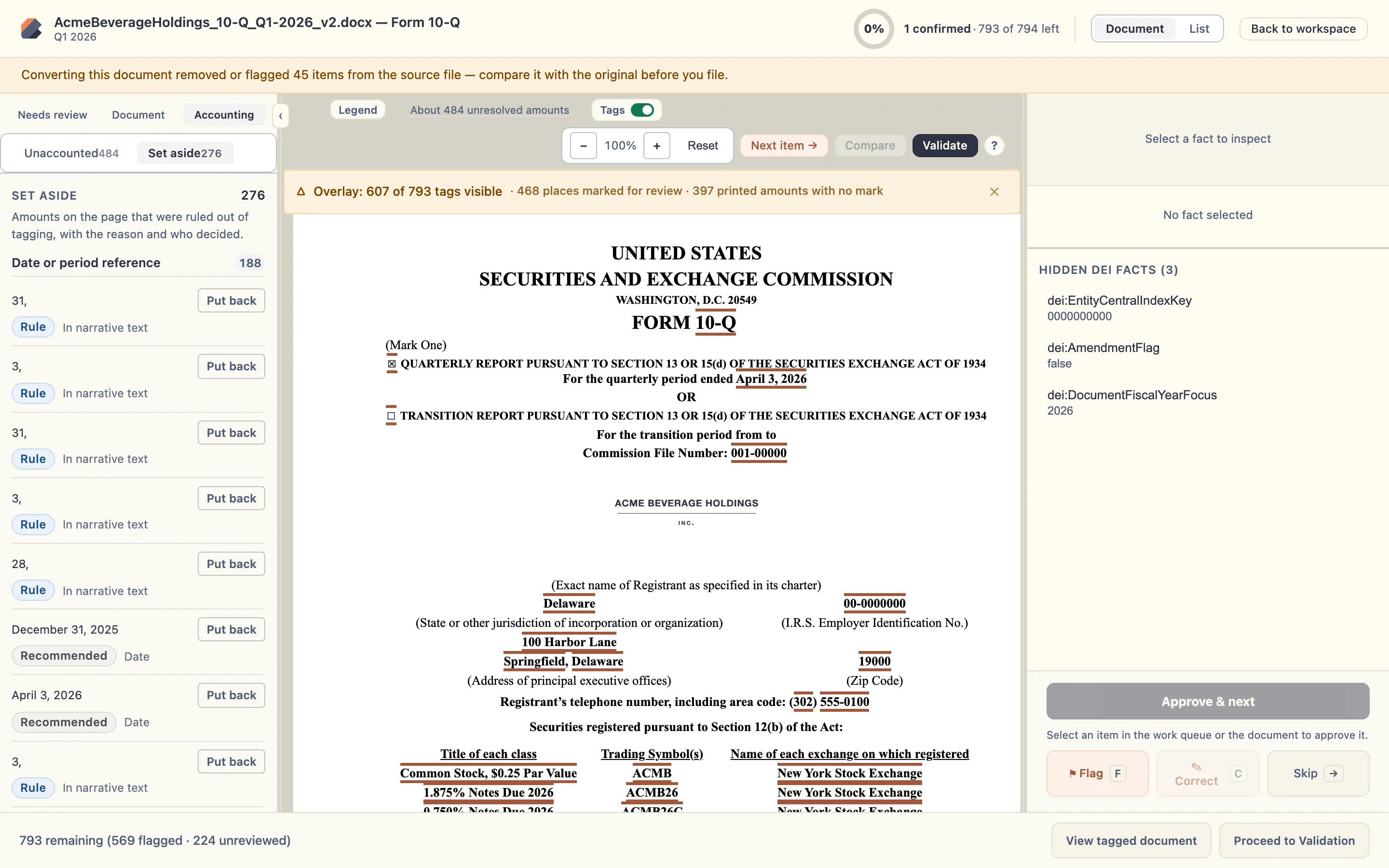
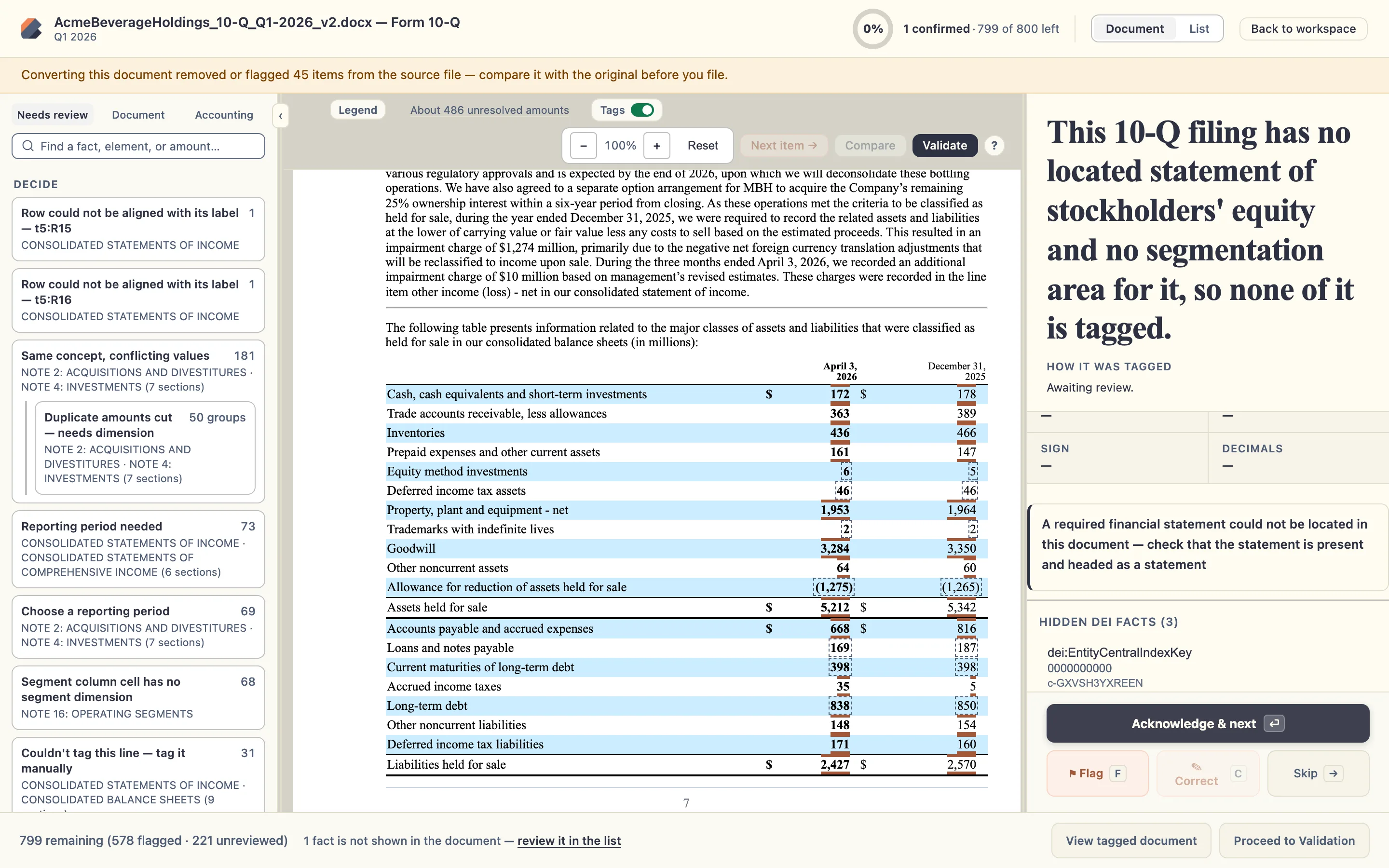
Tag Review displays three synchronized panes: the Worklist on the left, the live Document Canvas in the center (with color-coded highlights over every tagged number and text block), and the Fact Inspector on the right. Click Legend in the top bar to see what each highlight color indicates.
Switch between Needs review, Document, Accounting, and Set aside
The left worklist offers four views tailored to how SEC reporting teams review tags:
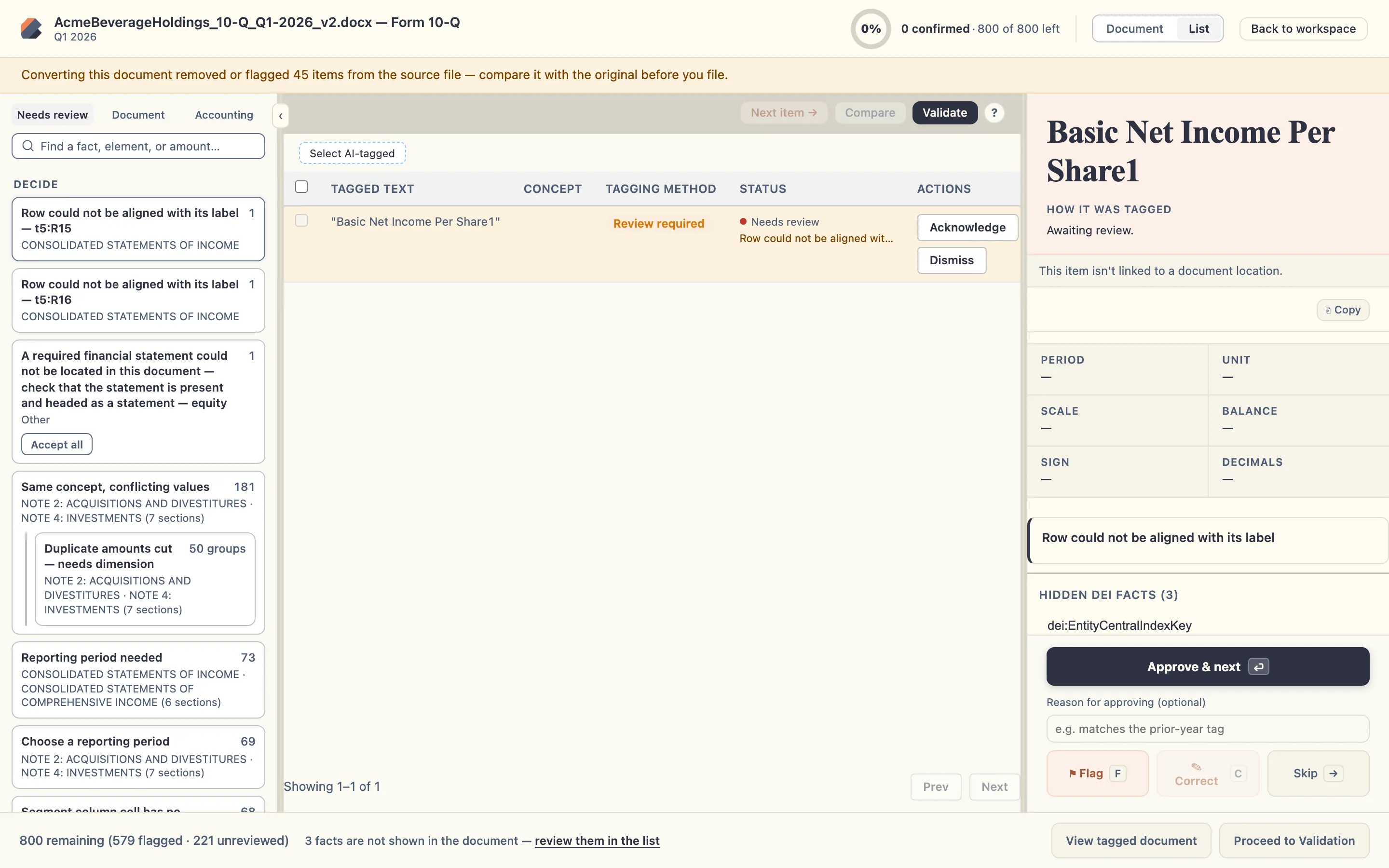
- Needs review: Filters strictly to low-confidence AI suggestions, unmapped lines, missing reporting periods, or engine warnings that require human decision.
- Document: Lists every tagged fact in top-to-bottom document reading order.
- Accounting: Organizes facts by accounting schedule (Face Statements, Level 1–3 Footnote Blocks, and Level 4 Footnote Details) with a progress summary card.
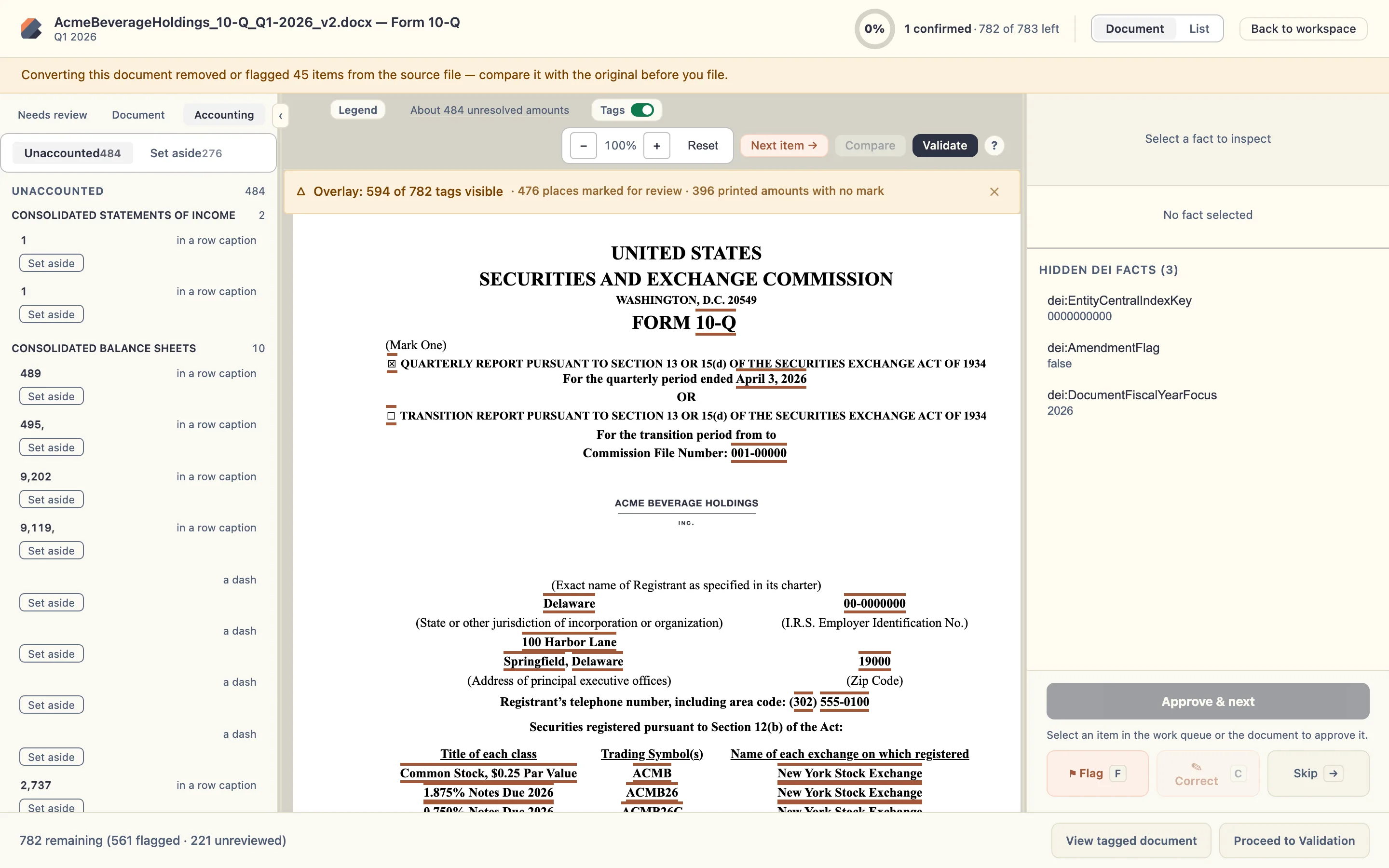
- Set aside: Lists numbers in the document that BluePrint deliberately excluded from XBRL tagging (such as dates, percentages or narrative reference numbers not required by the taxonomy), along with the exact exclusion reason.
3. Inspect Set aside (Exclusions) & include numbers in XBRL
If a number in a footnote or table was set aside as non-taggable, you can inspect why it was excluded and promote it into an active XBRL fact with one click.
Open Set aside and click Include in XBRL if a number should be tagged
Click the Set aside tab in the left worklist. Select any excluded item to highlight it in the document canvas and read the exclusion reason in the right-hand inspector. If your team decides that number should be tagged, click Include in XBRL in the inspector to convert it into a taggable fact and open the concept selector.
4. Approve, modify (Correct / C), & assign US GAAP concepts
Selecting any fact in the worklist or clicking any highlighted number in the document loads its full XBRL metadata into the right-hand Fact Inspector: Concept (`us-gaap:*`, `dei:*`, `ecd:*`, or custom extension), Reporting period, Units & scale, Balance (Debit/Credit), Period type (Instant/Duration), and AI selection rationale.
Inspect a tagged fact and Approve (A) or Correct (C)
When a tag is accurate, click Approve (or press A) to record your sign-off and advance automatically to the next item in the queue. If you want to change the concept on an already-tagged fact, click Correct (or press C).
Assign a concept to an untagged line item
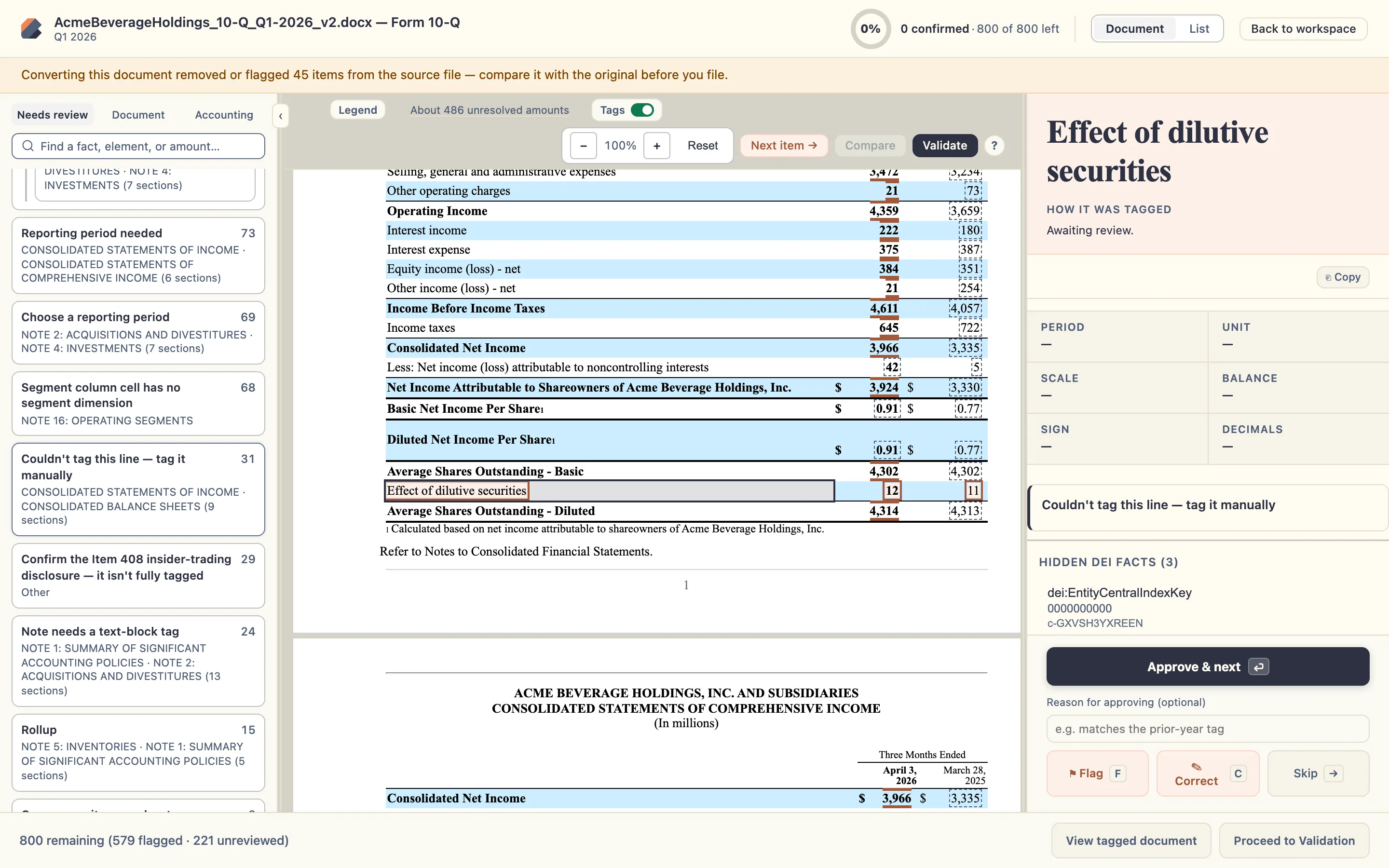
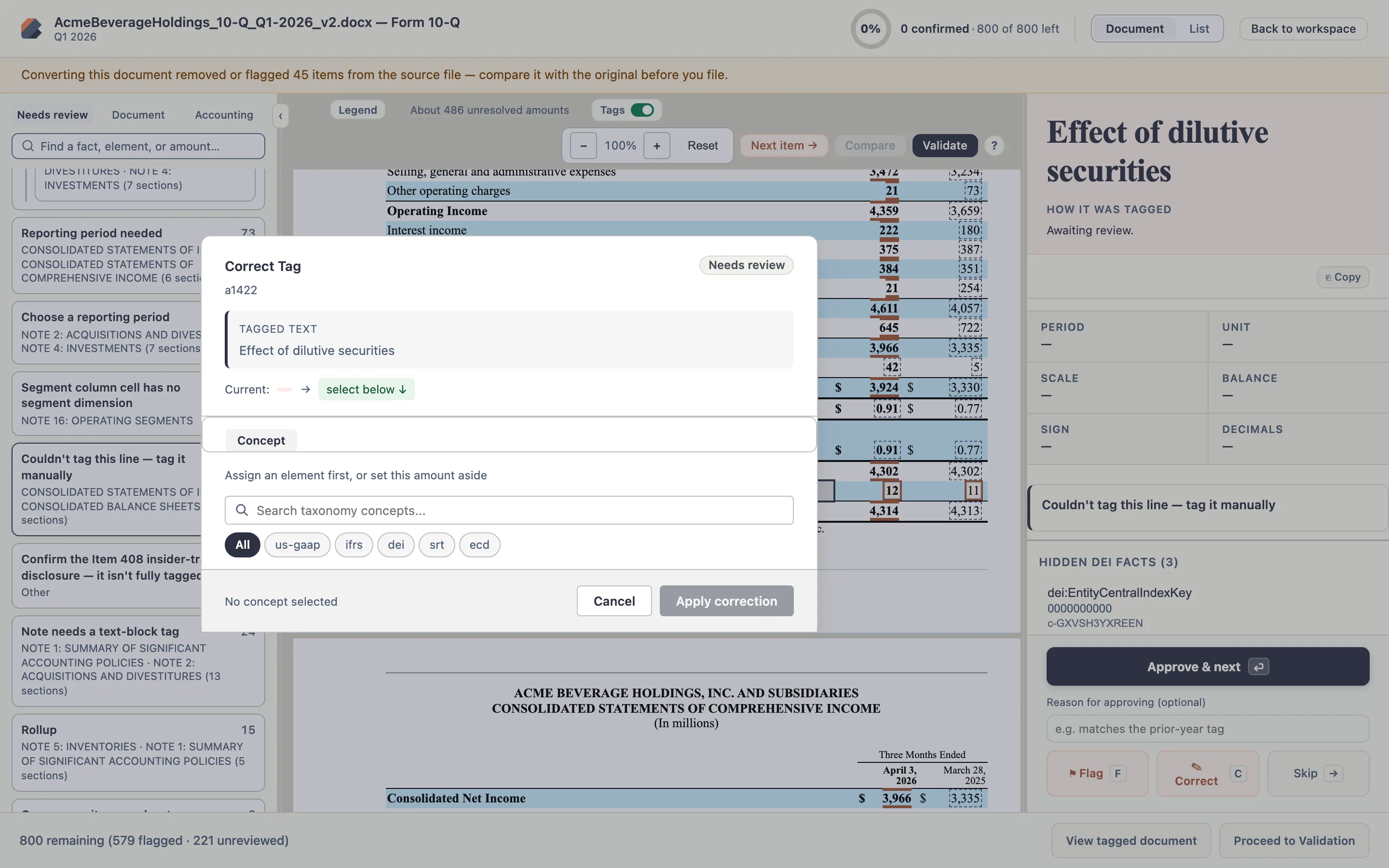
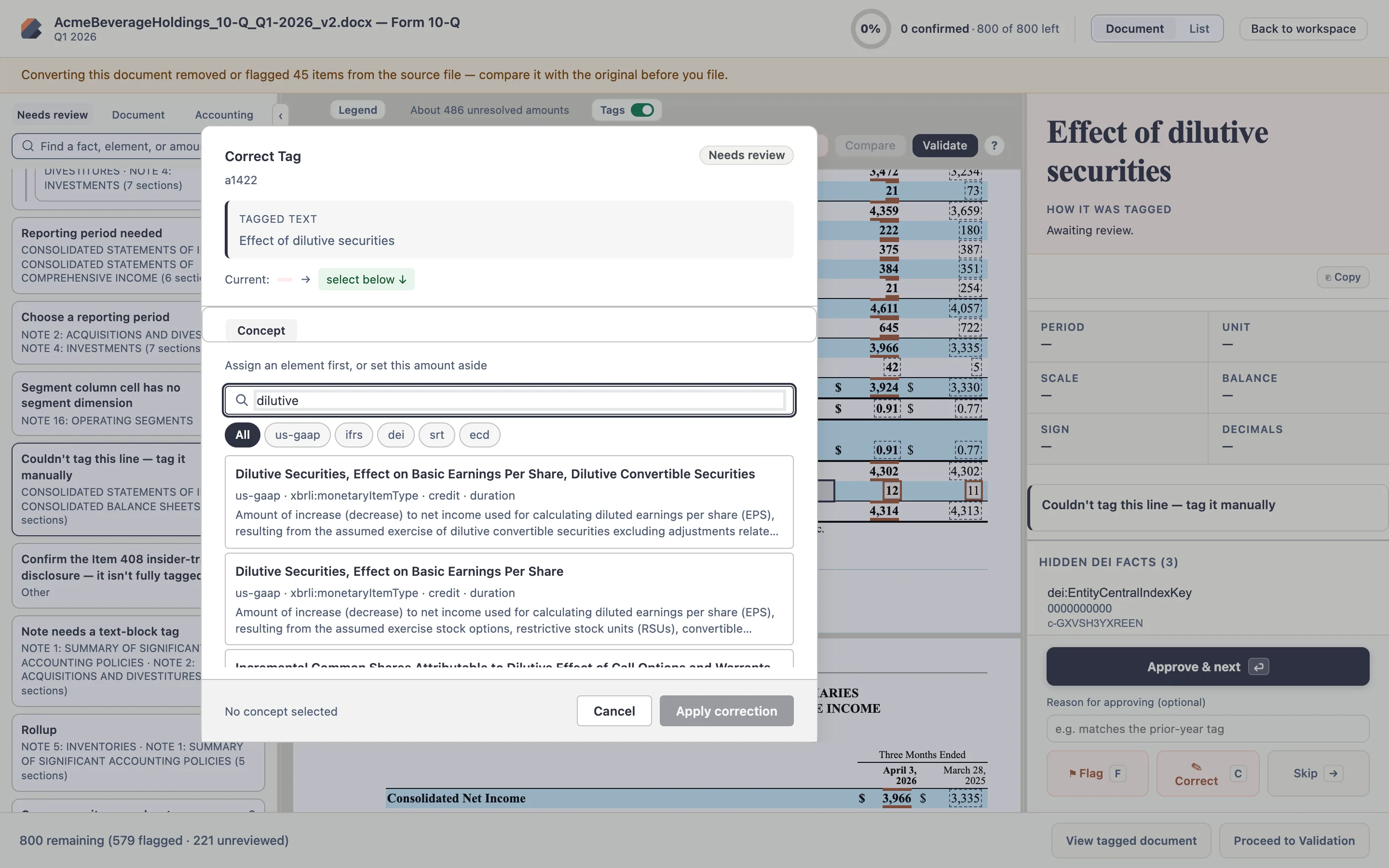
When a card in Needs review reports an untagged line item (Engine Line Failure — where the AI declined to guess a concept with low confidence), click Assign a concept (or press C) to open the US GAAP taxonomy search modal.
Search the US GAAP taxonomy and confirm your selection
Type a keyword or concept name (for example, AccruedLiabilities or Revenues) into the search box. BluePrint searches standard US GAAP, DEI, and company extension concepts and displays each candidate’s authoritative FASB documentation label, data type (`monetaryItemType`, `sharesItemType`, `perShareItemType`), period type (`instant` vs. `duration`), and balance (`debit` vs. `credit`). Click the desired concept to assign it immediately.
5. Set reporting periods & acknowledge structural findings
Beyond concept selection, the Needs review queue also surfaces facts that need a reporting period context or structural acknowledgment.
Choose a reporting period for facts missing context dates
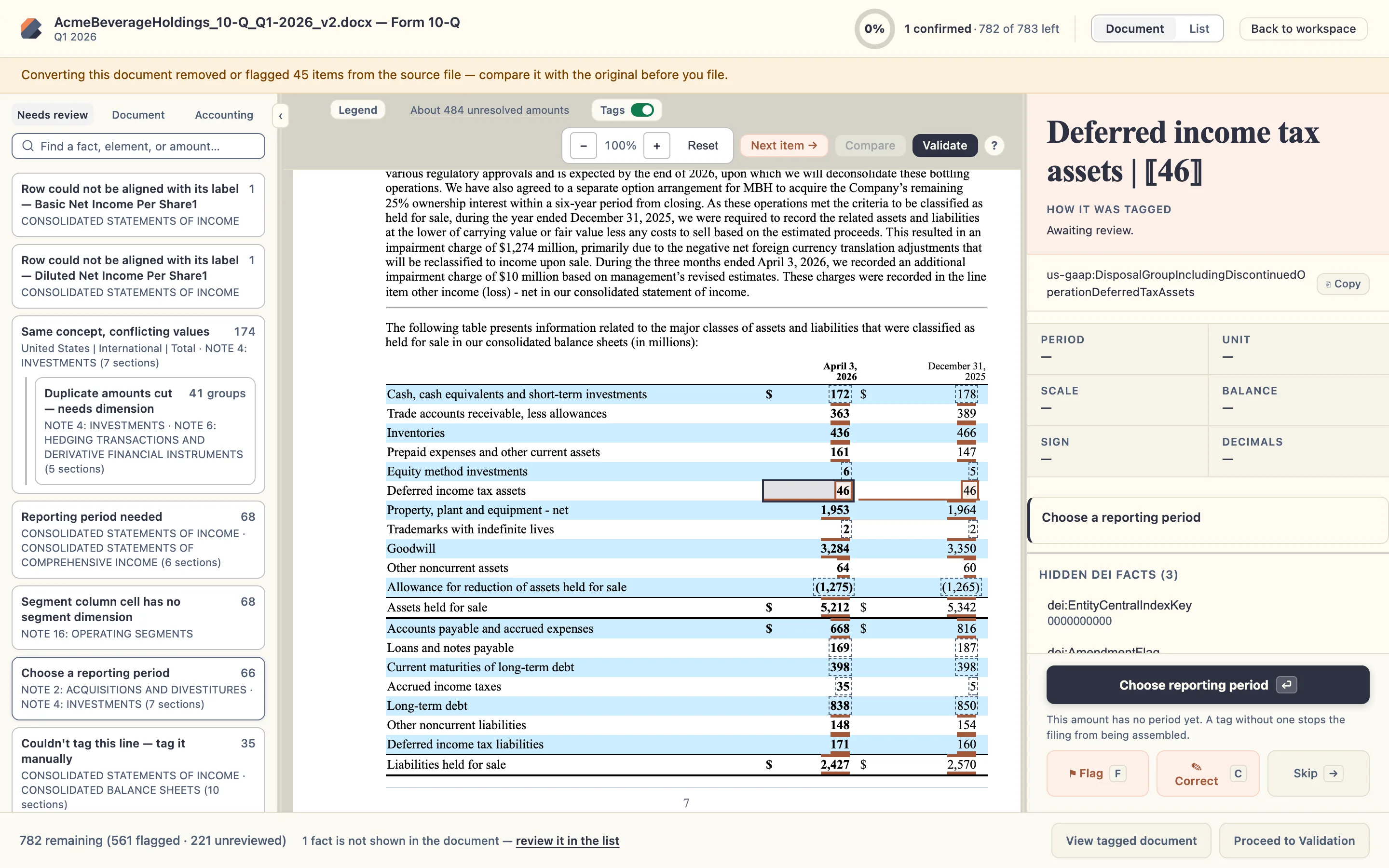
If a footnote date could not be disambiguated automatically, the inspector displays Choose reporting period. Click the button to pick from the filing’s standard period contexts (for example, current quarter duration, prior-year comparative quarter, or balance-sheet instant date) or define a custom date range.
Acknowledge structural findings
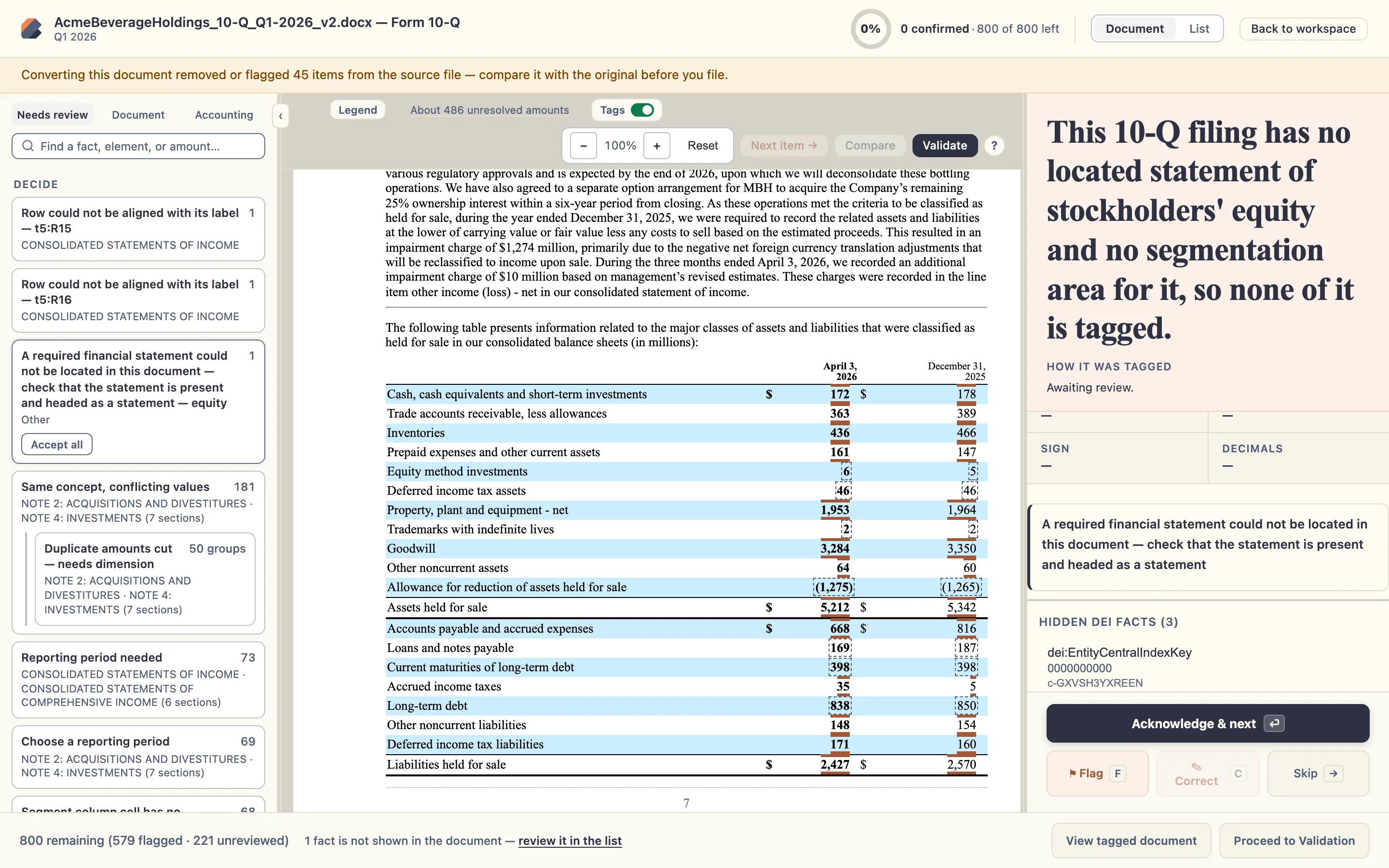
For structural notices (such as Statement Not Located when a 10-Q omits a separate Statement of Comprehensive Income because there are no OCI items), review the notice and click Acknowledge finding (A). The card updates to Reviewed with an Undo review option if you ever need to reopen it.
6. Run EFM + DQC validation
At any point during or after Tag Review, validate your iXBRL package against the SEC’s EDGAR Filer Manual (EFM) rules and XBRL US Data Quality Committee (DQC) rules.
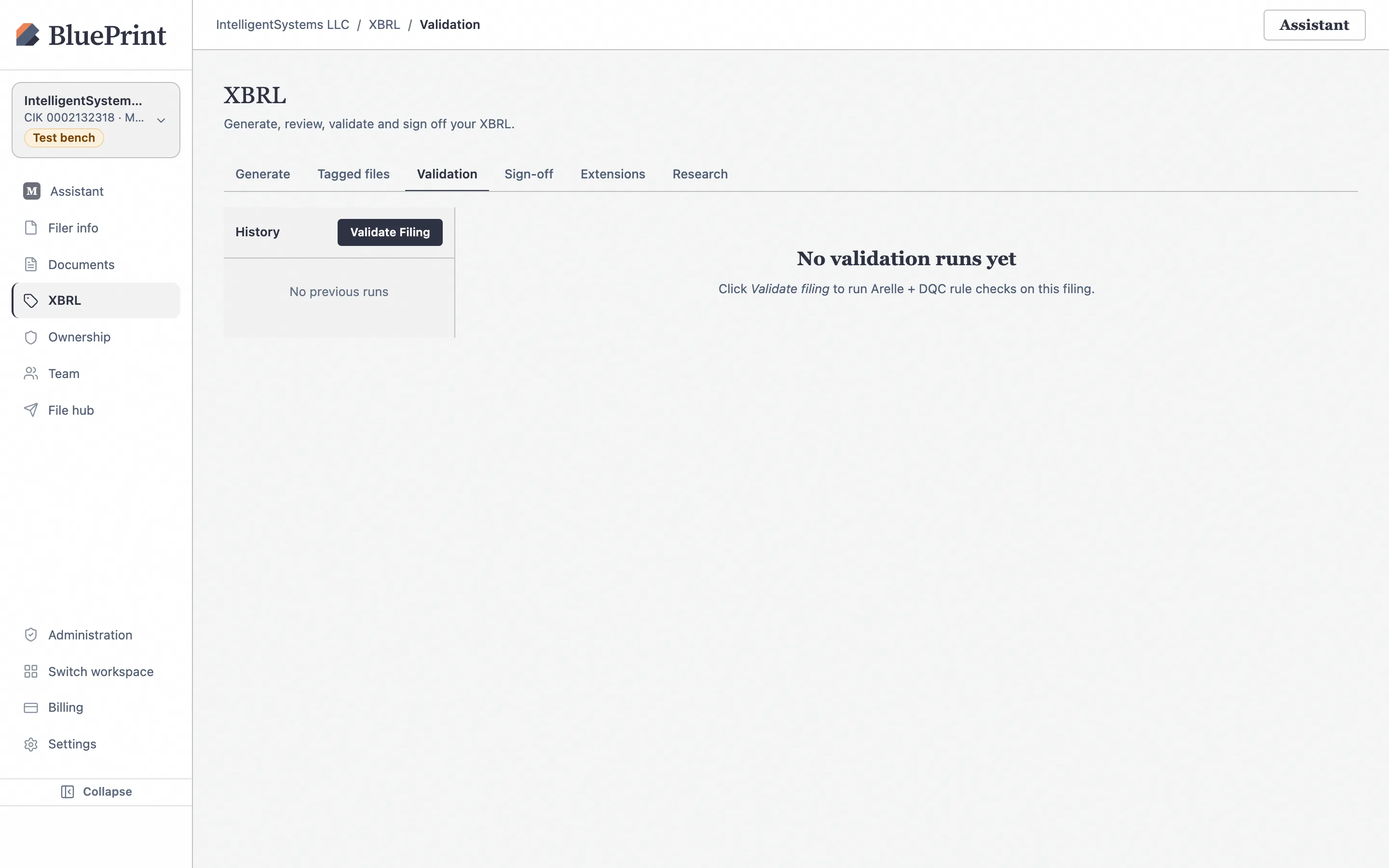
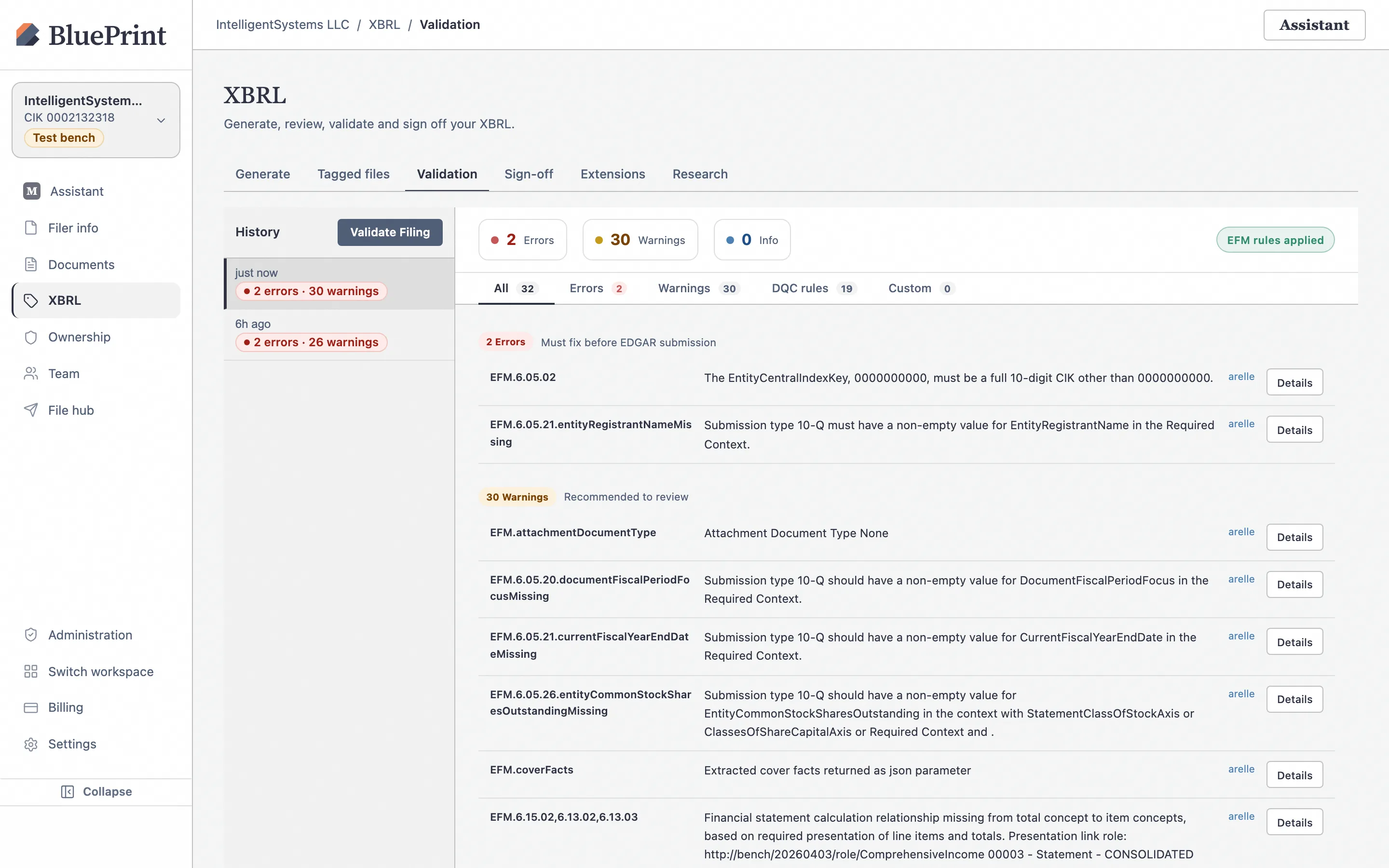
Open XBRL › Validation and click Run Validation
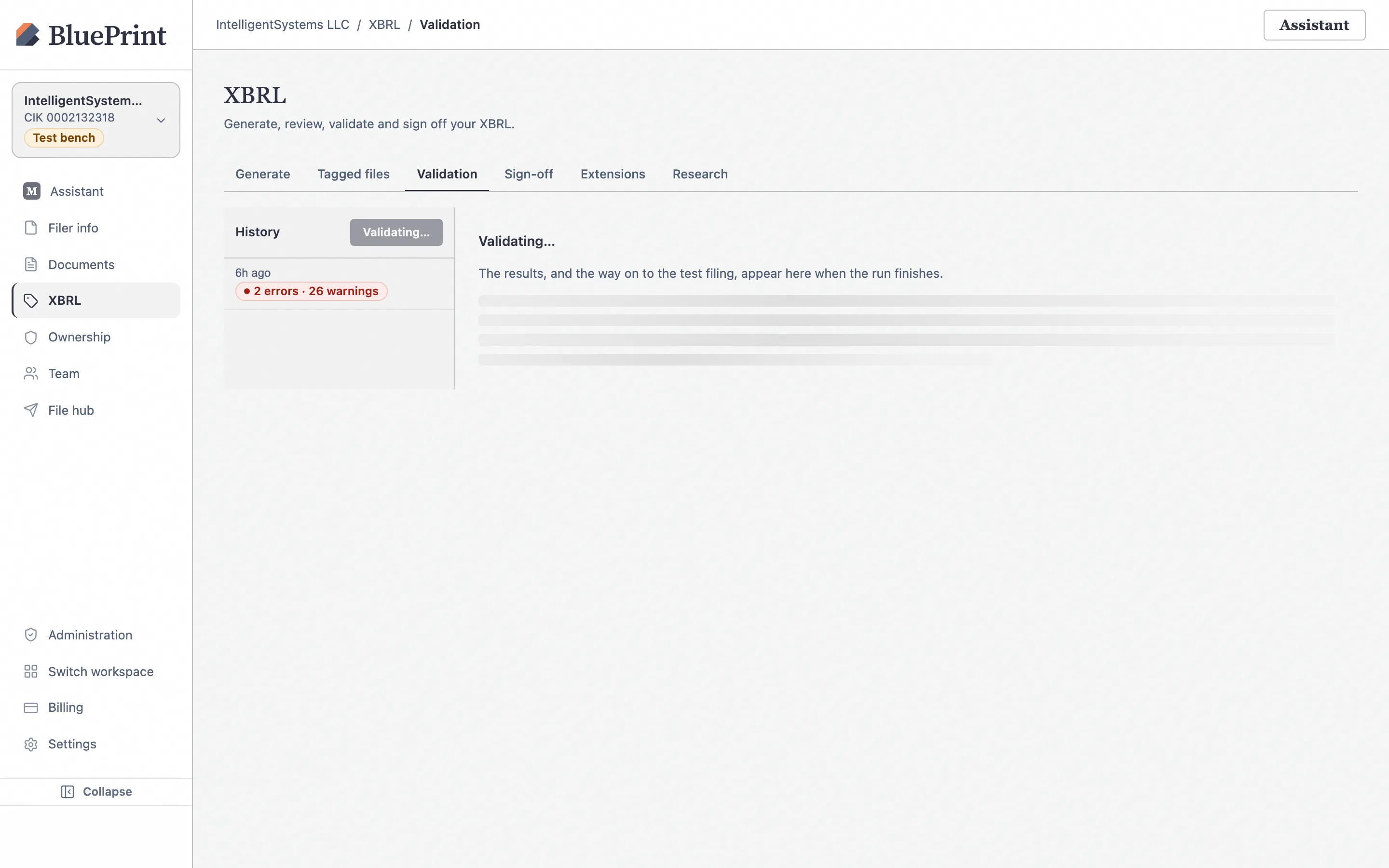
Navigate to XBRL › Validation (/xbrl/validation), ensure your tagged filing is selected in the dropdown, and click Run Validation.
Inspect the validation verdict, Errors, Warnings, and DQC results
When validation completes, BluePrint separates filing-blocking Errors from advisory Warnings and Info messages, and shows the dedicated DQC Validation summary (confirming the ruleset version, such as v29.0.4, and error/warning counts).
7. Record reviewer sign-off
Open XBRL › Sign-off (/xbrl/signoff) to inspect the overall tag review completion across your filing.
Check Sign-off readiness before locking in the File Hub
The Sign-off page displays total facts, verified count, pending review items, and modified tags. If any items remain unreviewed, a link takes you directly back to Tag Review to finish them before locking the submission package in the File Hub.