1. Confirm Workspace Settings & Company Profile
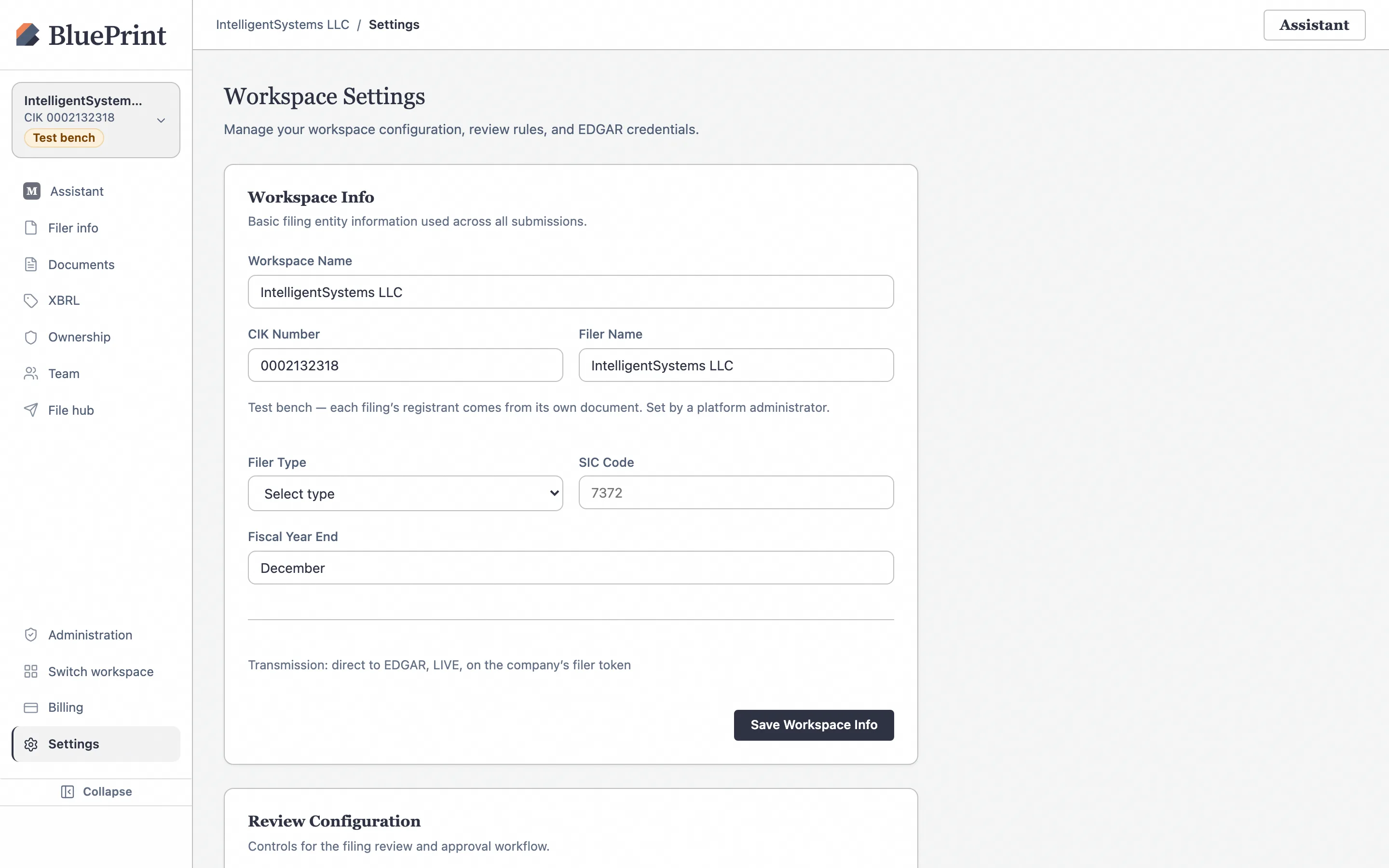
Before entering EDGAR tokens, confirm that your workspace’s registrant name and 10-digit CIK are set correctly.
Open Settings in the left sidebar
Click Settings (/settings) near the bottom of the left sidebar. Here you can review your Company Profile, default XBRL taxonomy, and AI assistant preferences. Notice that EDGAR tokens are deliberately separated from general settings so they remain access-controlled under Filer info › EDGAR account.
2. Save the Filer API Token & CCC under Filer info › EDGAR account
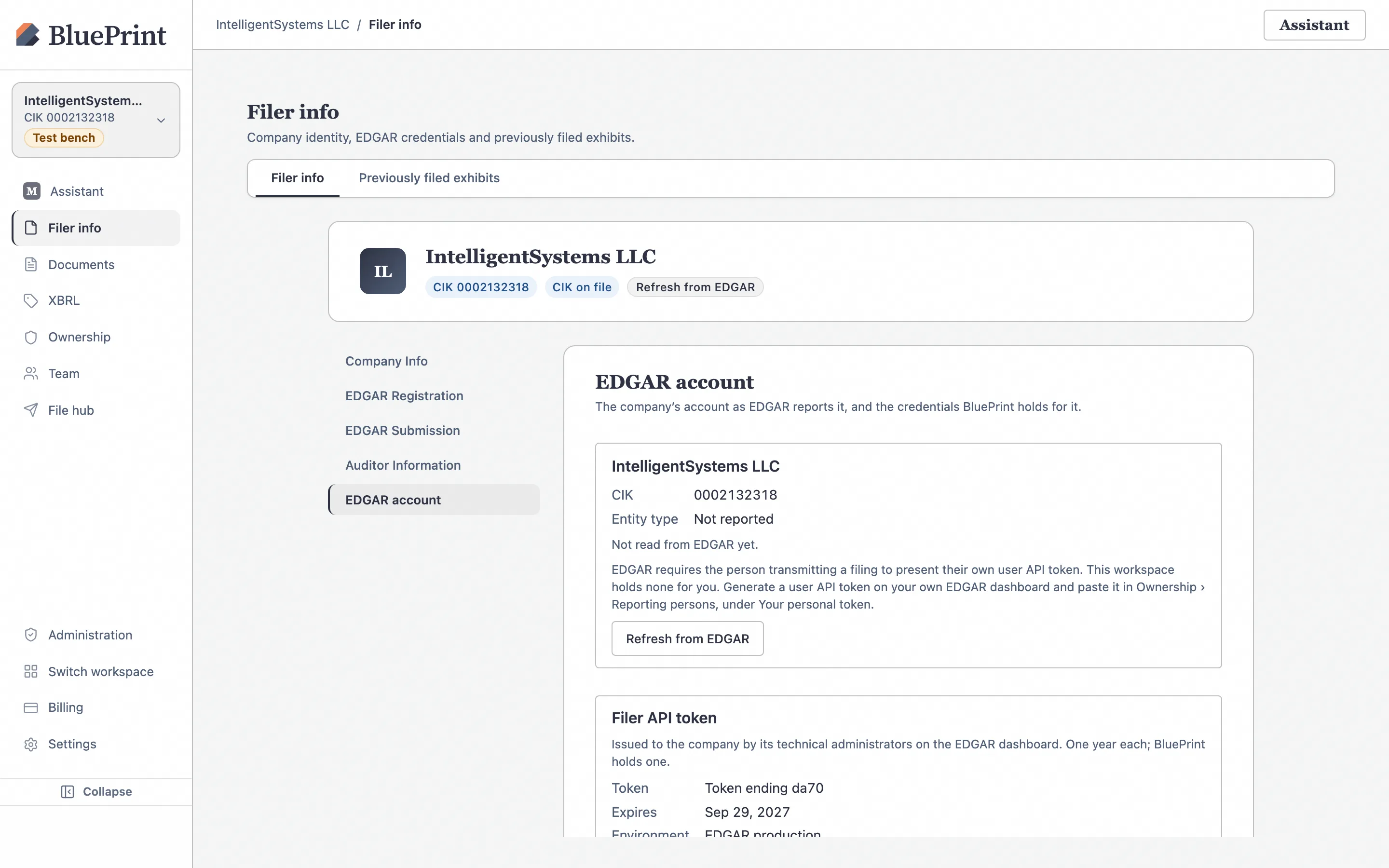
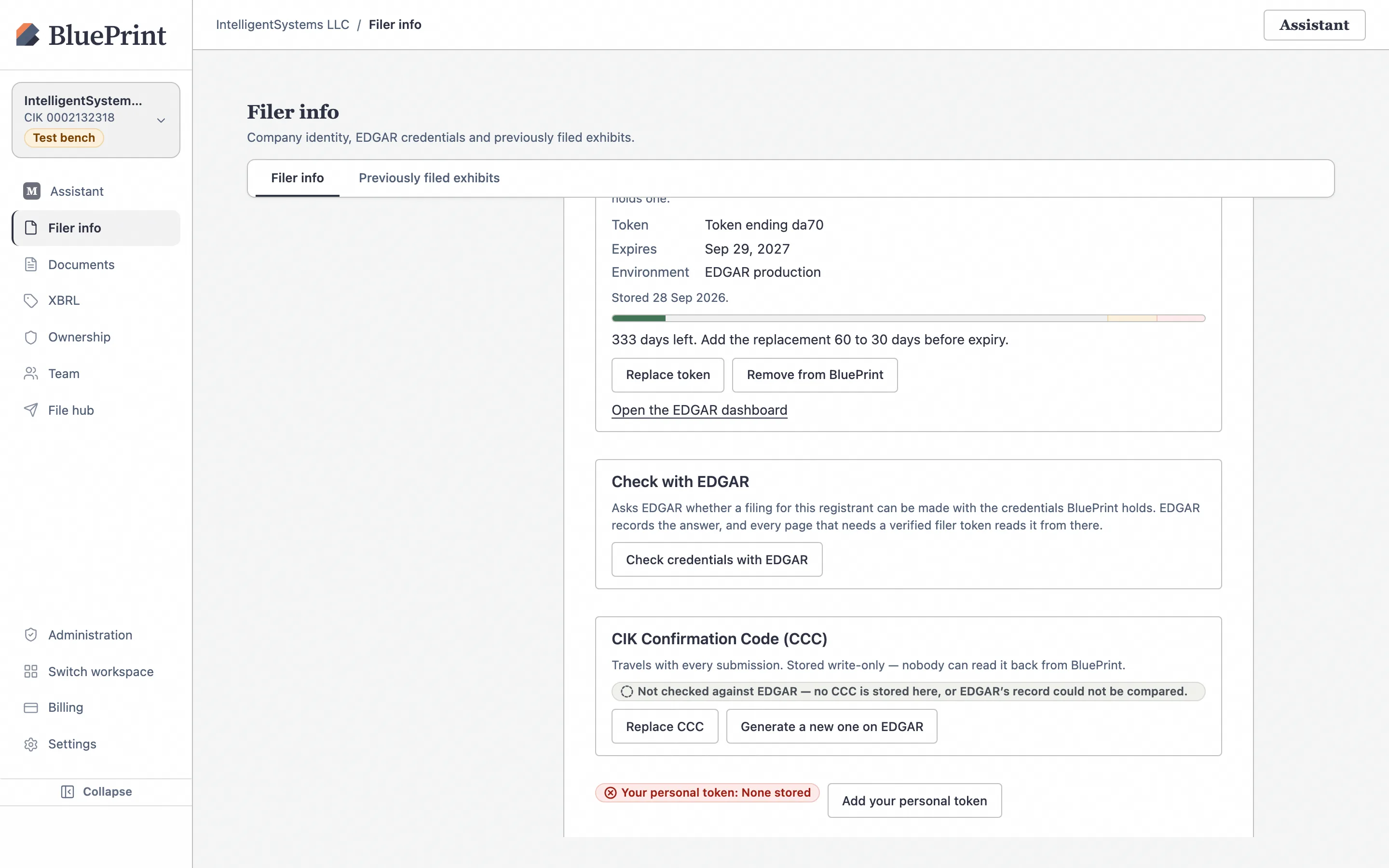
Corporate EDGAR credentials are stored once for the workspace under Filer info › EDGAR account (/filings?section=edgar-account).
Open Filer info › EDGAR account
Click Filer info in the left sidebar and select the EDGAR account tab. The page is organized into four cards: Filer API token, CCC (CIK Confirmation Code), Your personal EDGAR user token, and Check credentials with EDGAR.
Save or replace the 1-year Filer API Token
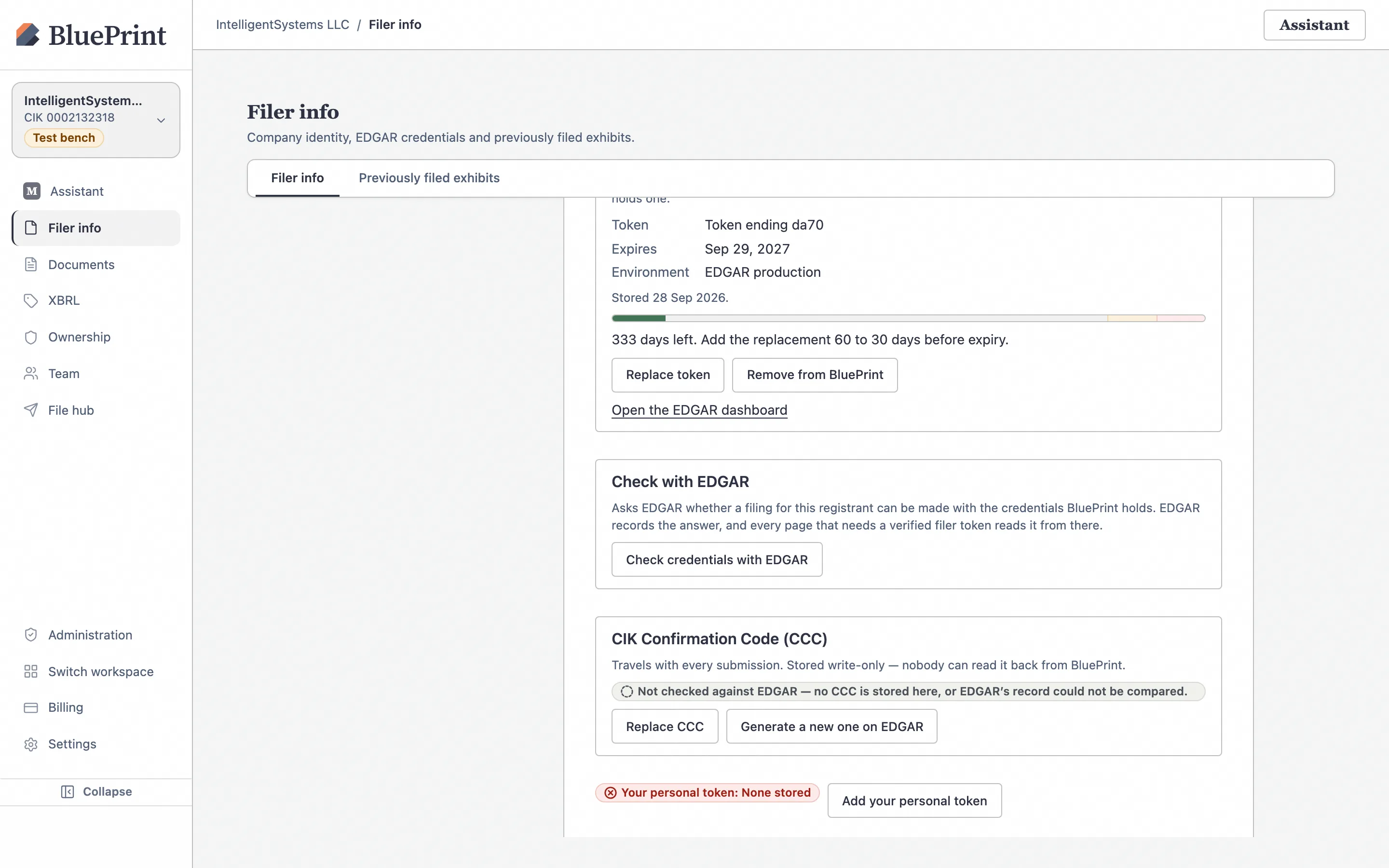
In the Filer API token card, paste the 1-year Filer API Token generated on the SEC’s EDGAR Filer Management dashboard and click Save token (or Replace token when rotating an existing token). Once saved, BluePrint encrypts the token with AES-256-GCM and displays only a masked token ID label (derived from the token’s public identifier header or last four characters), the expiration date, and who saved it—never displaying stored secret values in the UI.
Save or replace the 8-character CCC
In the CCC (CIK Confirmation Code) card, enter the company’s 8-character case-sensitive CCC and click Save CCC (or Replace CCC).
3. Save your personal 30-day User API Token
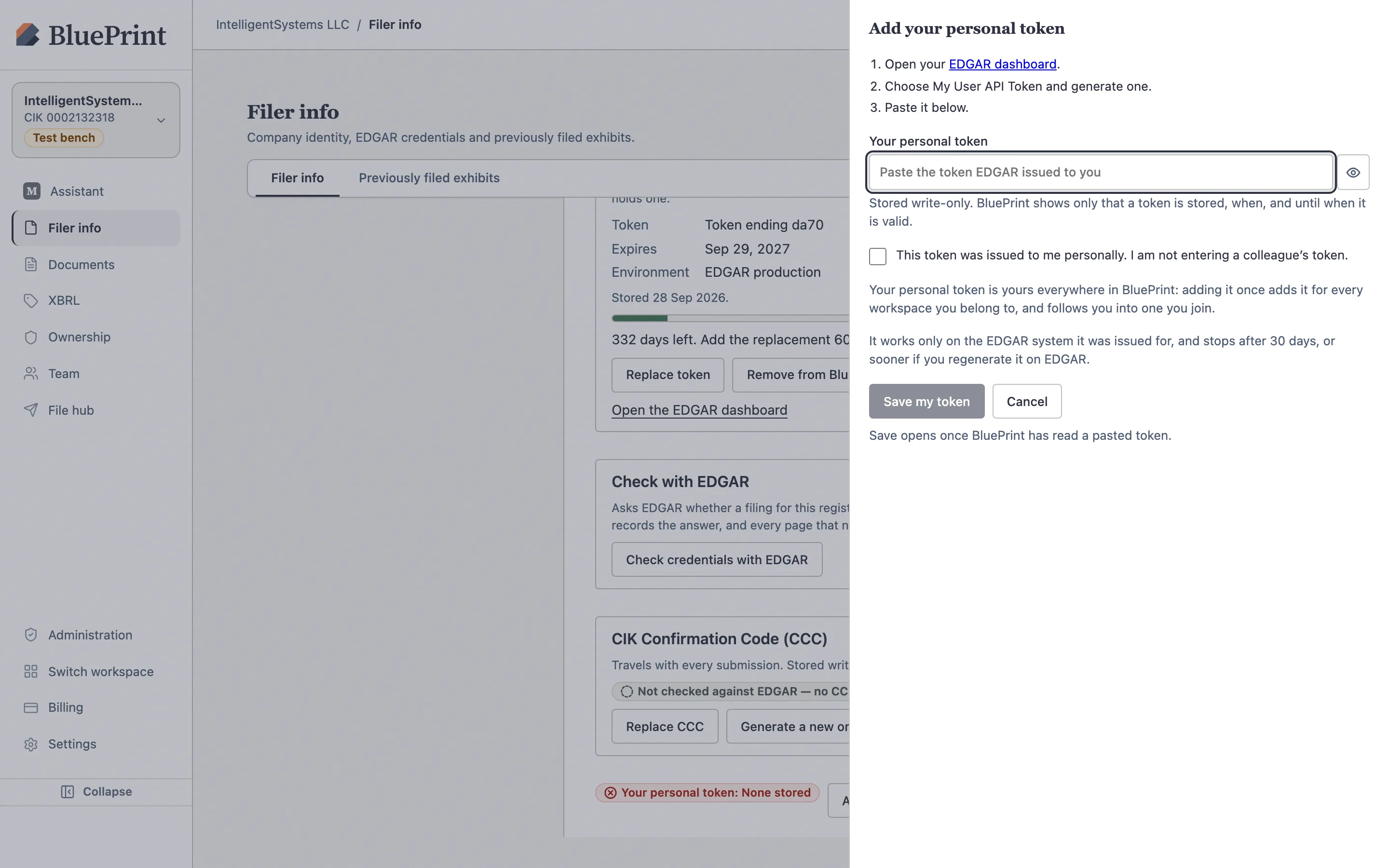
Under EDGAR Next, every individual who initiates a test or live submission (or runs a live credential check) must present their own personal 30-day User API Token.
Click Add your personal token and paste your 30-day token
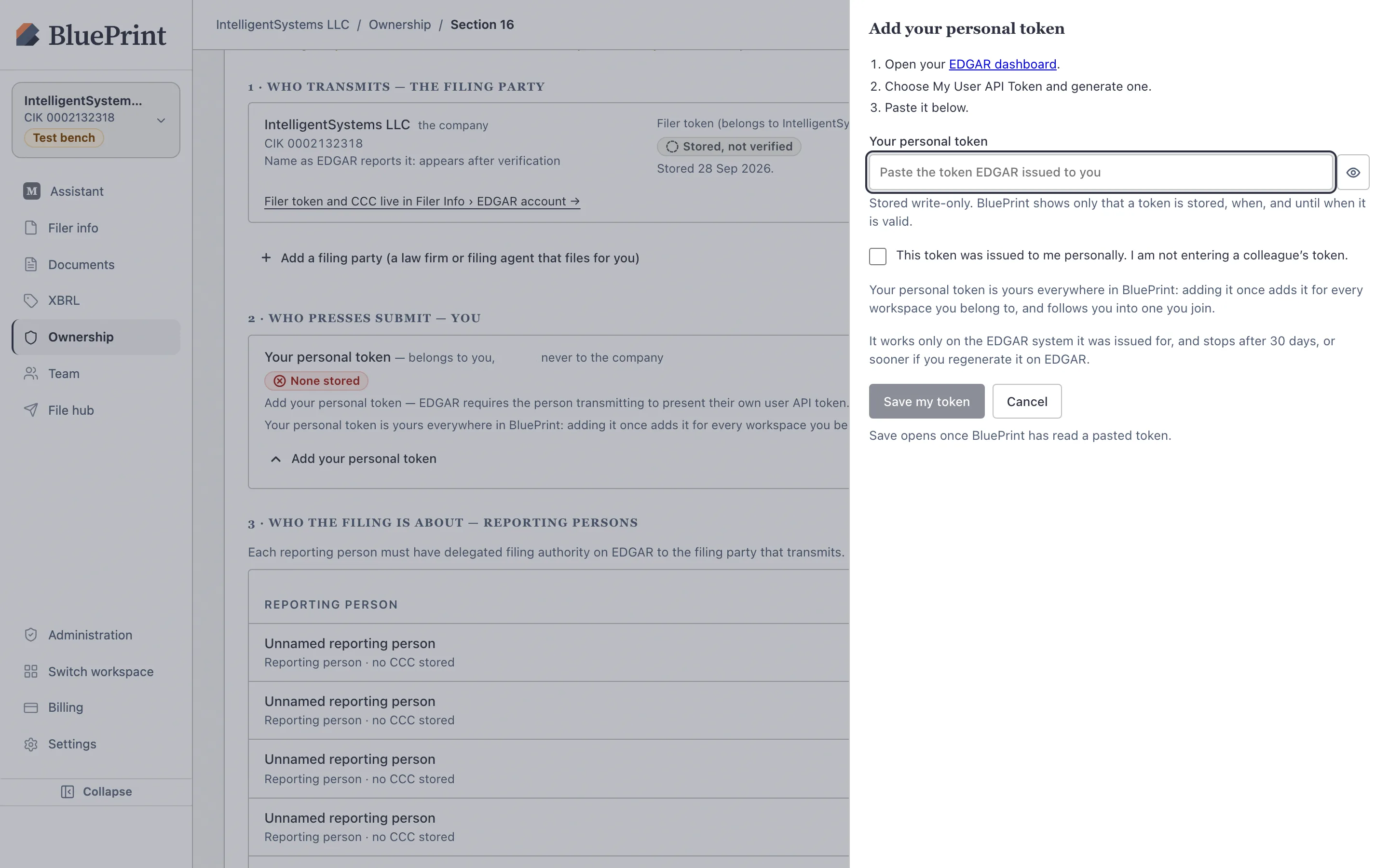
In the Your personal EDGAR user token card, click Add your personal token. A right-hand drawer opens explaining how to generate your 30-day token on the EDGAR Filer Management dashboard. Paste the token into the Personal user API token field and click Save my token.
4. Run Check credentials with EDGAR
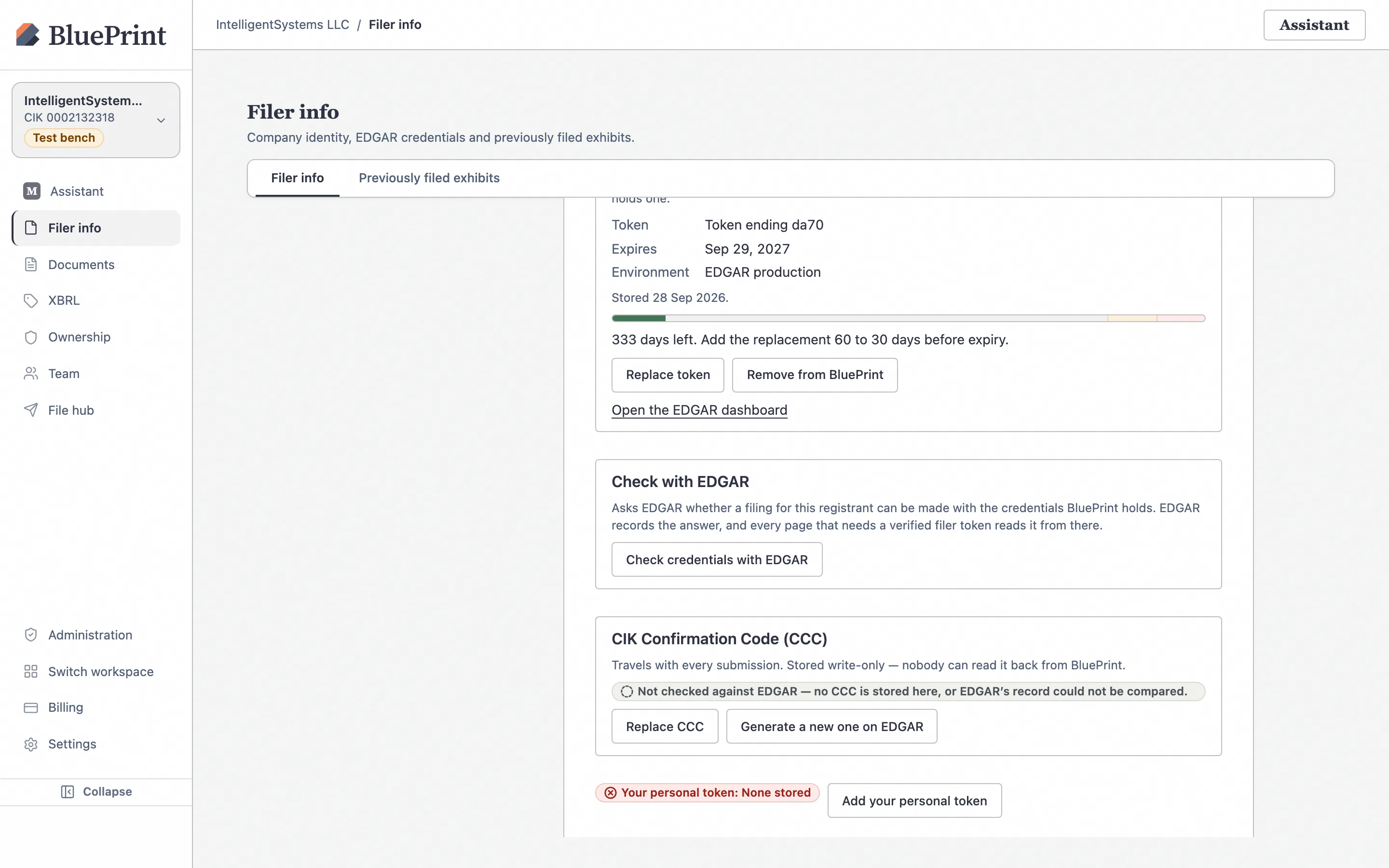
Before filing day, verify that your saved Filer API Token and personal User API Token are accepted by the SEC’s EDGAR API.
Click Check with EDGAR
In the Check credentials with EDGAR card at the bottom of Filer info › EDGAR account, click Check with EDGAR.
Understand the verification response or refusal banner
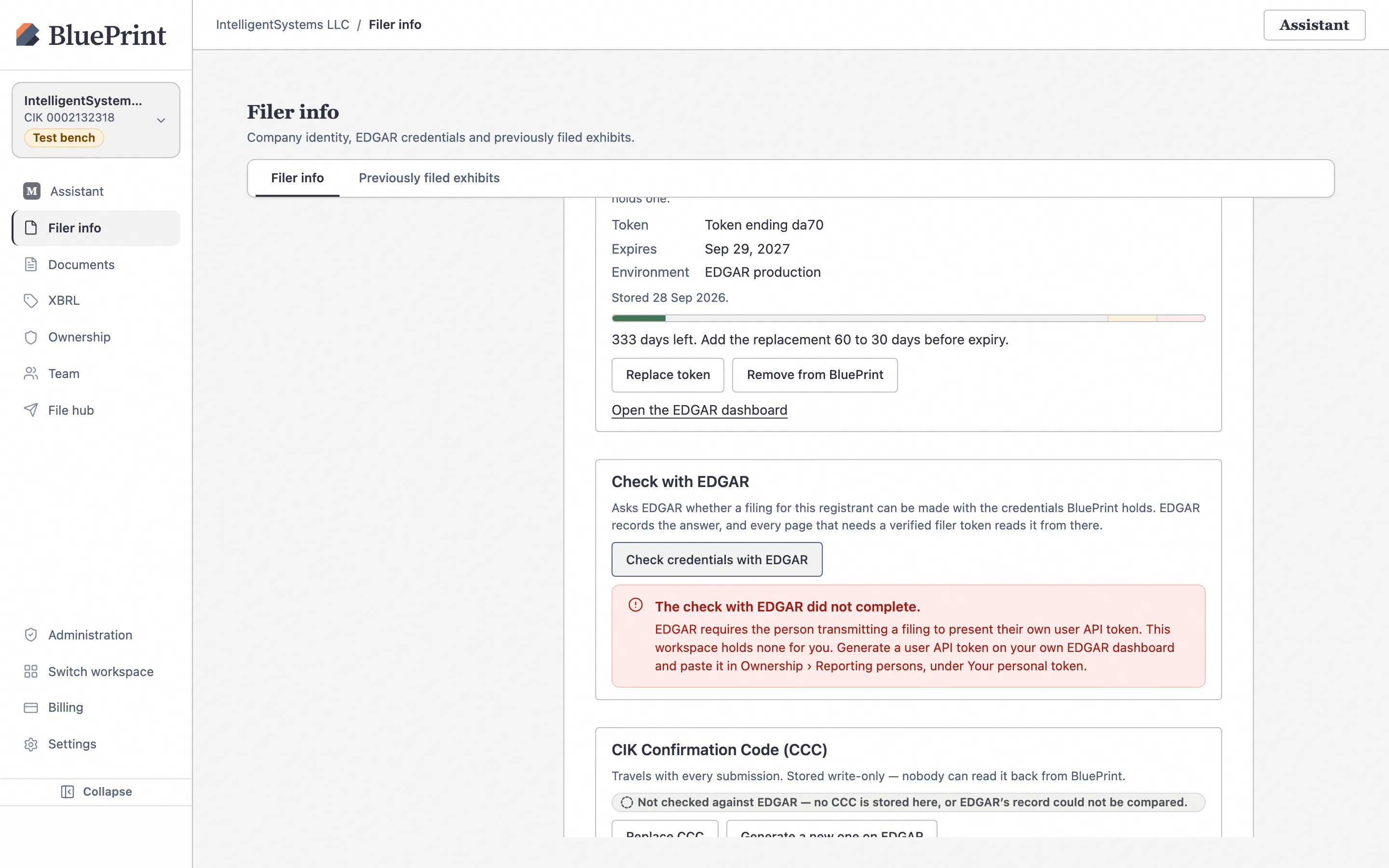
If both the workspace Filer API Token and your personal 30-day User API Token are saved and valid, EDGAR confirms that your tokens are active and authorized for the workspace CIK. If you click Check with EDGAR before adding your personal 30-day token, BluePrint displays a clear refusal banner: “No personal EDGAR user API token is saved for your account.”
5. Check Ownership readiness & invite teammates
The same workspace Filer API Token and personal 30-day User API Token also power the Section 16 and Section 13 ownership desks.
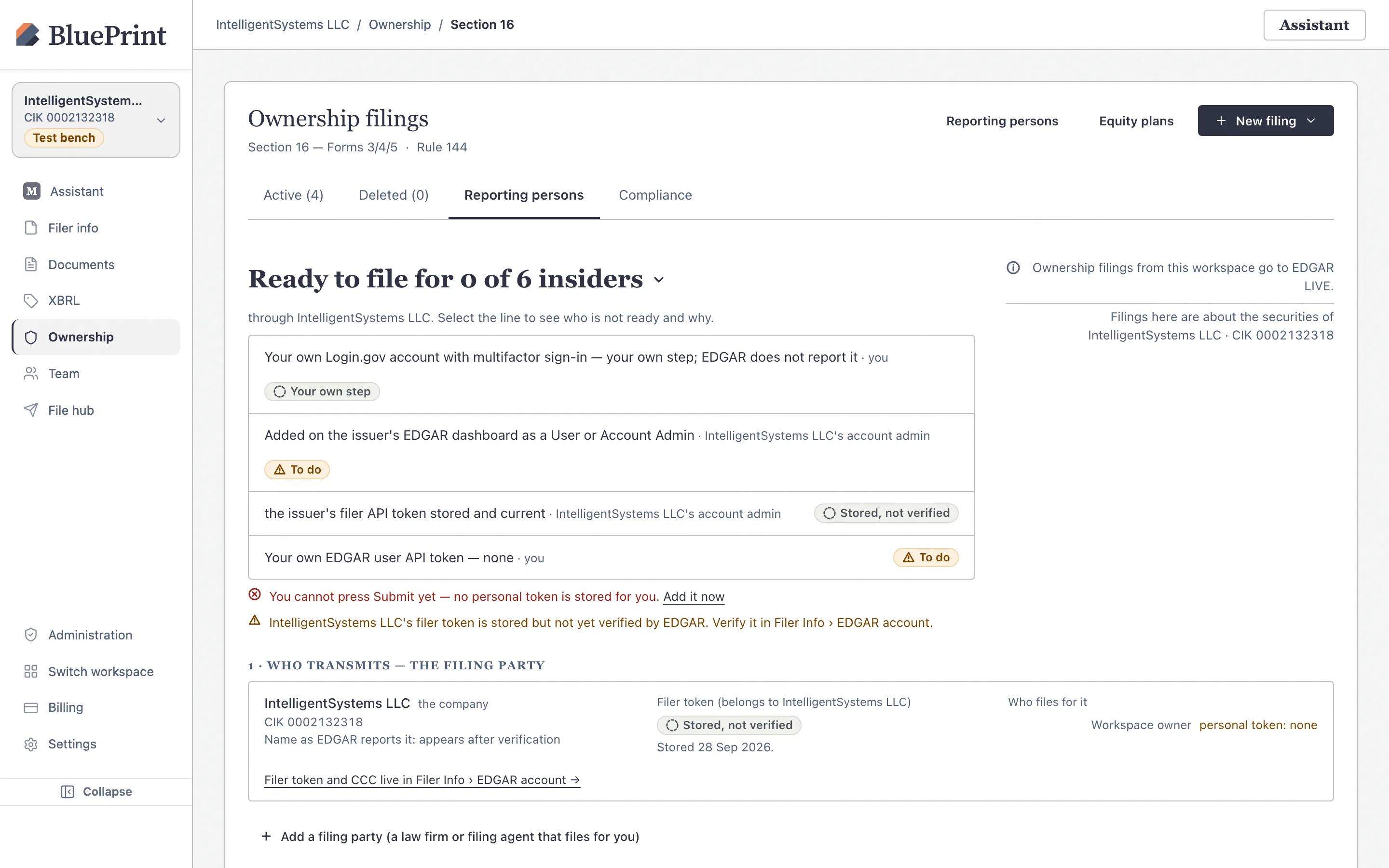
Verify the EDGAR readiness checklist in Ownership › Reporting persons
Open Ownership › Section 16 › Reporting persons (/ownership/section16/reporters) and scroll to the EDGAR readiness card. It checks off the workspace Filer API Token (`Set`), prompts you with Add your personal token if your 30-day token is not yet saved, and lists each reporting person’s CIK, CCC, and POA readiness.
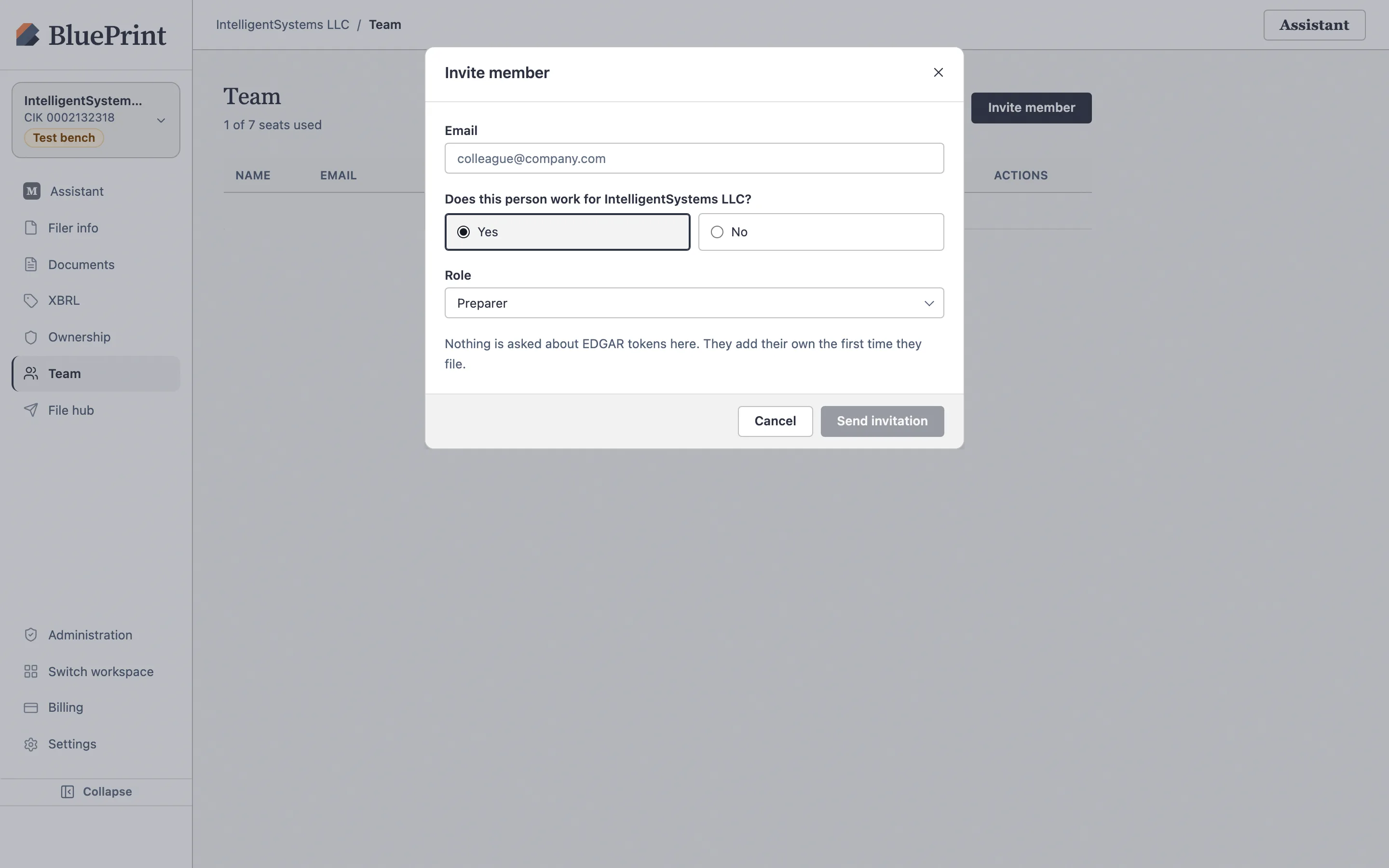
Invite teammates without requiring EDGAR tokens up front
When you invite colleagues, auditors, or outside counsel via Team › Invite member (/team), teammates can join the workspace to draft, redline, and review tags immediately—only the person who actually clicks Submit to EDGAR needs a personal 30-day User API Token.