
1. PDF Proofs vs. Typeset Copies: When to use each
BluePrint’s PDF files workspace (/documents/typeset) separates day-to-day review proofs from book-grade typeset deliverables so your audit trail stays unambiguous:
| Feature | Proofs (?tab=proofs) |
Typeset copies (?tab=typeset) |
|---|---|---|
| Purpose | Point-in-time check proofs of any working filing (10-K, 10-Q, 8-K, S-1, DEF 14A, etc.) for disclosure committee, auditor, or board packet review. | Book-grade AI financial printer deliverables: preliminary prospectus e-Reds and glossy Annual Reports to Shareholders (ARS). |
| How it is triggered | Row ⋯ › PDF Proof on any converted filing in Working files. | Row ⋯ › Produce e-Red (registration statements) or ⋯ › Convert to ARS (annual reports). |
| Versioning & status | Immutable snapshot tied to the source document version, date, and file size. Never overwritten by later edits. | Grouped by source filing into numbered runs (Draft #1, Draft #2, …) with Mark as Filing Copy promotion for EDGAR submission. |
2. Generate a PDF Proof from a working document
You can generate a PDF proof at any stage of drafting or tag review whenever your working document is at Ready or Tagged status.
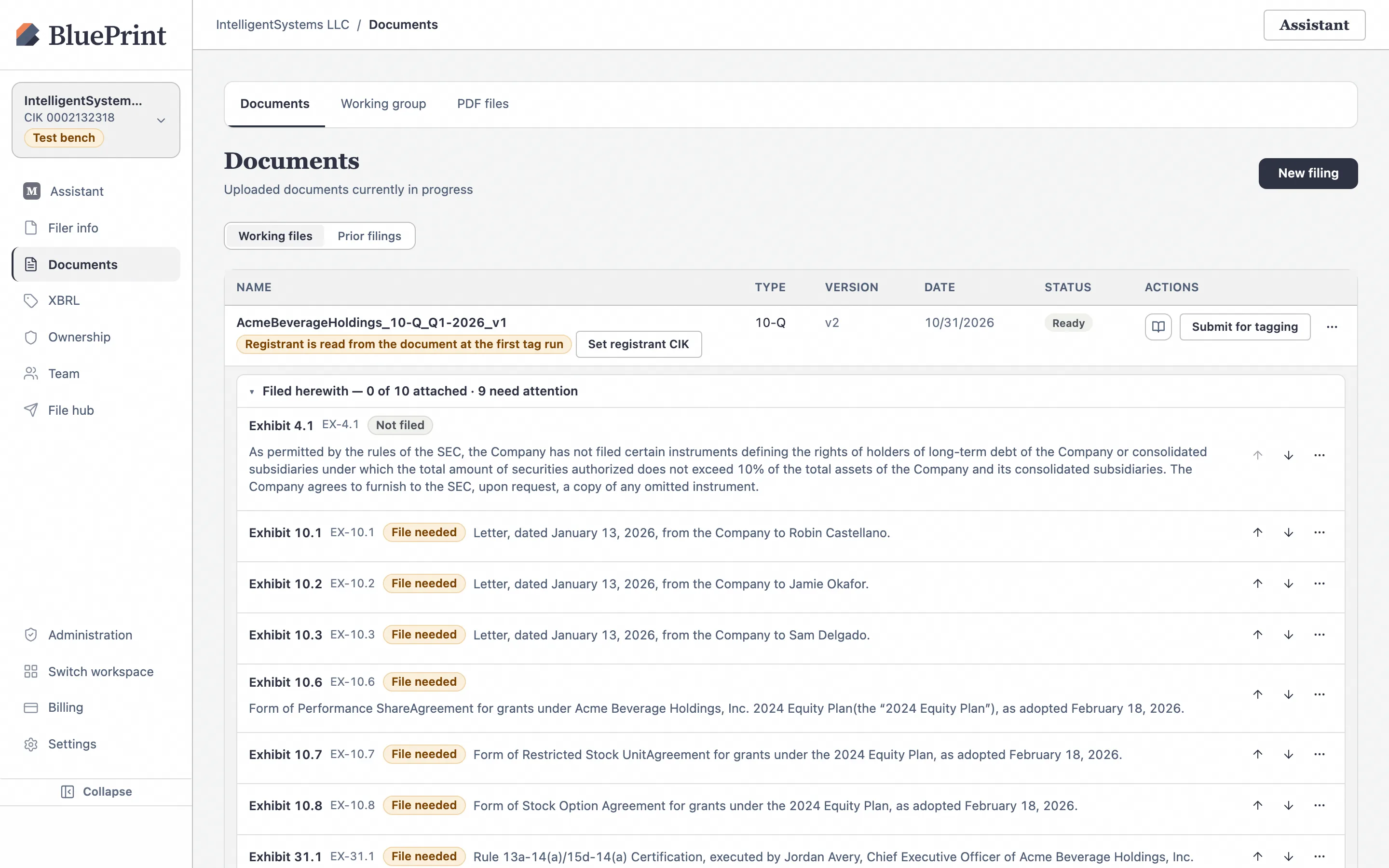
Open the filing row’s More actions (⋯) menu and click PDF Proof
On the Documents page, click ⋯ on the right side of the filing row and select PDF Proof (located directly below Edit).
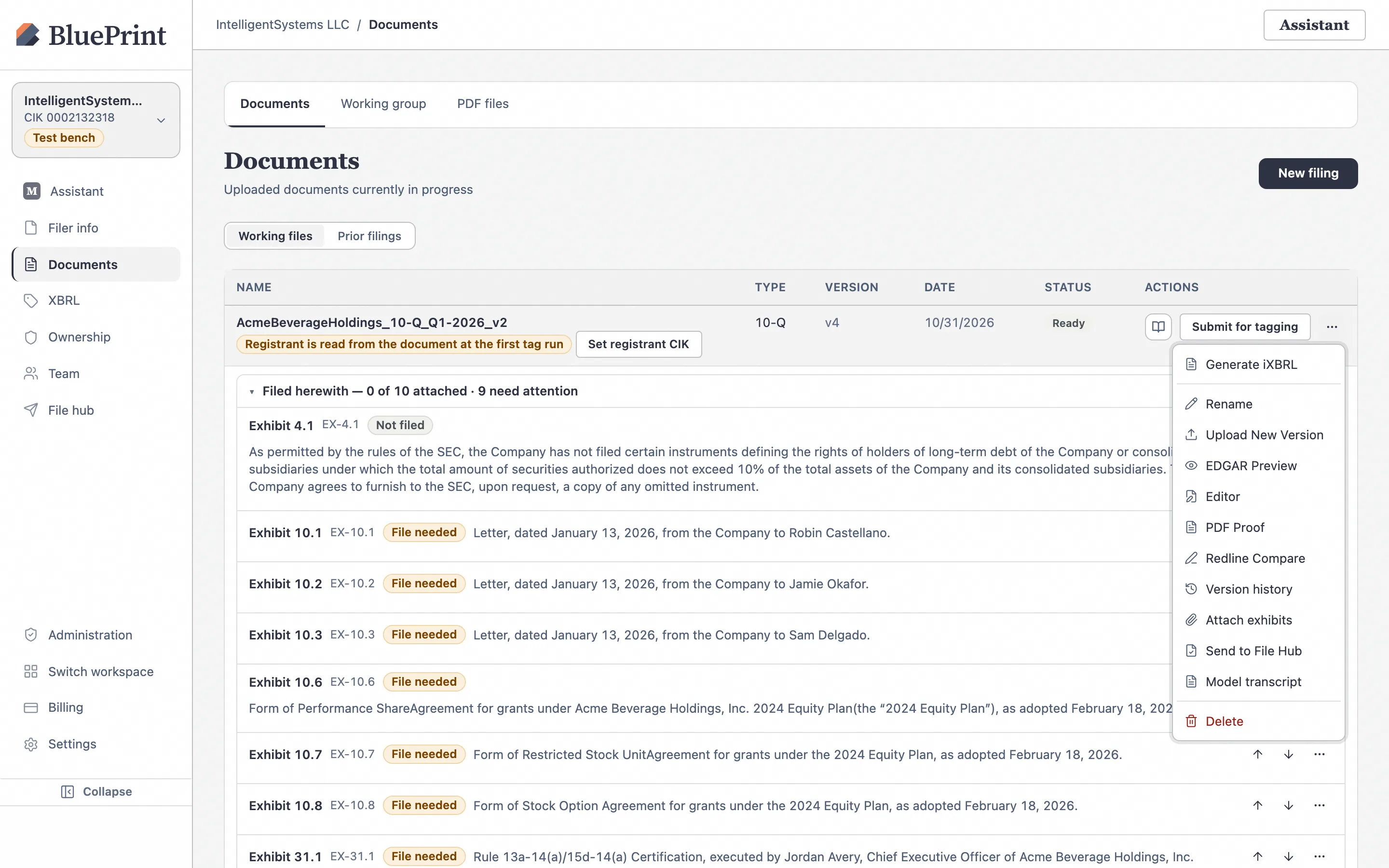
BluePrint generates the immutable proof and opens PDF files › Proofs
When you click PDF Proof, BluePrint compiles the exact paginated layout of the current document version into a high-resolution PDF artifact, displays a confirmation toast (“PDF proof generated”), and takes you directly to Documents › PDF files with the Proofs sub-tab active (/documents/typeset?tab=proofs).
3. View & download proofs under PDF files › Proofs
Every proof you generate is preserved in chronological order inside the Proofs table so you can compare earlier review packets or download historical check copies at any time.
Inspect the Proofs table
Switch to PDF files in the top tab bar of the Documents section and select Proofs. Each row displays:
- PROOF: The proof filename and an Immutable badge confirming that subsequent edits to the working document will never alter this snapshot.
- SOURCE DOCUMENT: Which working filing the proof was generated from.
- FORM: The SEC form badge (such as 10-Q, 10-K, or S-1).
- GENERATED & SIZE: The date and exact byte size of the PDF.
- ACTIONS: Click View to open the PDF inside BluePrint’s split-pane preview drawer, or click Download to save the
.pdffile locally.
4. Manage numbered drafts under PDF files › Typeset copies
Click the Typeset copies sub-tab (/documents/typeset?tab=typeset) to manage book-grade typeset PDFs created via Convert to ARS or Produce e-Red.
Review numbered Draft runs and promote a Filing Copy
Inside Typeset copies, runs are grouped by source document and numbered sequentially (Draft #1, Draft #2, …):
- Status badges: Each run shows Generating… while rendering, Draft once ready for inspection, or Filing Copy when promoted for official EDGAR submission.
- Promote for EDGAR (Mark as Filing Copy): Click Mark as Filing Copy on the approved draft to designate it as the official PDF copy for EDGAR transmission (automatically demoting any prior Filing Copy for that document back to Draft).
- Demote (Revert to draft): If you need to unlock and replace the designated Filing Copy, click Revert to draft.
To learn how to create e-Reds and Annual Reports to Shareholders (ARS) and submit an ARS to EDGAR, continue to Guide 06: How to Create Prospectus e-Reds & Annual Reports (ARS) and Guide 07: How to Submit a Created ARS to EDGAR.