1. Promote your approved ARS draft to a Filing Copy
After you run Convert to ARS on a Form 10-K, 20-F, or 40-F (see Guide 06), BluePrint creates a numbered typeset PDF under Documents › PDF files › Typeset copies (Draft #1, Draft #2, etc.). Because you may iterate on multiple typeset drafts before final sign-off, BluePrint requires you to explicitly promote the approved draft to a Filing Copy before packaging.
Open PDF files › Typeset copies and click Mark as Filing Copy
Navigate to Documents, click the PDF files tab at the top, and select Typeset copies (/documents/typeset?tab=typeset). Locate the approved draft row under your filing’s group and click Mark as Filing Copy:
- The row’s status badge updates from Draft to a green Filing Copy badge.
- If an earlier draft was previously marked as the Filing Copy, BluePrint automatically reverts that earlier draft back to Draft so only one official Filing Copy exists per ARS.
- You will see the confirmation toast: “Designated as Filing Copy — ready for File Hub submission.”
2. Send the ARS document row to the File Hub
Once your typeset PDF is marked as Filing Copy, return to Documents › Working files where the child ARS row appears beneath its parent annual report.
Click Send to File Hub from the ARS row menu (⋯)
On the ARS row in Working files, click ⋯ on the right side of the row and select Send to File Hub.
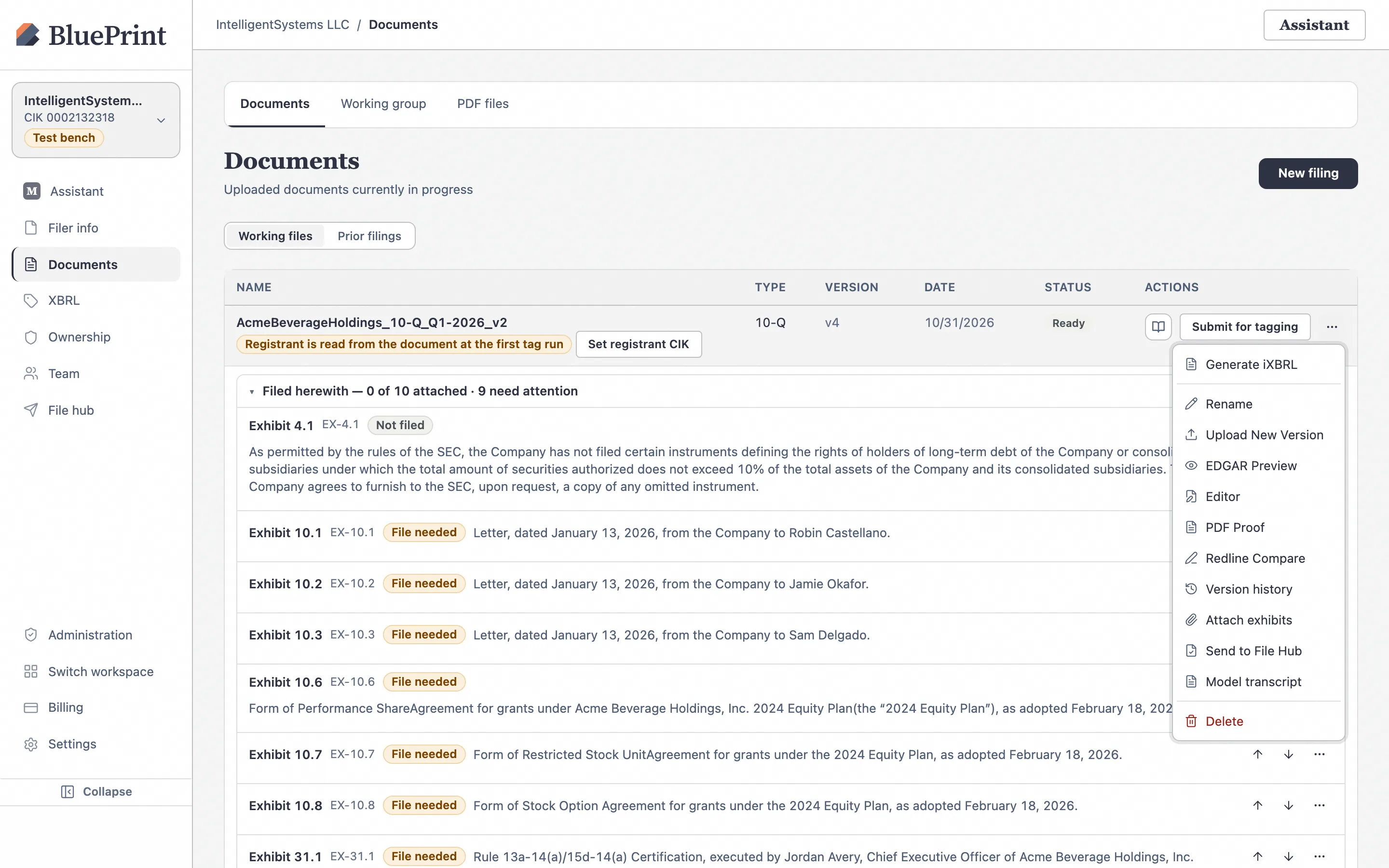
BluePrint sets your ARS as the ACTIVE FILING and navigates directly to File hub › 1 Package (/filings?filing_id=…).
3. Verify & lock the Form ARS package
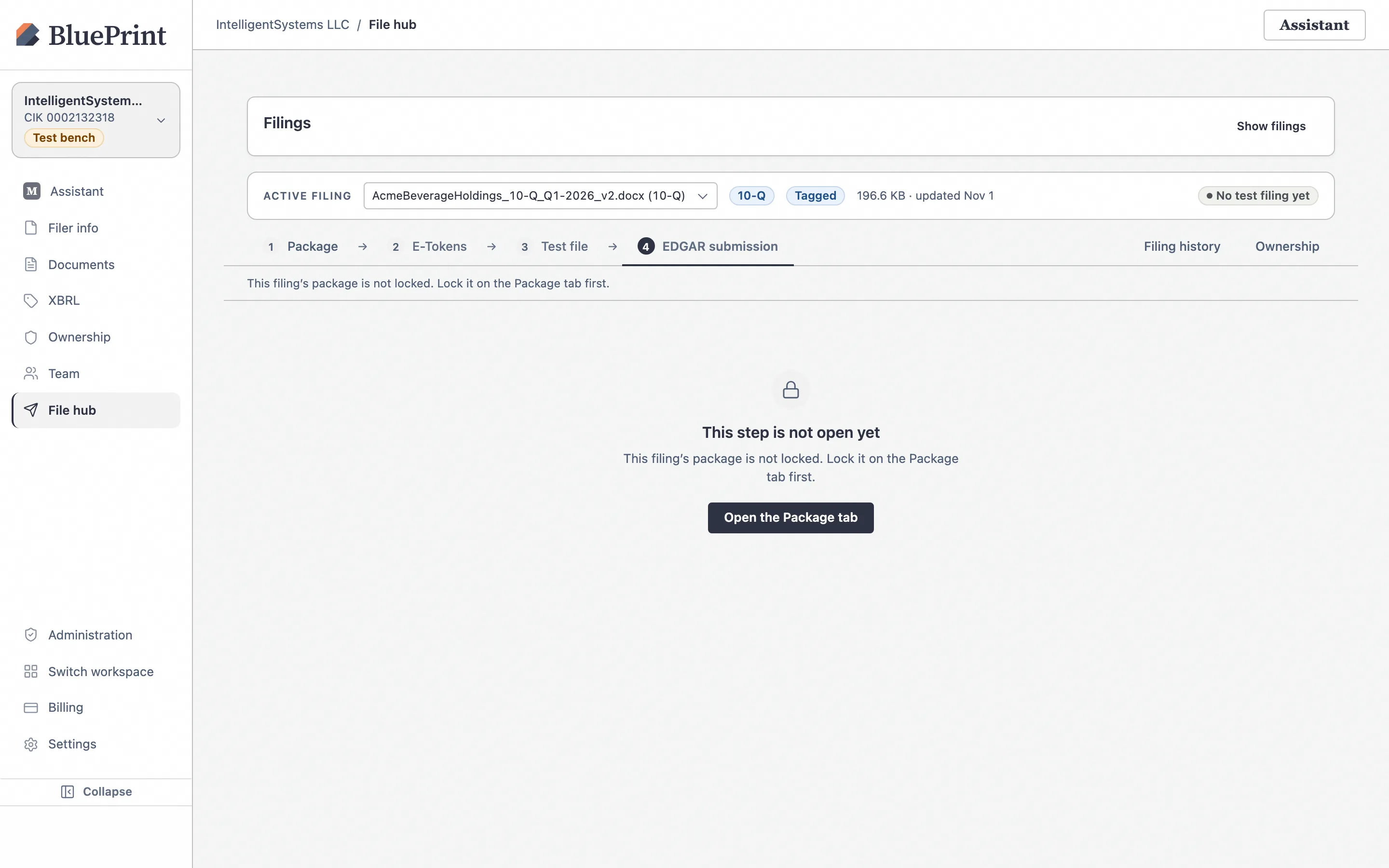
Inside the File hub, the four-step pipeline (1 Package → 2 E-Tokens → 3 Test file → 4 EDGAR submission) walks you through assembling and transmitting the ARS package.
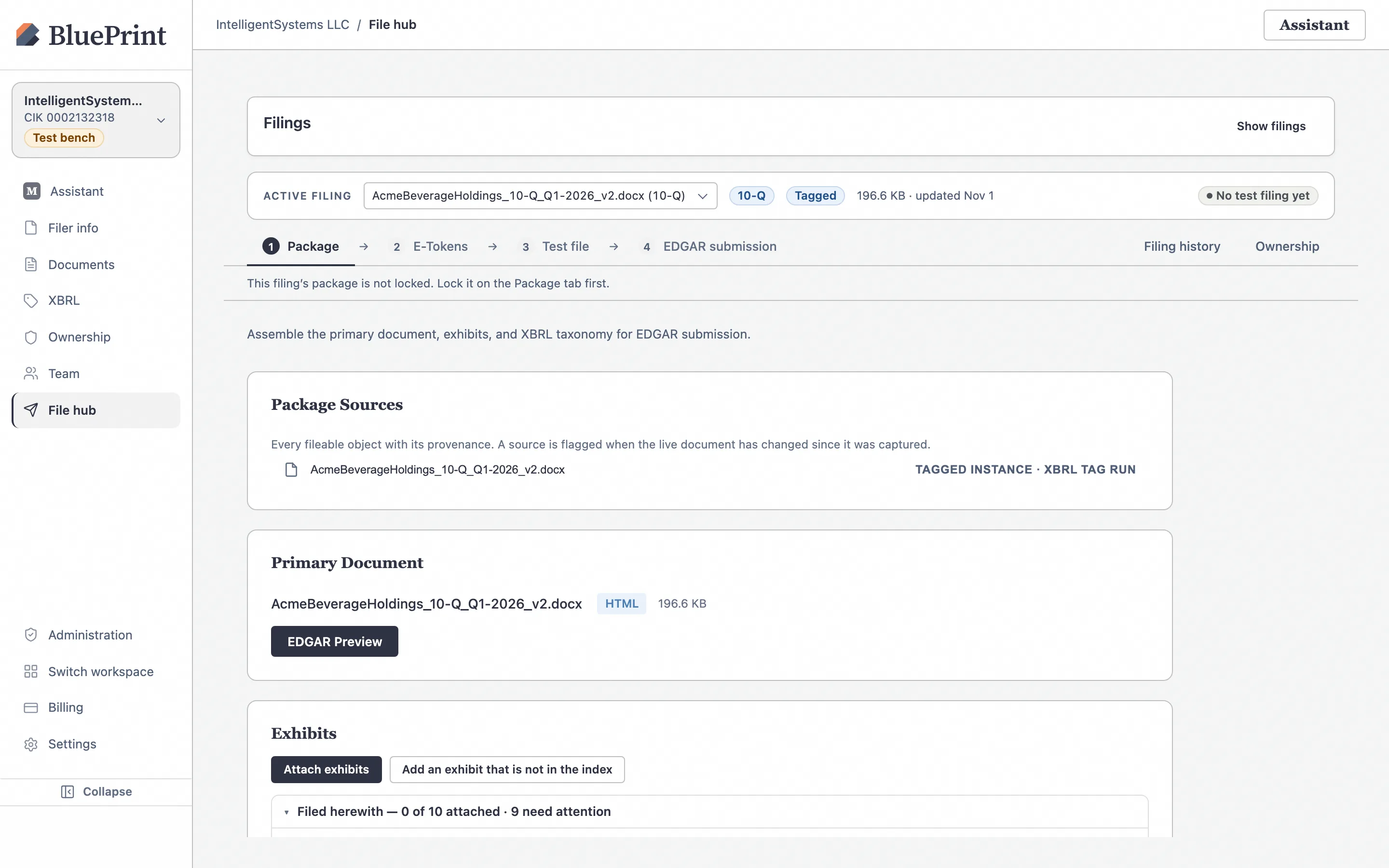
Inspect Primary Document and Package Summary & Lock
On the 1 Package tab, verify that the ACTIVE FILING bar at the top shows your ARS filing and that the Primary Document card and designated PDF Filing Copy are attached. Scroll to the Package Summary & Lock card at the bottom of the page and click Lock package.
4. Check E-Tokens & run an EDGAR Test file
After locking the Form ARS package, steps 2 E-Tokens, 3 Test file, and 4 EDGAR submission unlock along the top pipeline bar.
Confirm EDGAR Next credentials on 2 E-Tokens
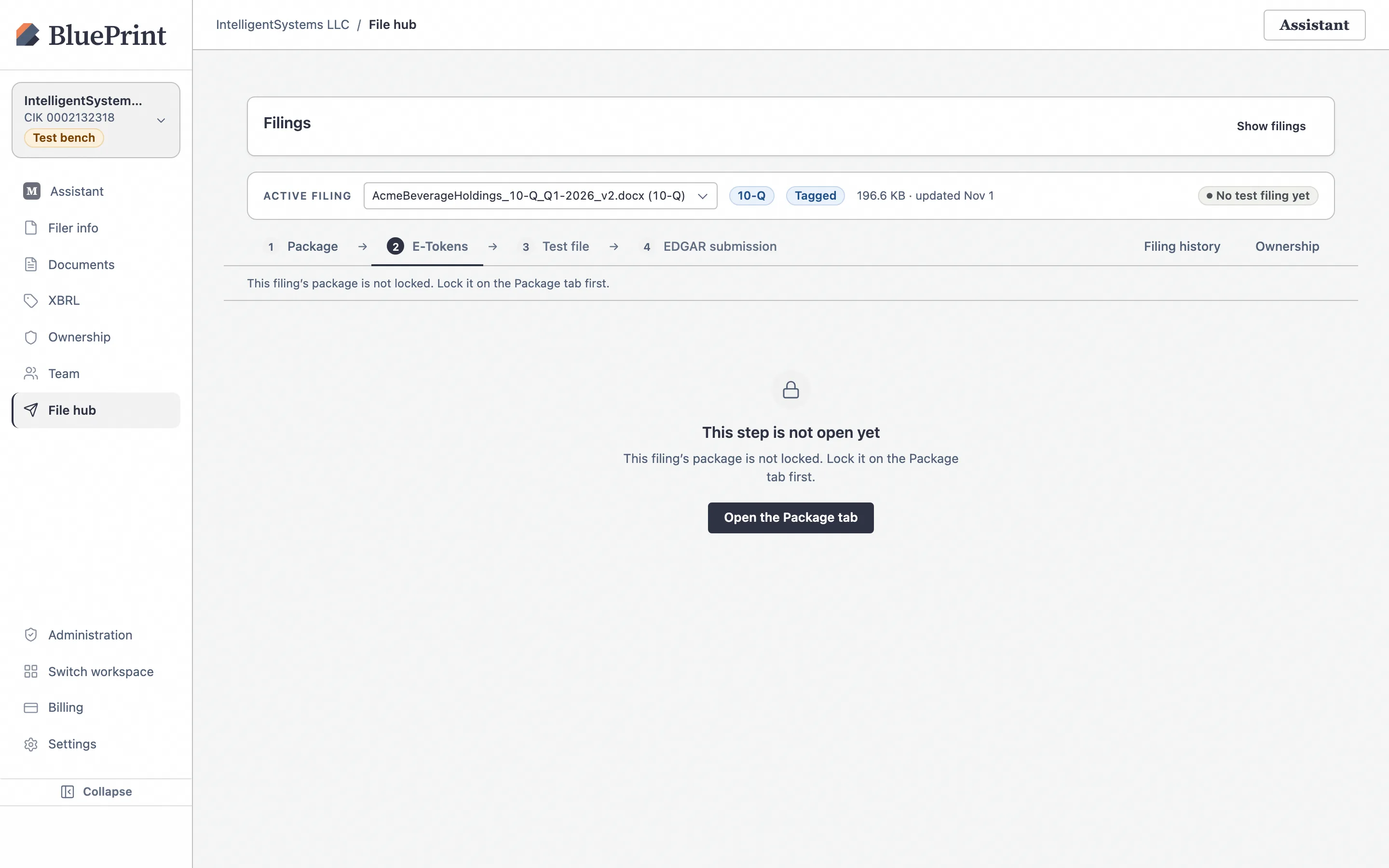
Click 2 E-Tokens to confirm that your workspace’s 1-year Filer API Token, CCC, and your personal 30-day User API Token are present and verified with EDGAR (see Guide 10: How to Save & Verify EDGAR Credentials if any token is missing).
Run a non-public dry run on 3 Test file
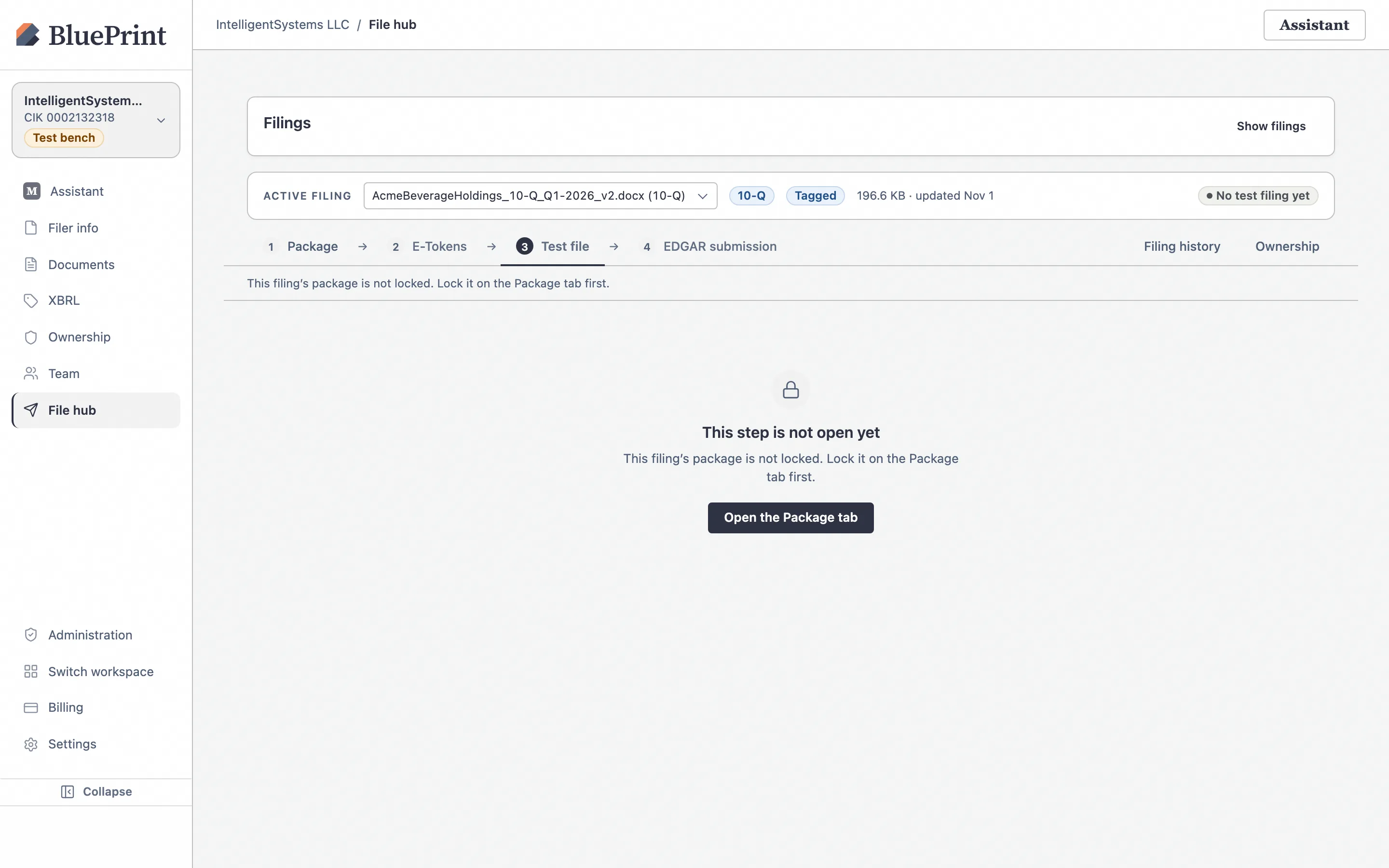
Click 3 Test file and run a one-click EDGAR test submission. EDGAR validates the Form ARS header, CIK/CCC, and PDF attachment rules without disseminating the filing publicly, returning an acceptance verdict (`ACCEPTANCE` or `SUSPENDED` with exact EFM rule codes) in seconds.
5. Transmit or schedule your live Form ARS submission
Once your test filing passes with zero errors, move to 4 EDGAR submission to transmit the official Form ARS to the SEC.
Click Prepare for LIVE (or Schedule LIVE)
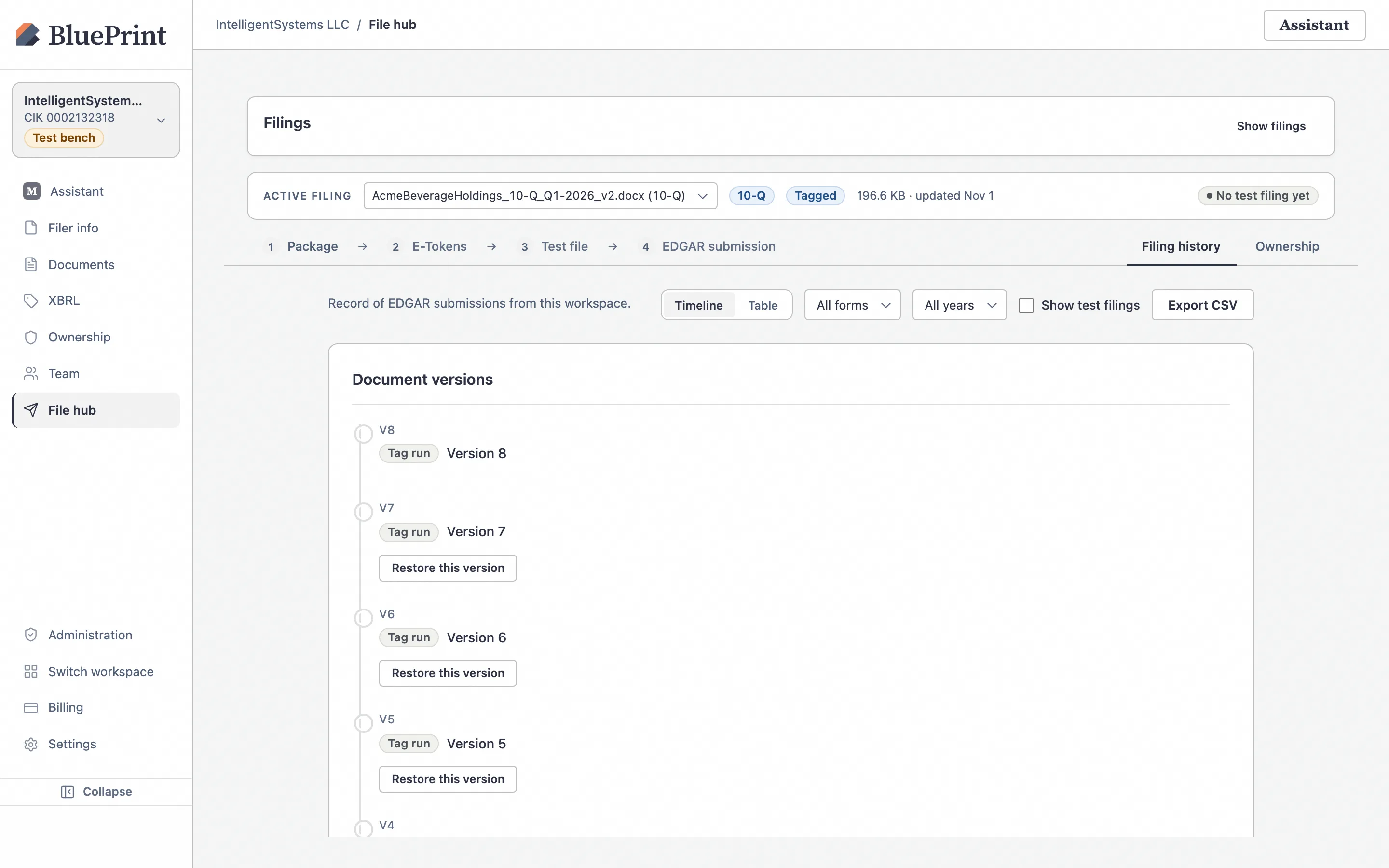
On 4 EDGAR submission, choose either immediate transmission (Prepare for LIVE → Confirm LIVE Submission) or timed release (Schedule LIVE). Once accepted by EDGAR, the accession number and timestamp are permanently recorded under the Filing history tab.