1. Choose between the Section 16 and Section 13 desks
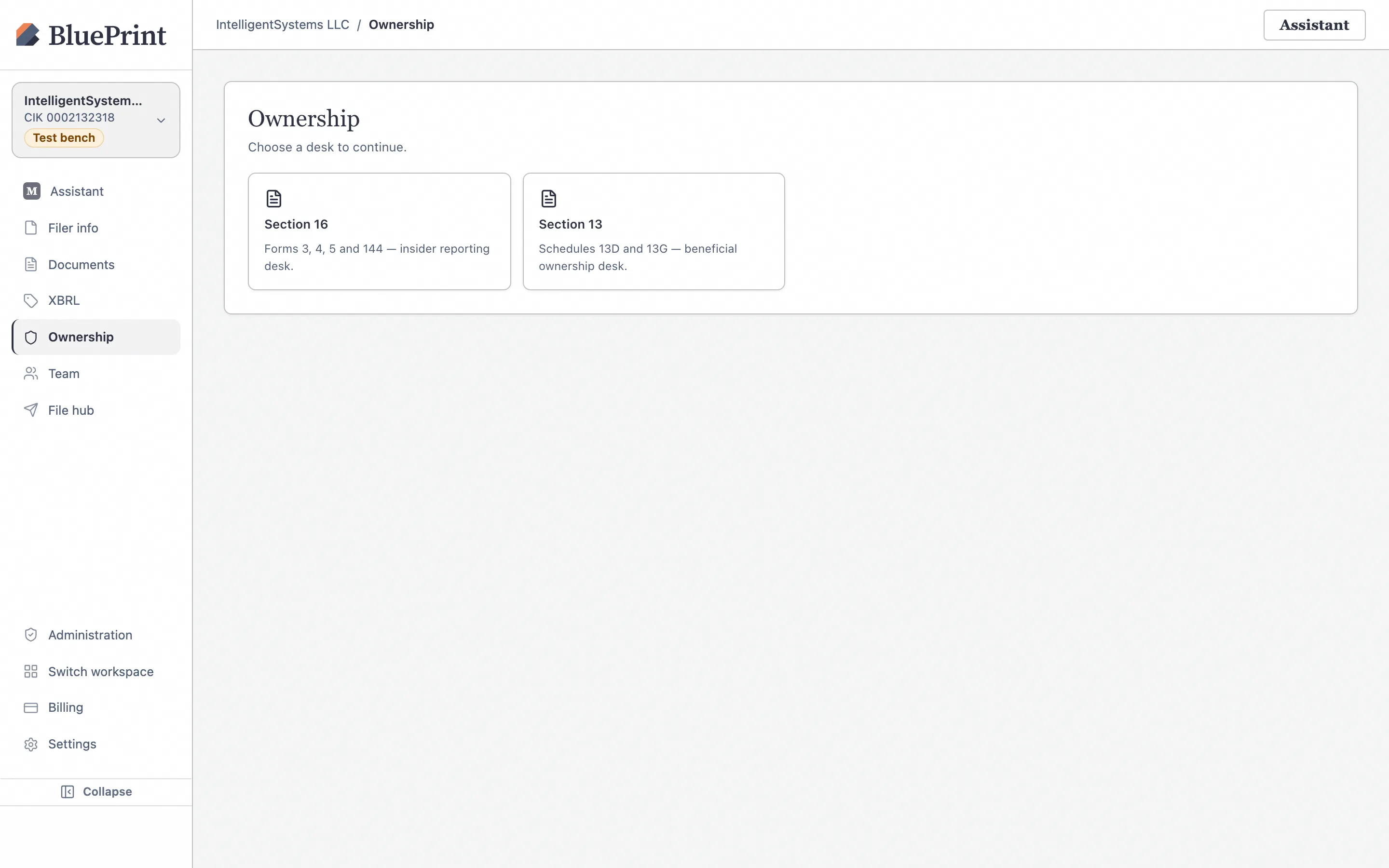
Click Ownership (/ownership) in the left sidebar. The Ownership hub divides structured XML insider and beneficial-ownership filings into two specialized desks:
- Section 16 — Insider transactions: Forms 3, 4, and 5 (plus
/Aamendments) for directors, officers, and 10% owners, as well as electronic Form 144 notices of proposed sale under Rule 144. - Section 13 — Beneficial ownership: Schedule 13D and Schedule 13G (plus
/Aamendments) for 5%+ beneficial owners and joint filing groups.
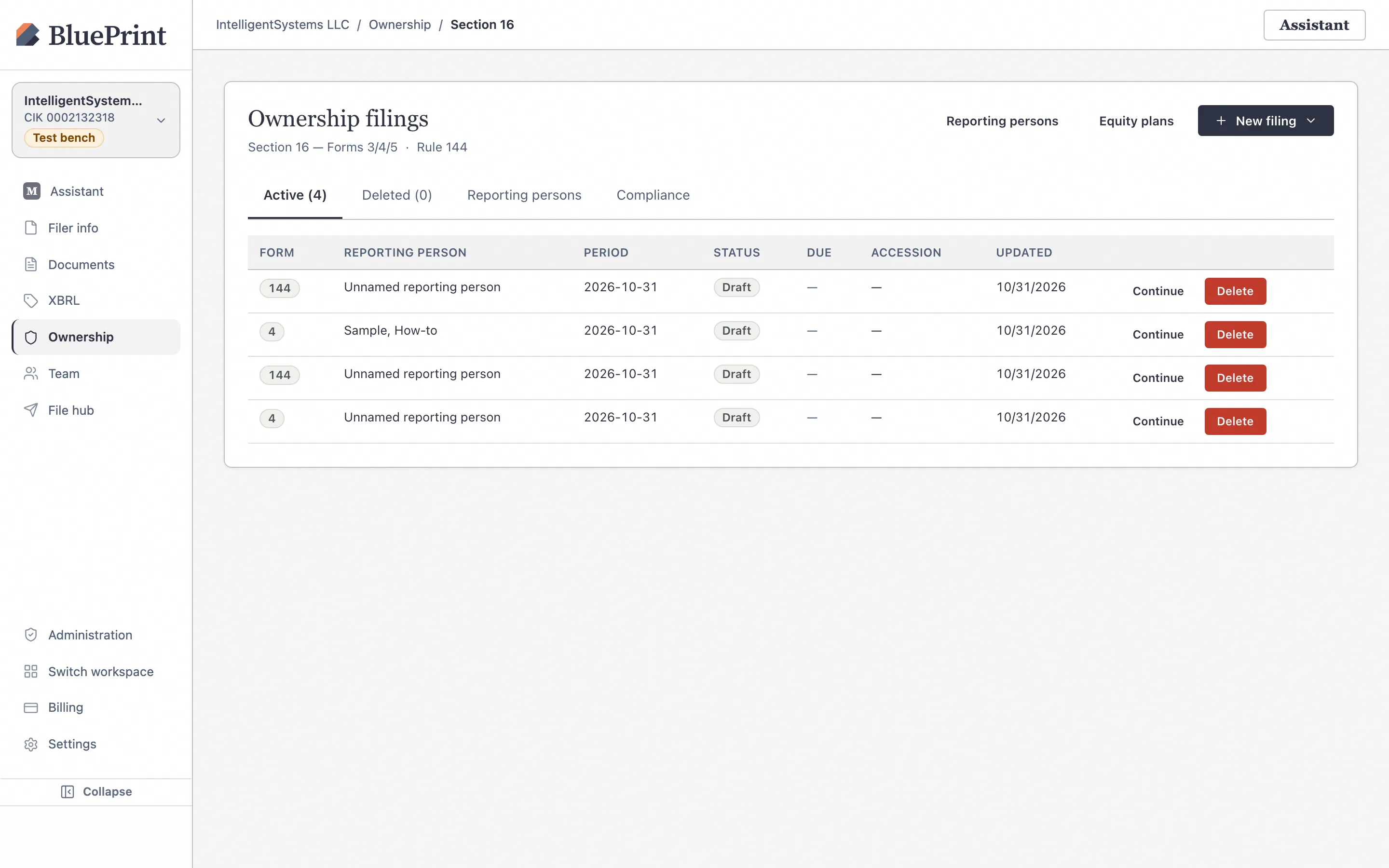
Open Ownership and select the Section 16 desk
Click Open Section 16 desk → on the left card to enter the Section 16 workbench (/ownership/section16).
2. Add a Section 16 Reporting Person & check readiness
Before drafting a Form 3, 4, 5, or 144, add the officer, director, or 10% owner to your workspace’s Reporting persons roster.
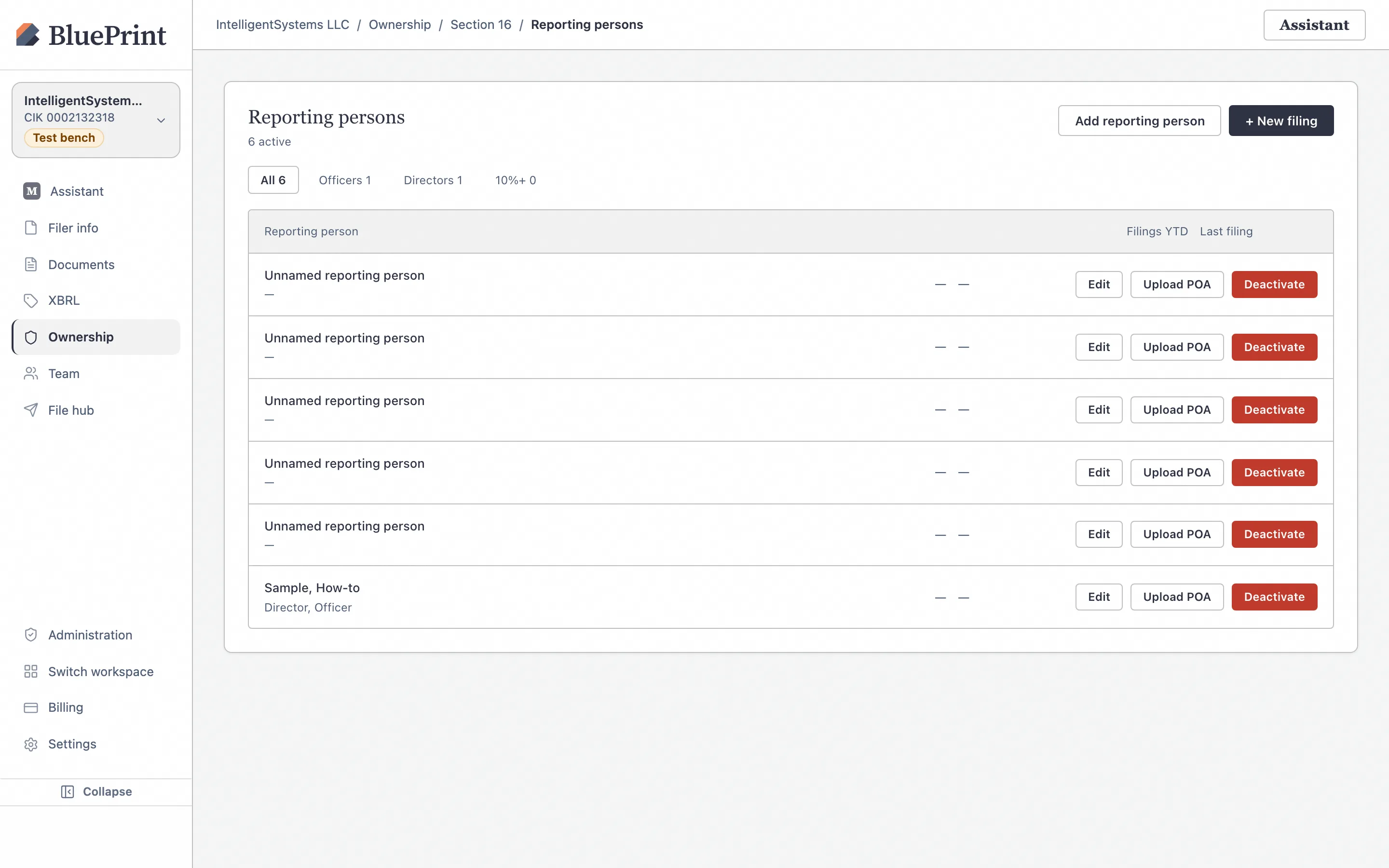
Open Reporting persons and click Add reporting person
Click Reporting persons in the Section 16 sub-navigation bar (/ownership/section16/reporters), then click + Add reporting person in the top-right corner.
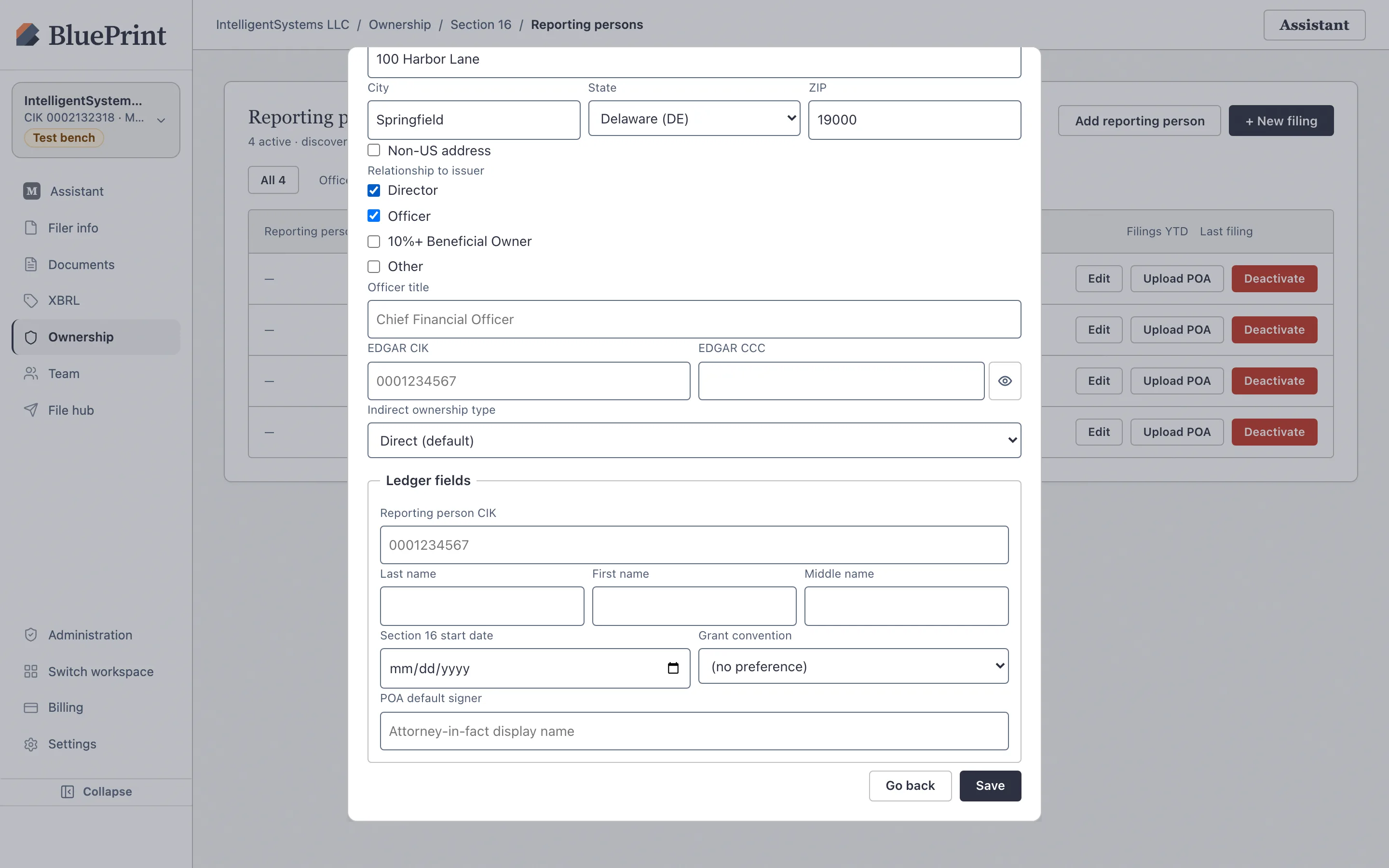
Enter the insider’s Name, 10-digit CIK, and relationship
In the Add reporting person dialog, enter the insider’s full name (or search EDGAR by name/CIK), their 10-digit individual CIK, relationship checkboxes (Director, Officer with title, 10% Owner), and mailing address, then click Add.
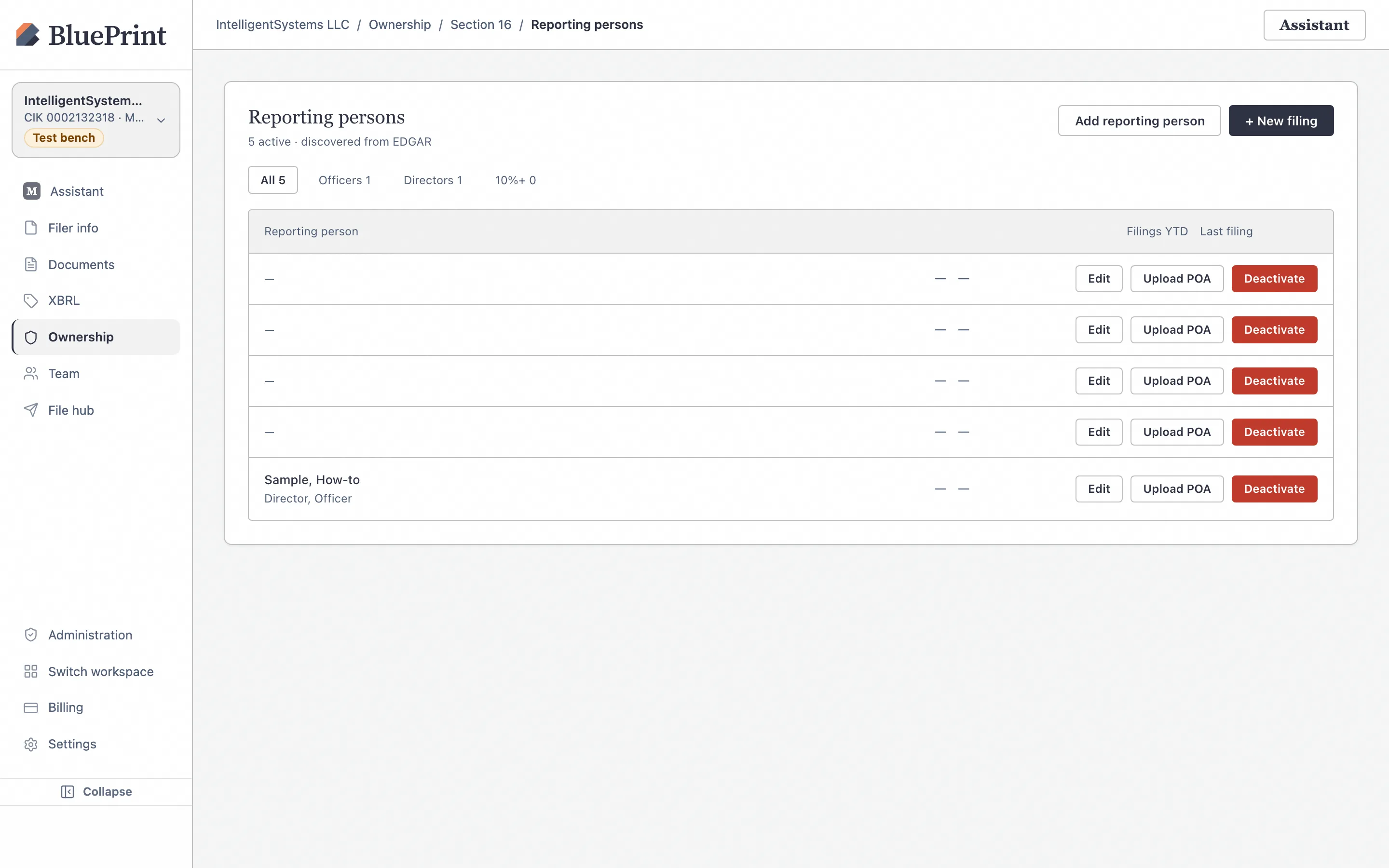
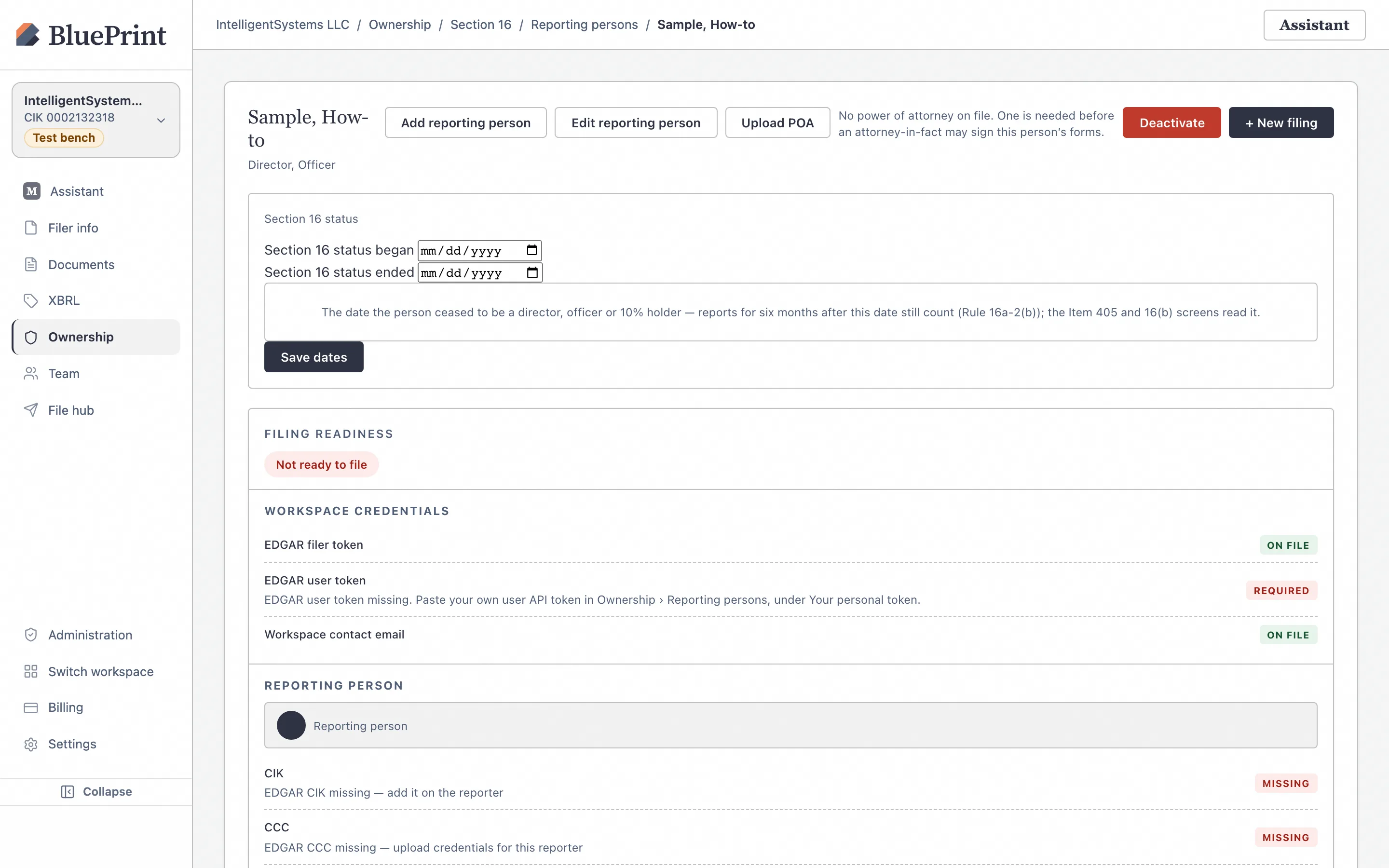
Inspect the reporter’s readiness checklist (CIK, CCC, POA)
Click the reporting person’s row to open their detail page. The Readiness card explicitly tracks what is already configured and what is still required before live EDGAR transmission: CIK on file, CCC saved (the insider’s 8-character CCC), and POA on file (Exhibit 24 Power of Attorney).
3. Create, edit, and validate a Form 4
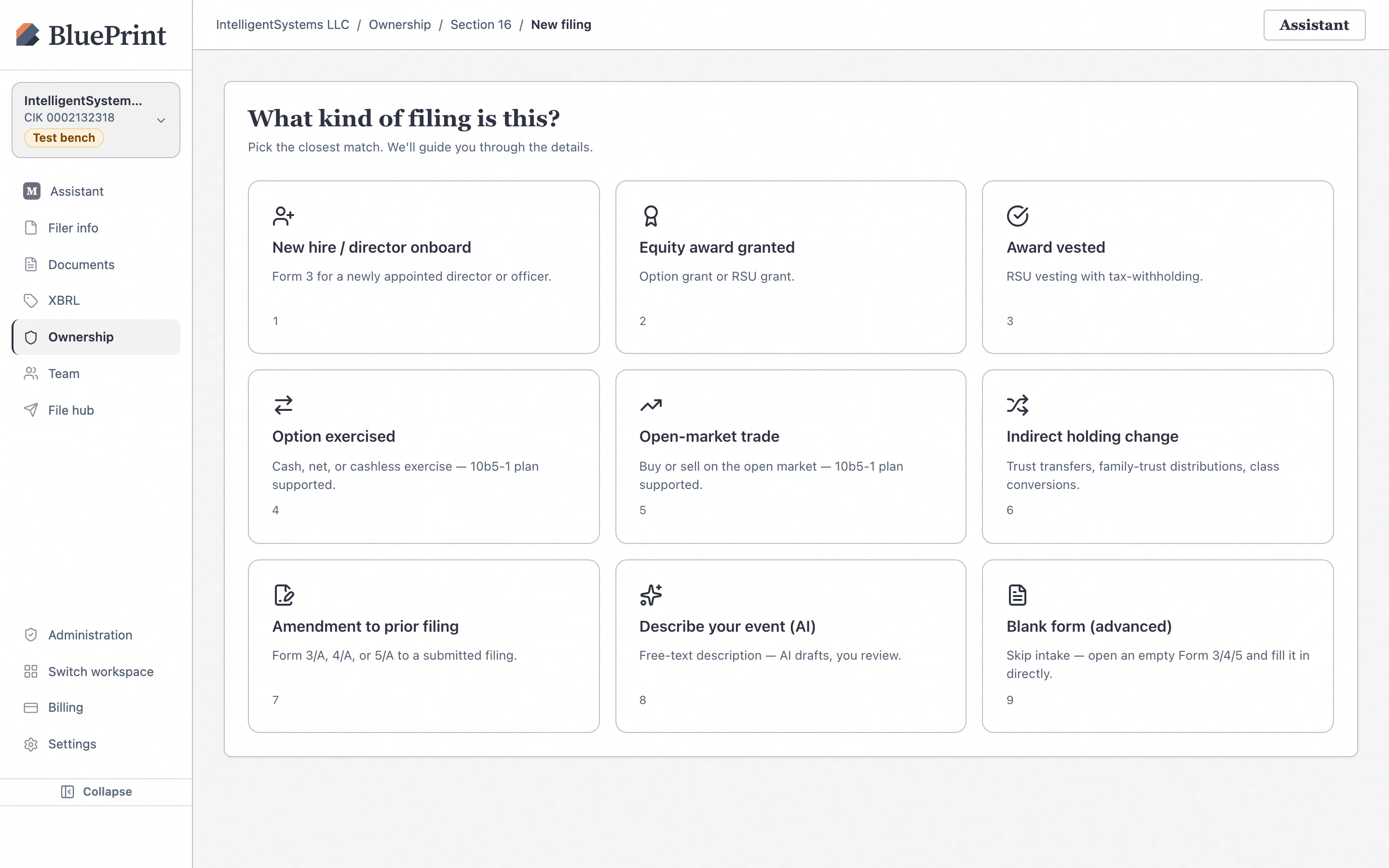
You can start a Section 16 filing either from guided transaction event tiles (such as an RSU grant, option exercise, open-market sale, or tax withholding) or from a blank form.
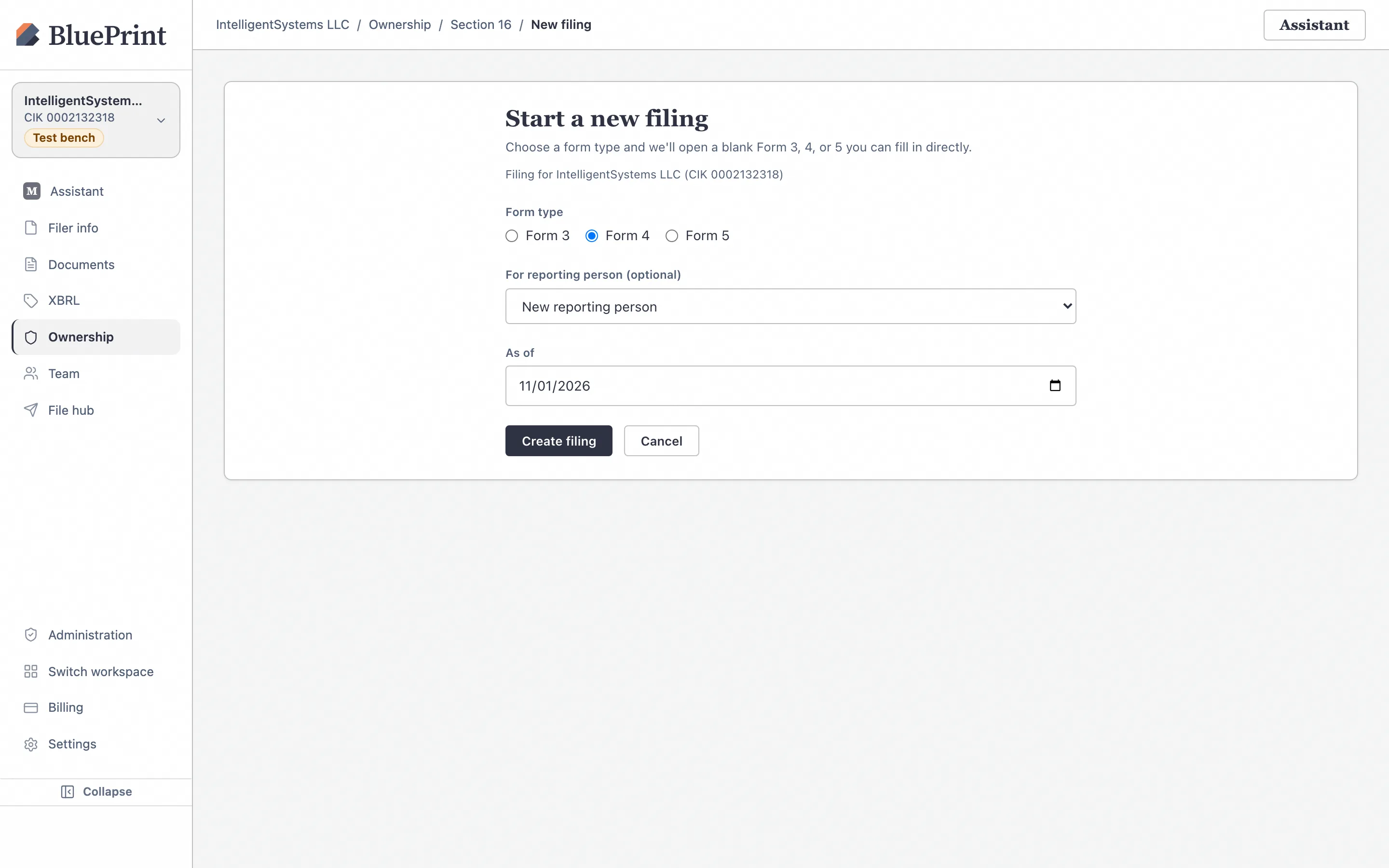
Click New filing and select an event tile or Blank form › Form 4
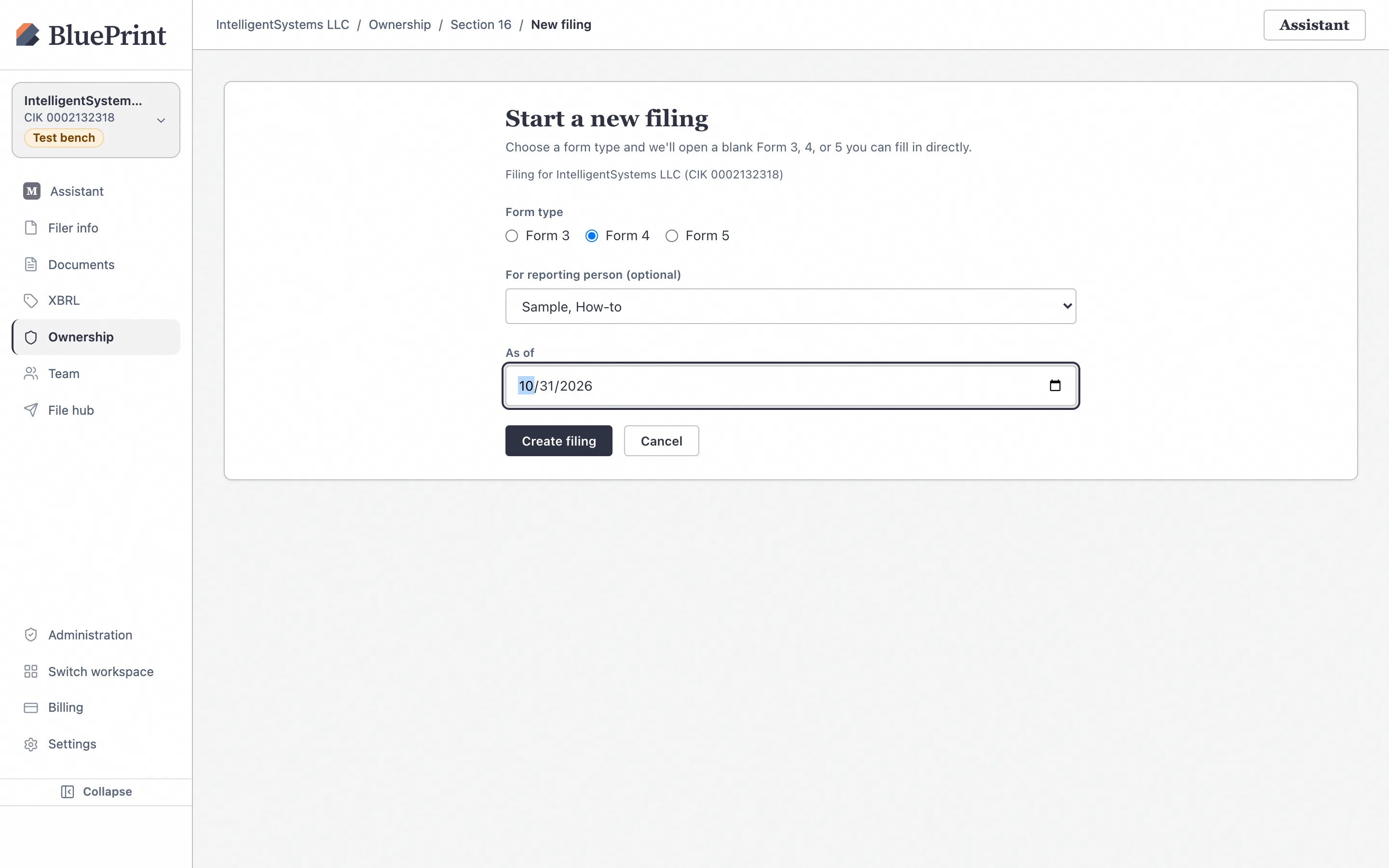
On the Section 16 desk, click + New filing (/ownership/section16/new). Choose a guided event tile or click Blank form, select Form 4, pick the reporting person, enter the earliest transaction date, and click Create draft.
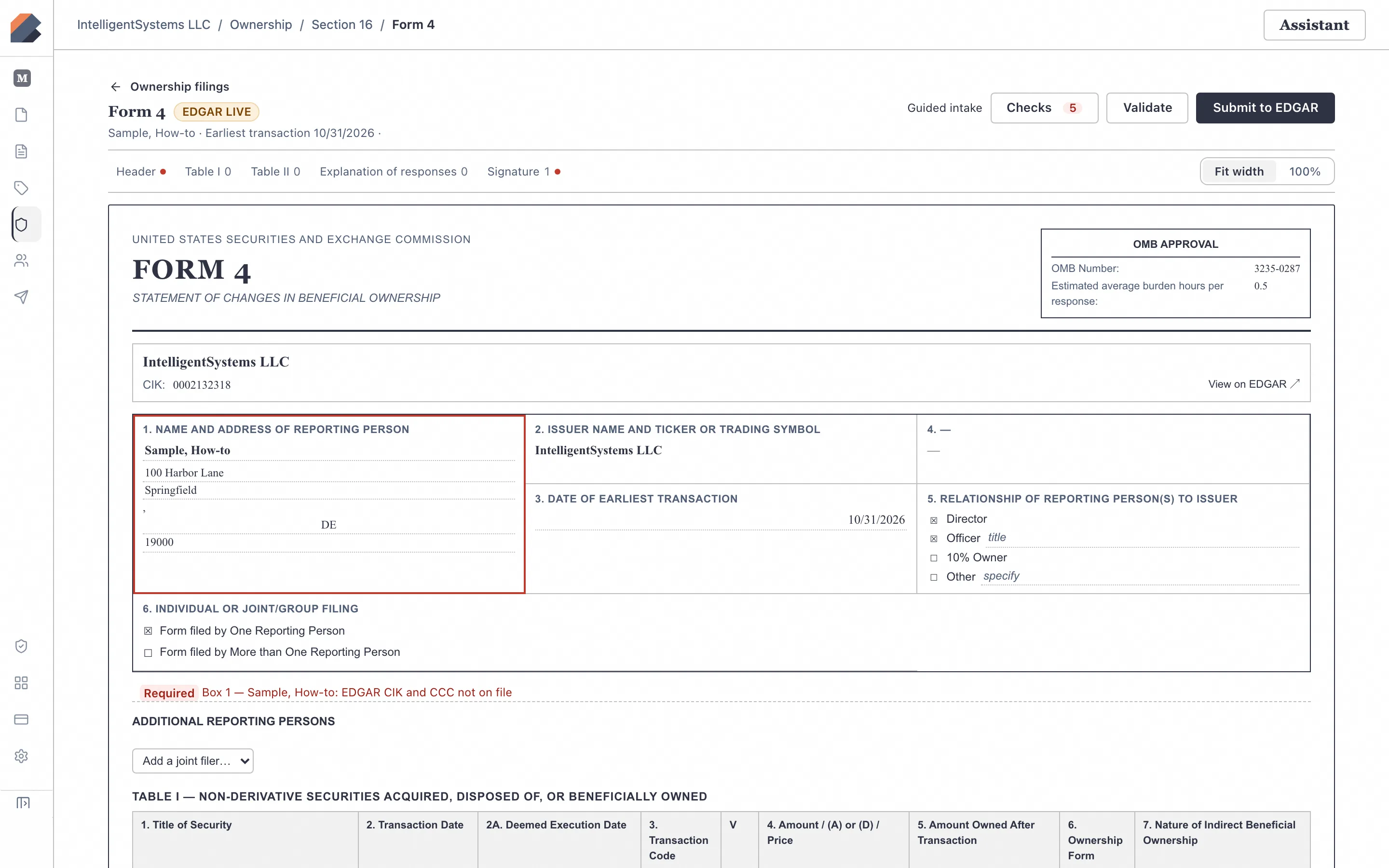
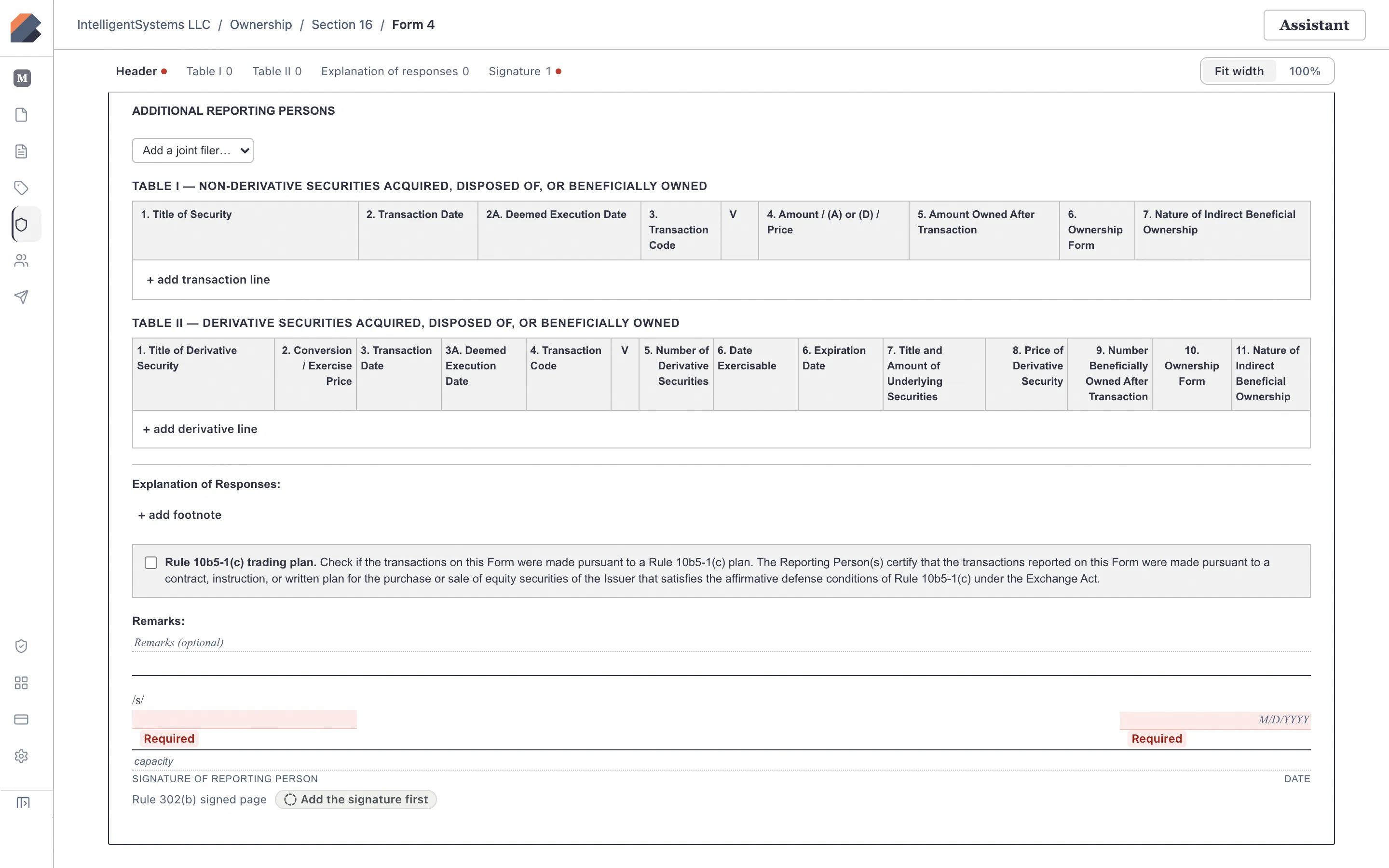
Fill out Table I, Table II, Footnotes & Remarks in the SEC-style Form 4 editor
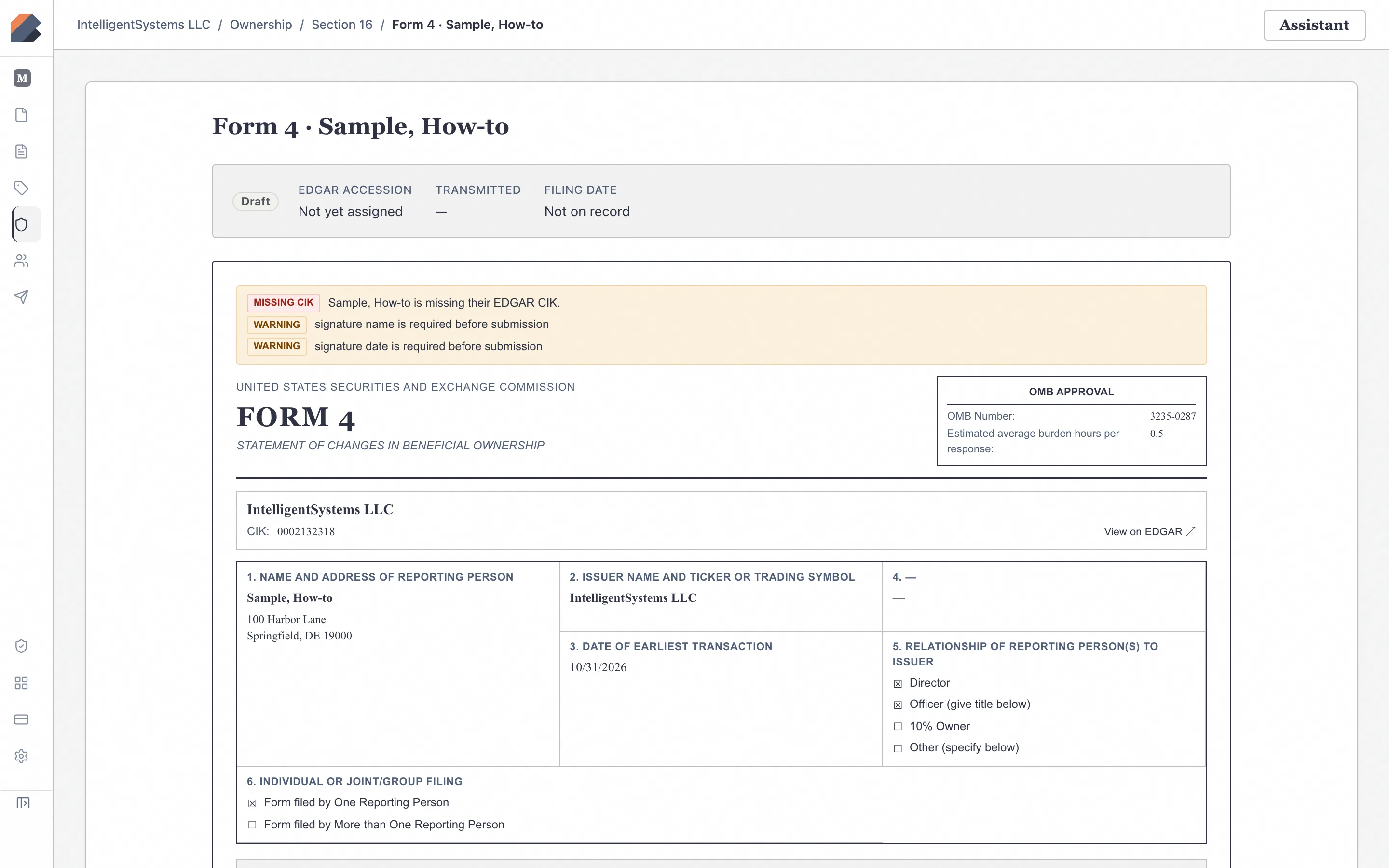
BluePrint opens the interactive SEC-faithful Form 4 sheet (/ownership/section16/filings/:id/form). Use the section jump bar (Header, Table I, Table II, Footnotes & Remarks, Signature) to add non-derivative transactions, derivative holdings, footnote references (`(1)`, `(2)`), and signature details.
Click Validate and inspect the Checks panel
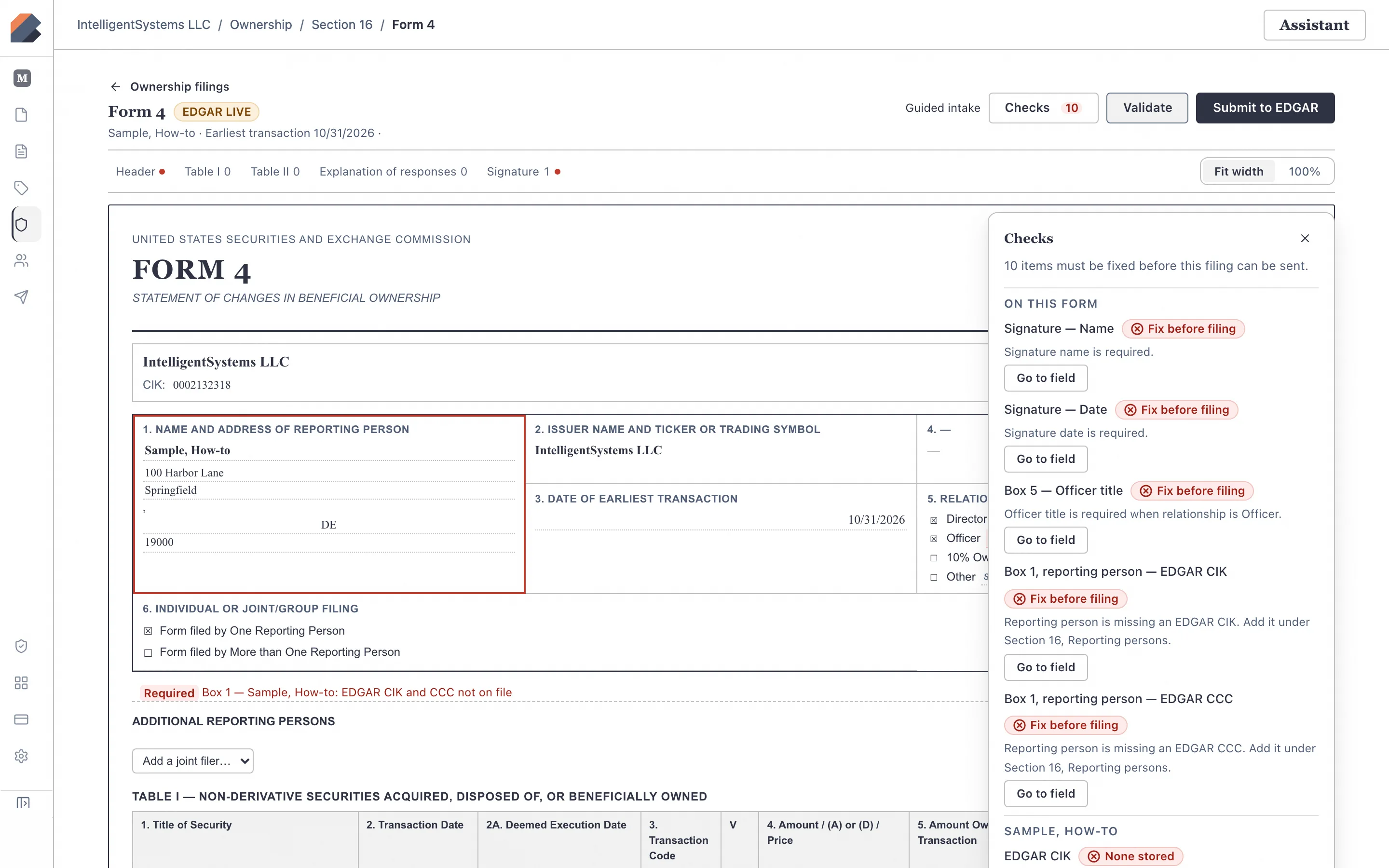
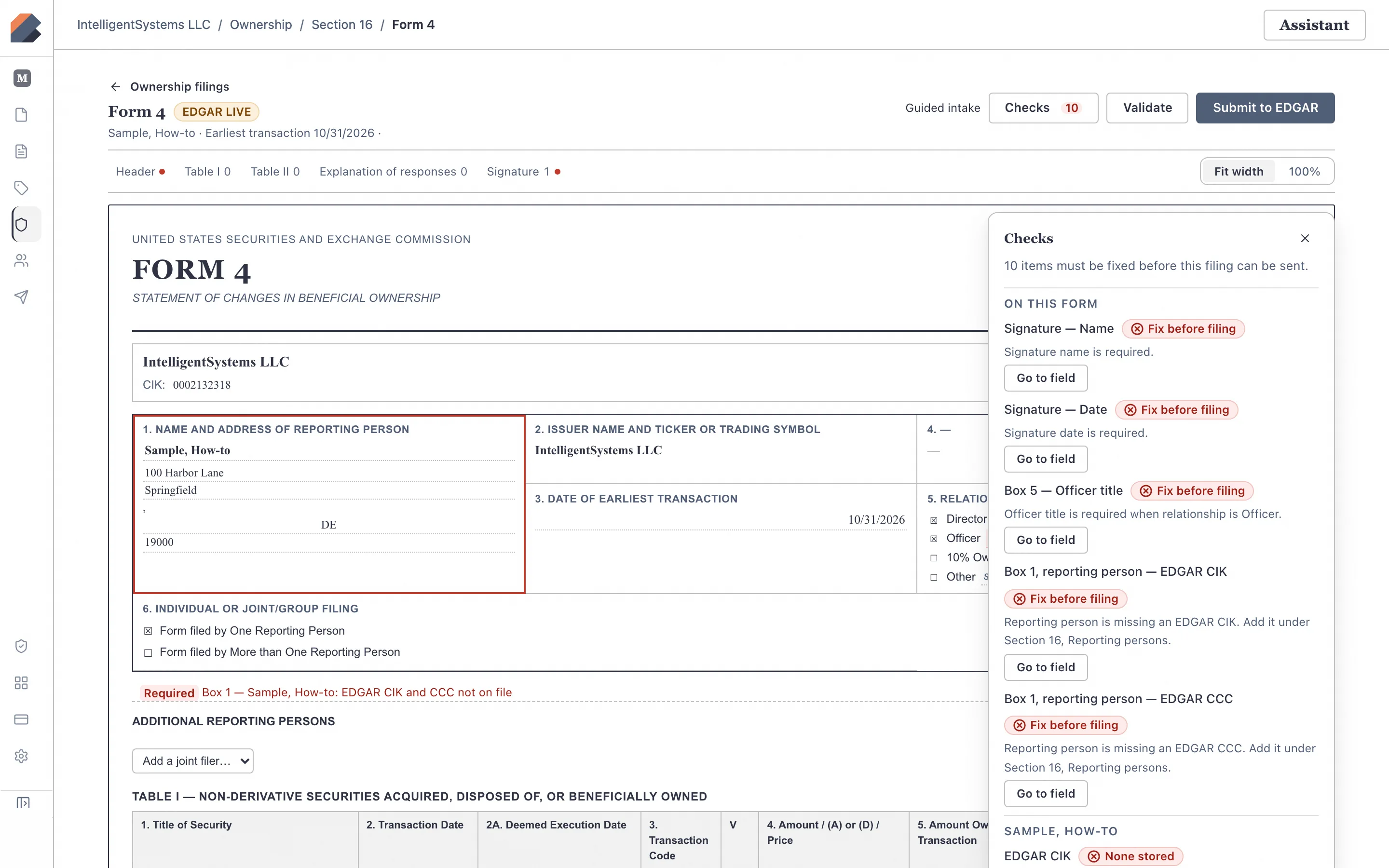
Click Save and then click Validate in the top-right bar. BluePrint validates the Form 4 against the SEC’s EDGAR Ownership XML schema and EFM rules, displaying a green Validated badge and a slide-out Checks drawer confirming that every schema and field rule passed.
Review the Form 4 filing detail & Rule 16a-3(g) deadline notice
Click ← Back to filing to view the Form 4 overview page (/ownership/section16/:id), which calculates the two-business-day filing deadline under Rule 16a-3(g)(1) (by 10:00 p.m. ET), renders the SEC print preview, and provides the Test file and Submit to EDGAR controls.
4. Create an electronic Form 144 & understand transmission basis
Since April 2023, the SEC requires Form 144 notices of proposed sale of securities by affiliates of Exchange Act reporting issuers to be filed electronically in structured XML on EDGAR.
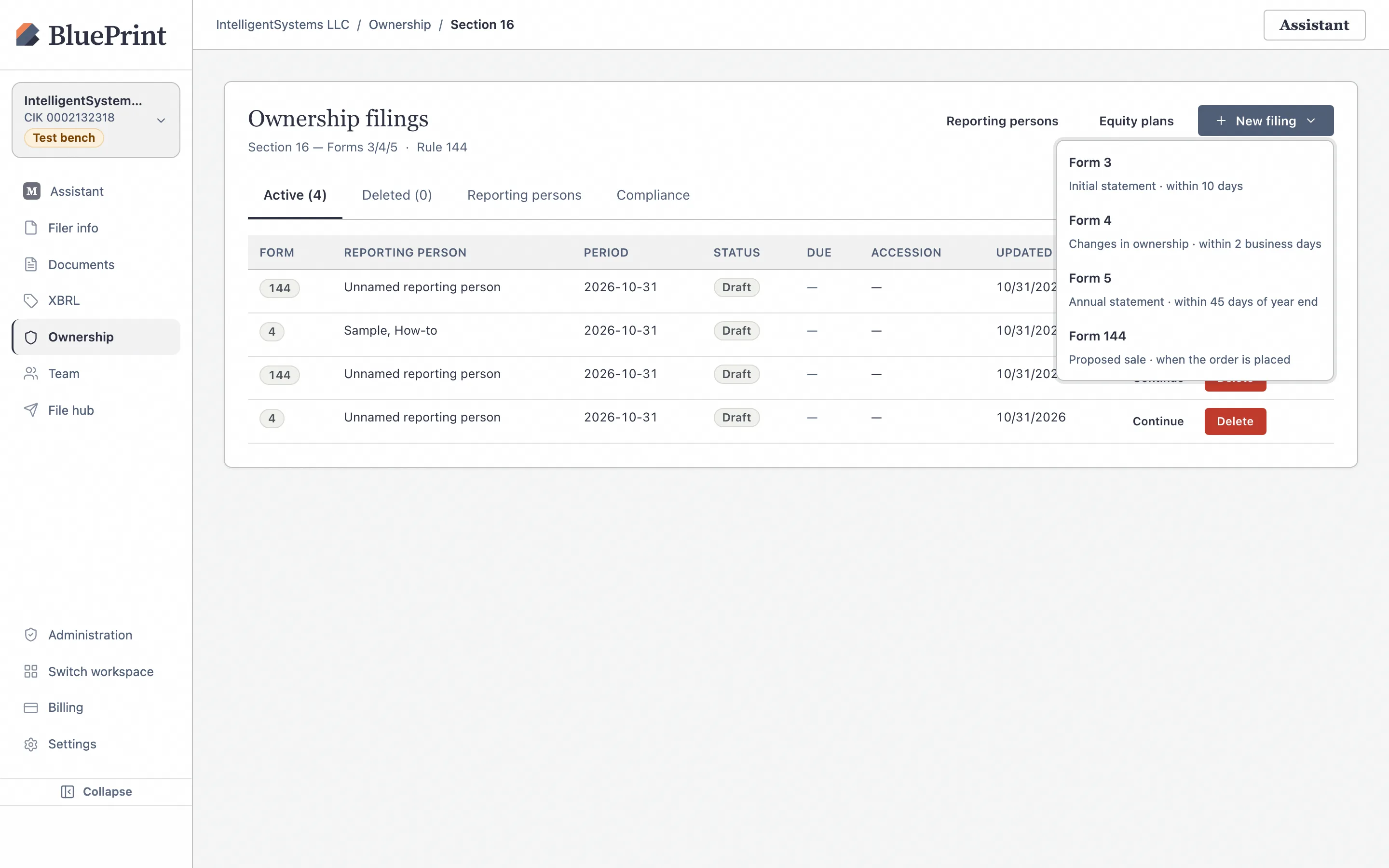
Choose Form 144 from the New filing menu
On the Section 16 desk, open the + New filing ▾ dropdown and select Form 144 (Notice of proposed sale).
Complete the Form 144 XML sections & check the Transmission basis card
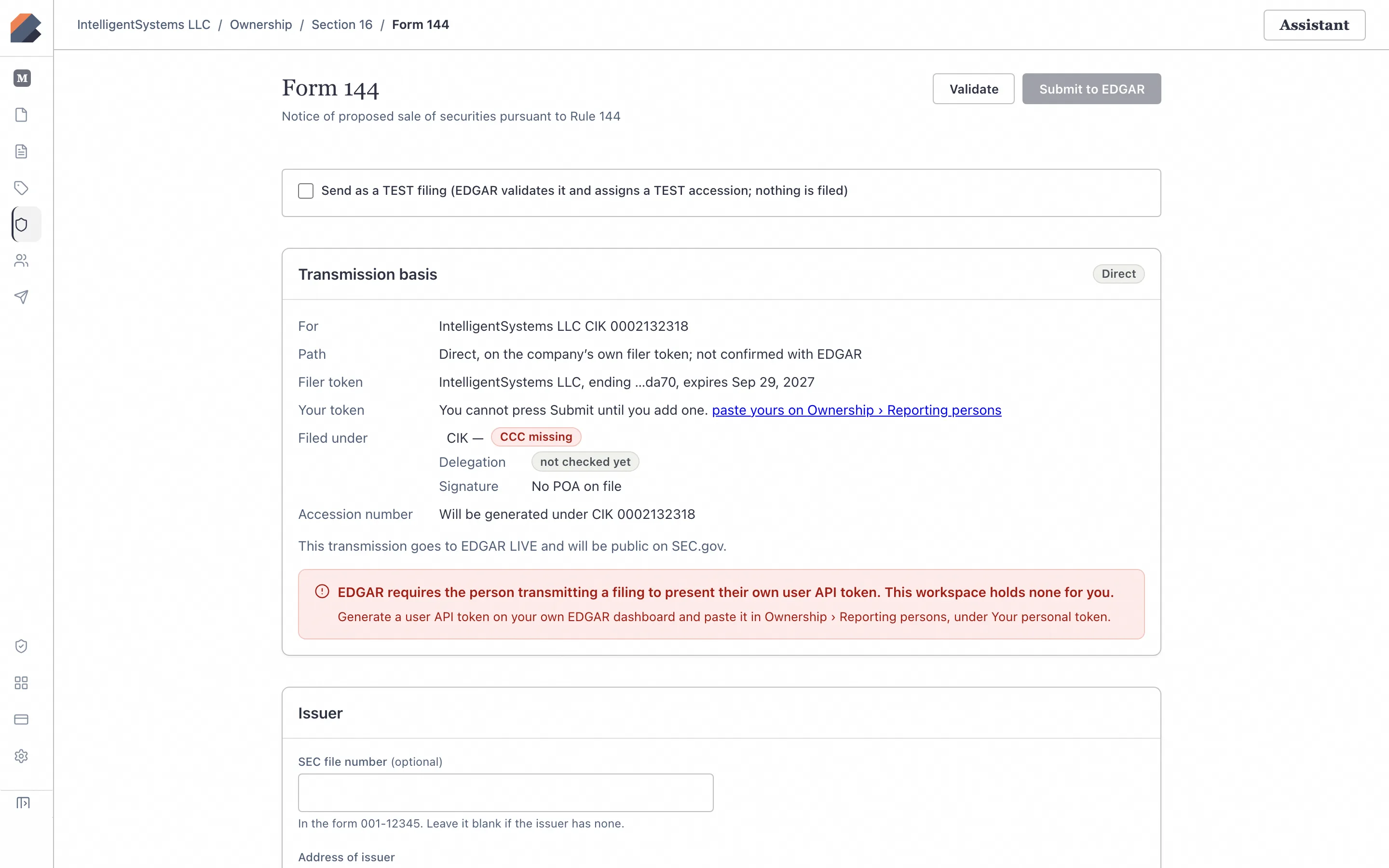
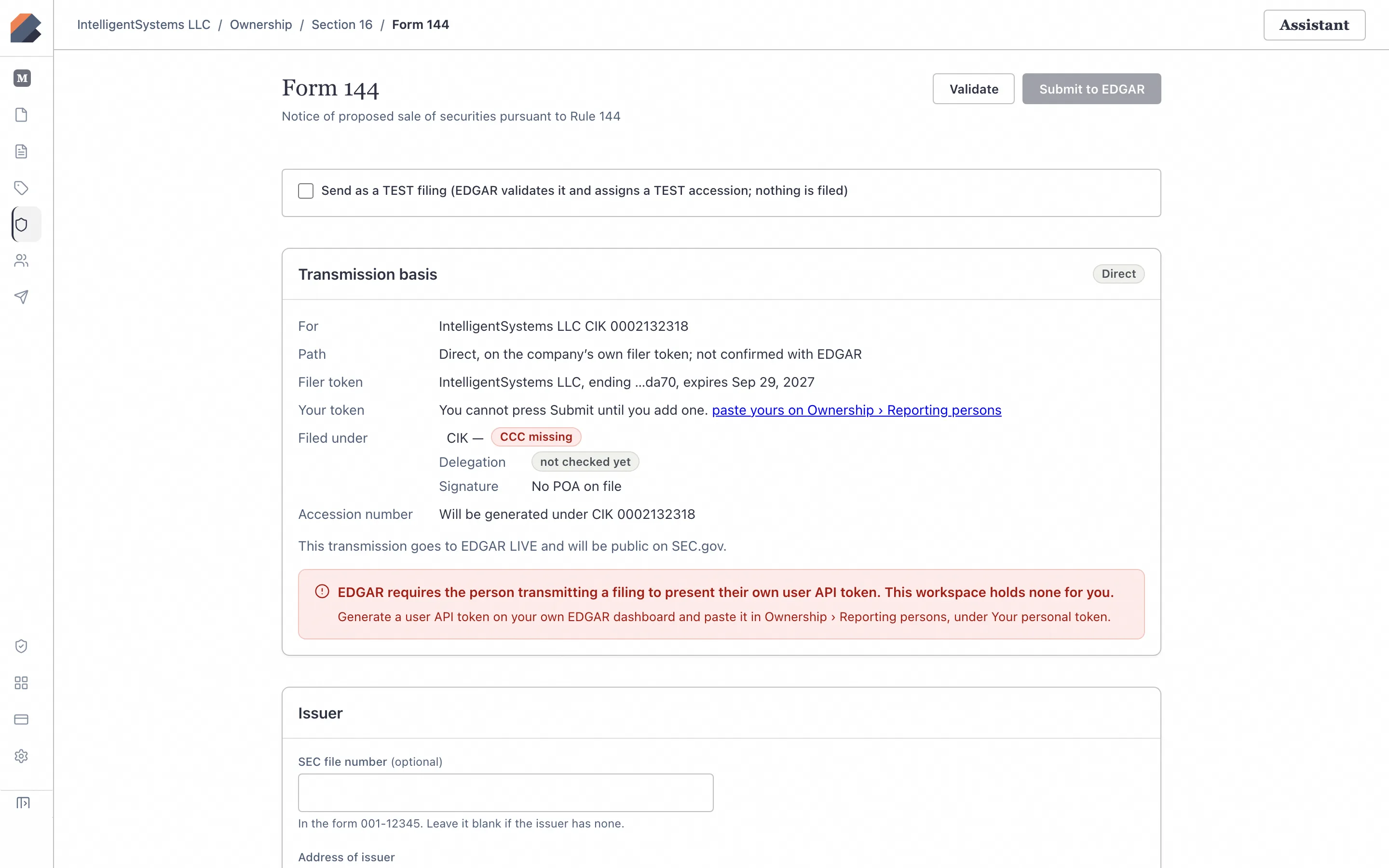
Fill out the Issuer, Security Information, Broker/Market Maker details, Table I (Securities to be Sold), and Table II (Securities Sold During the Past 3 Months). On the right side of the Form 144 editor, the Transmission basis card checks whether the affiliate’s CIK, CCC, and tokens are ready. Until those credentials are saved and validated, Test-file and Submit to EDGAR remain safely disabled with an explicit explanation.
5. Add a Section 13 filer & prepare a Schedule 13G or 13D
For 5%+ beneficial ownership reporting under Section 13(d) and 13(g), switch to Ownership › Section 13 (/ownership/section13).
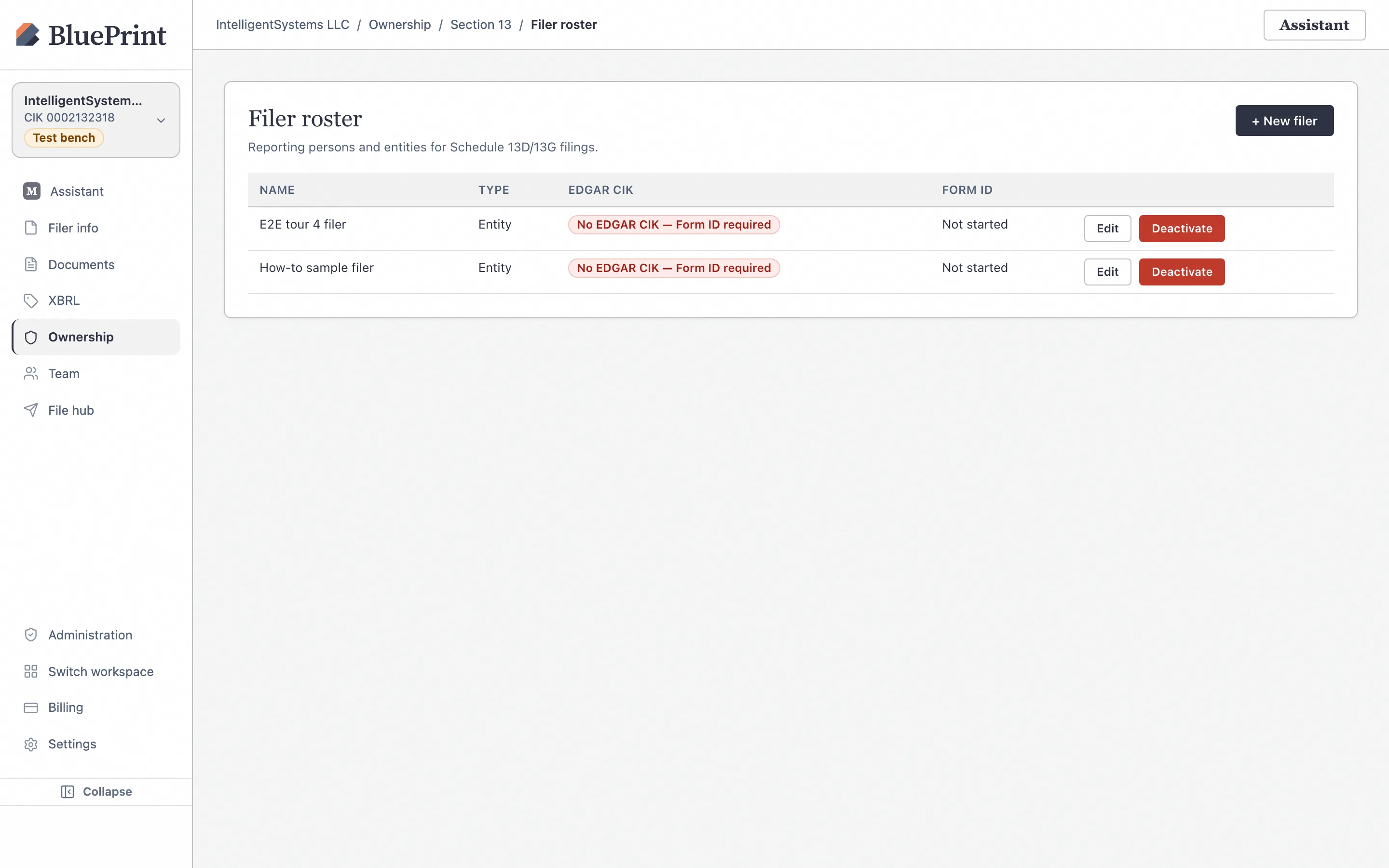
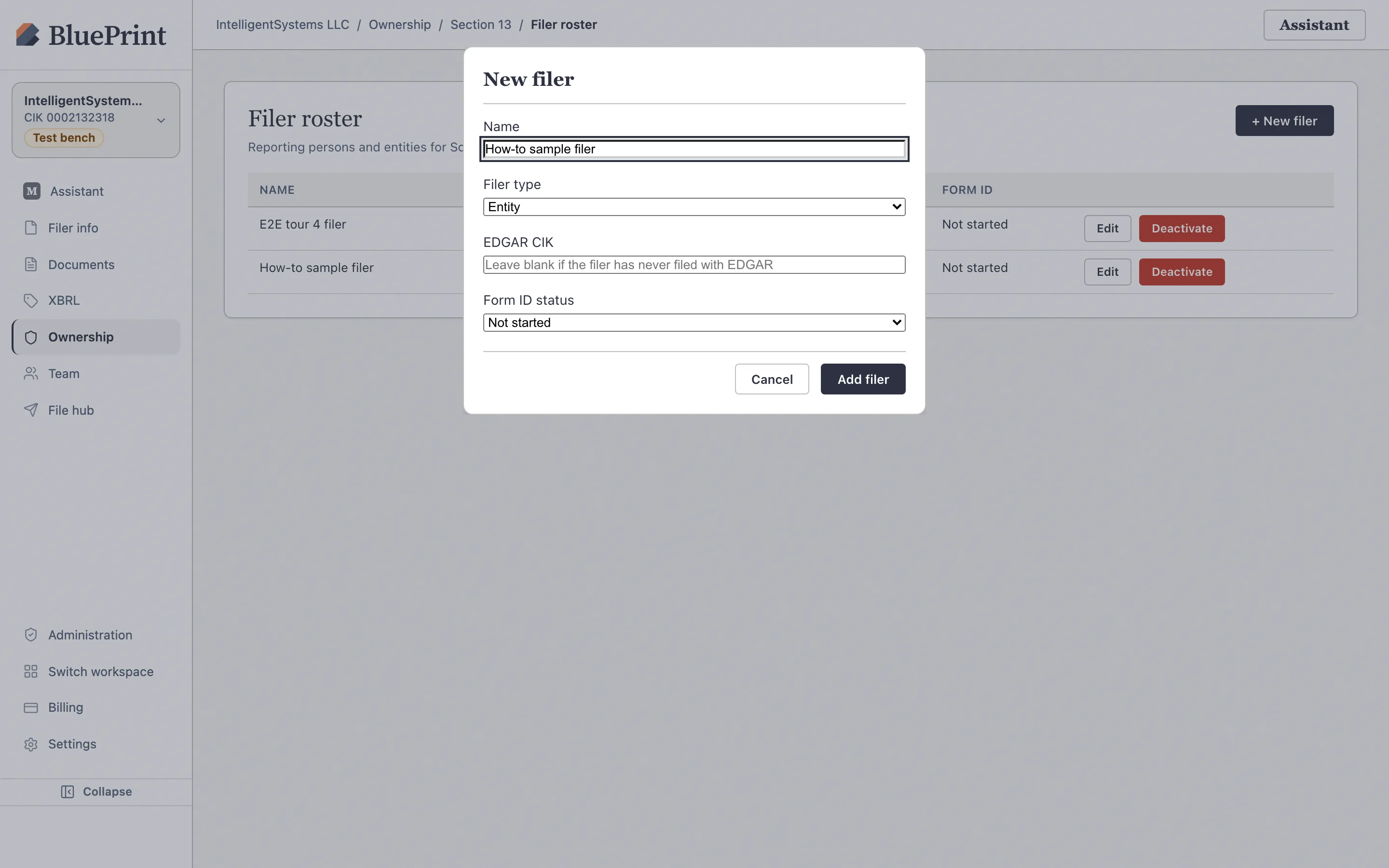
Open Filers & group and click + New filer
Navigate to Filers & group (/ownership/section13/filers) and click + New filer. Enter the beneficial owner’s name, 10-digit CIK, citizenship/jurisdiction of organization, and investor category (for example, `IA` Investment Adviser, `HC` Parent Holding Company, `IN` Individual), then click Create filer.
Click + New Schedule 13D / 13G and create your draft
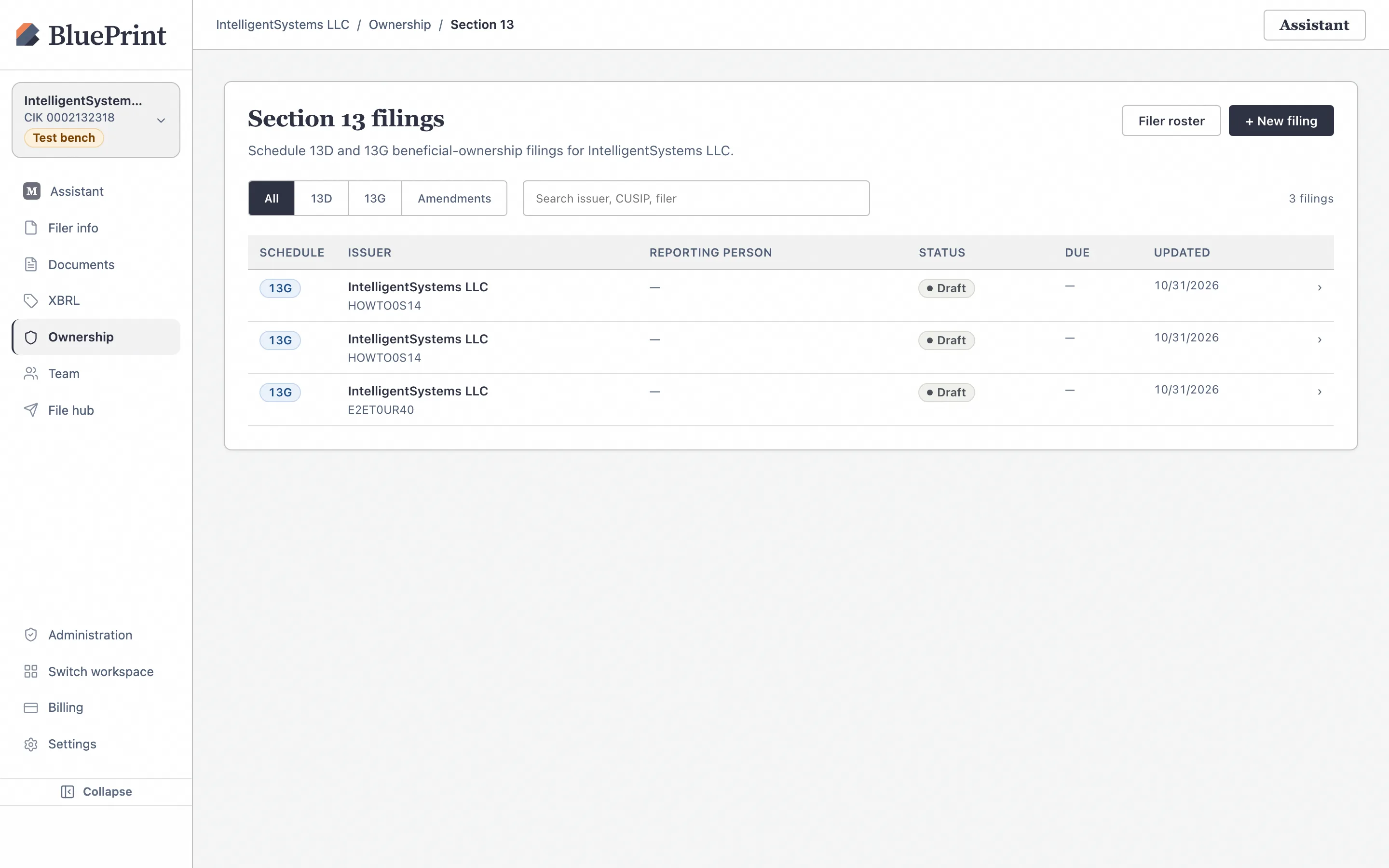
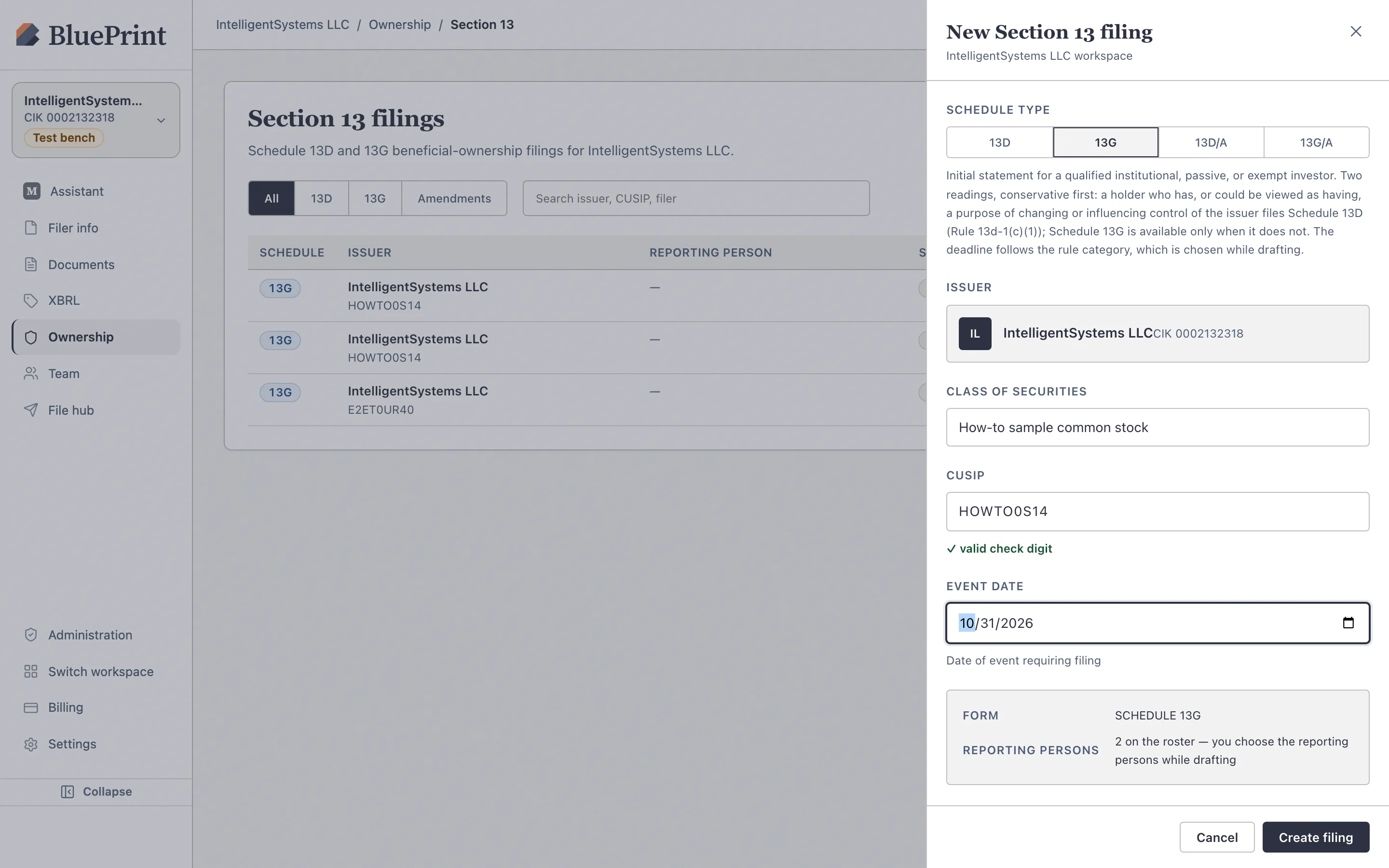
Return to the Section 13 desk (/ownership/section13) and click + New Schedule 13D / 13G. In the slide-out drawer, choose Schedule 13G or Schedule 13D (initial or amendment), enter the Subject Company (Issuer) name, CIK, and 9-character CUSIP, pick your lead filer, and click Create draft.
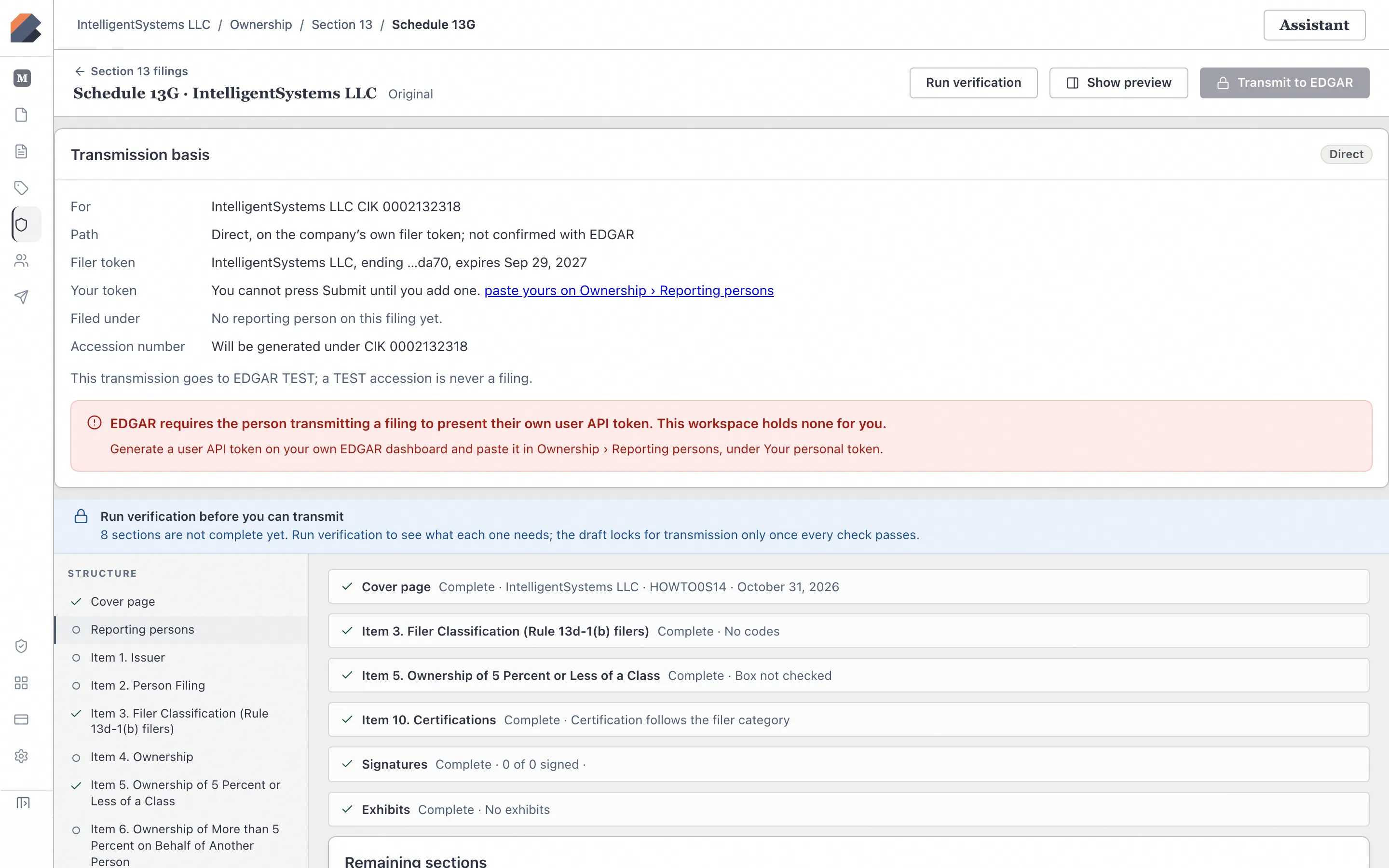
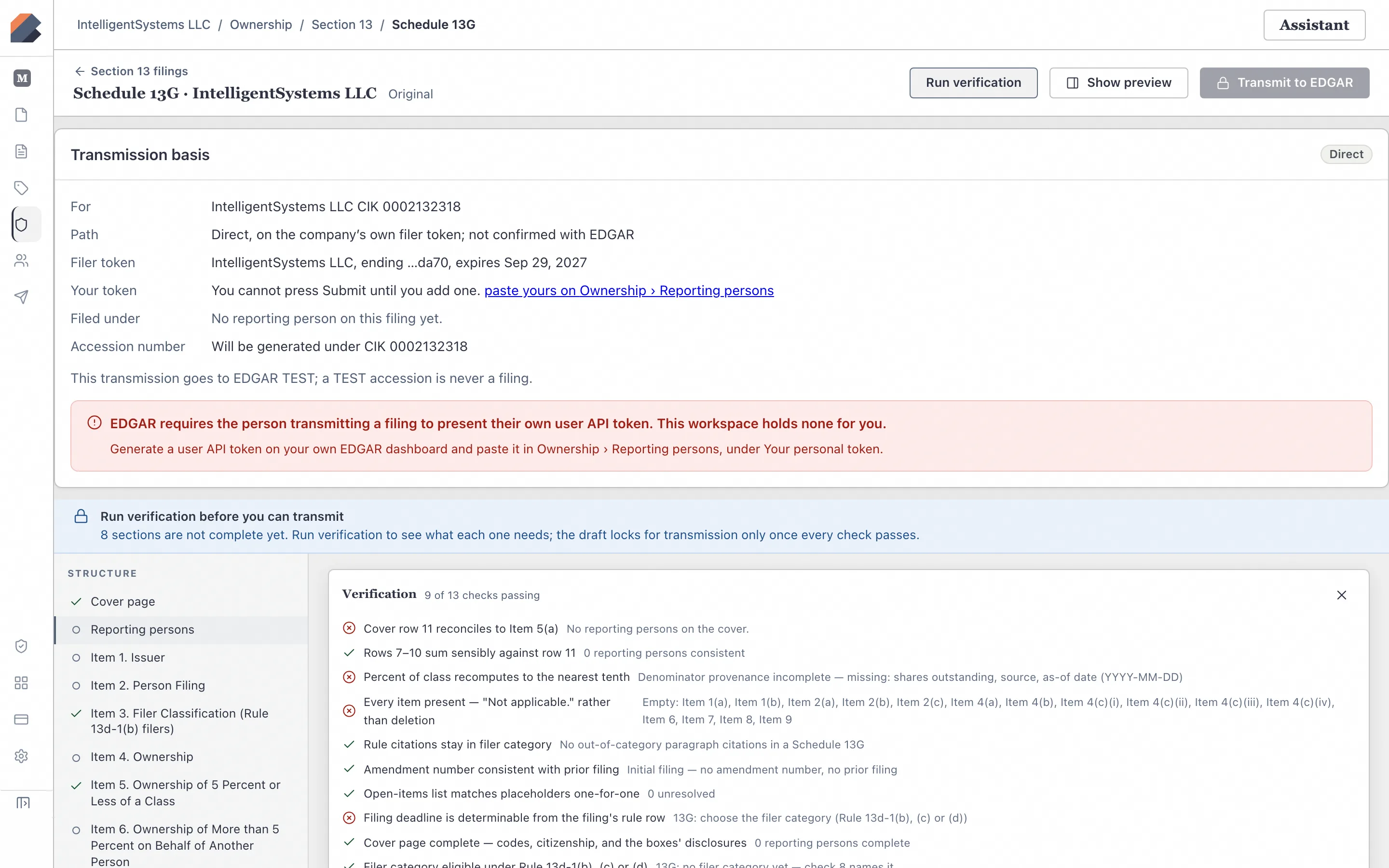
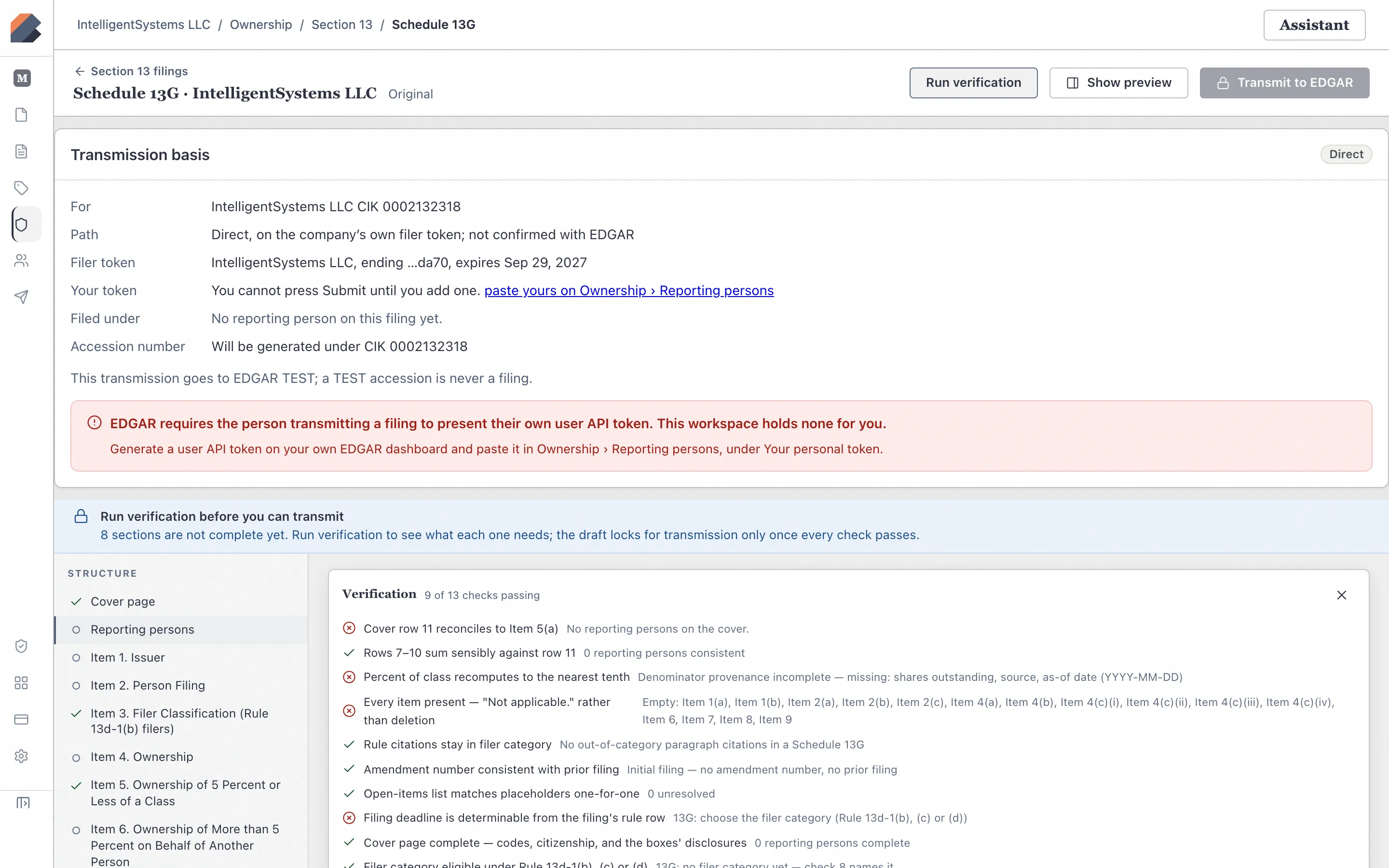
Complete the Cover Page & Items, run Verification, and inspect the Transmit lock
Inside the Schedule 13G editor, complete the Cover Page beneficial ownership rows (Sole/Shared Voting and Dispositive Power, aggregate amount, and percent of class) and Items 1–10. Click the Verification tab to inspect live schema and completeness checks, and open Transmit to see the pre-transmission gate (which stays locked until all verification errors and filer credentials are satisfied; Schedule 13D/13G drafting, verification, test filing, and package export are live today, with live EDGAR submission coming soon).